
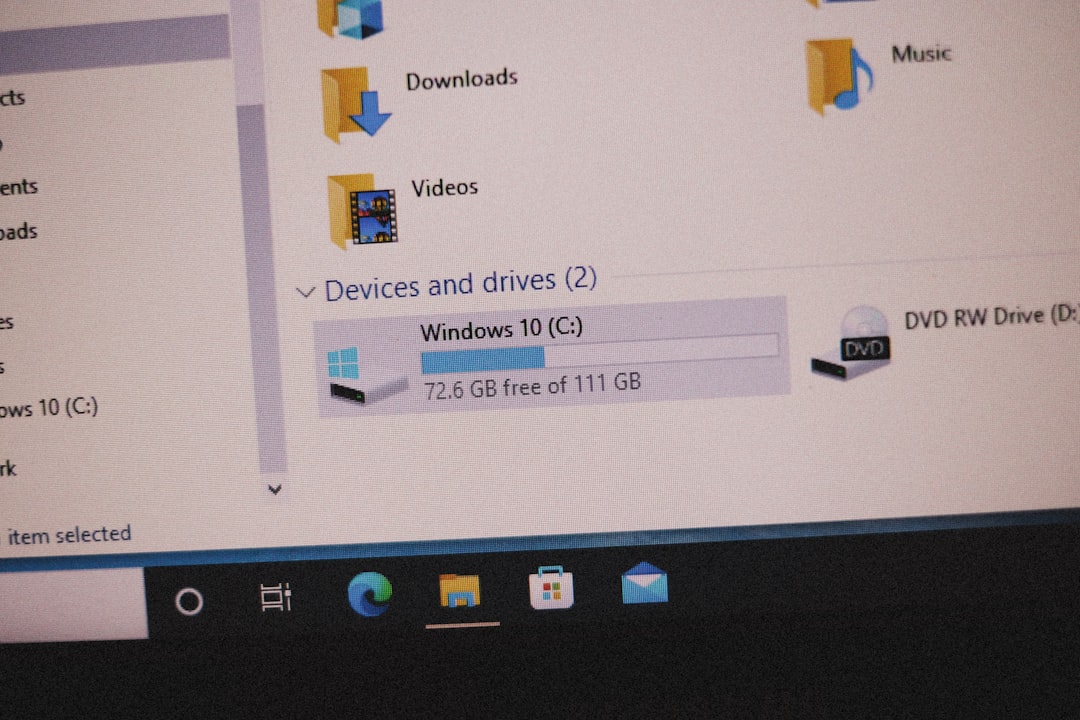
Few things are more frustrating than setting up your preferred Windows File Explorer layout—only to have it mysteriously reset. If you’ve enabled Compact View to reduce spacing between files and folders, you likely appreciate the cleaner, tighter layout. But when Windows keeps reverting to the default spacing, productivity takes a hit. Fortunately, there are several proven fixes that address this issue at its root.
TLDR: If Windows Compact View keeps resetting, it’s usually caused by folder template conflicts, corrupted File Explorer settings, Windows updates, or sync issues. You can fix it by resetting folder options properly, clearing the File Explorer history cache, adjusting folder templates, or modifying registry settings. In more stubborn cases, disabling sync settings or creating a new user profile may resolve the issue. The steps below provide a complete troubleshooting roadmap.
Understanding Compact View in Windows
Compact View in Windows 10 and Windows 11 reduces the spacing between items in File Explorer. This feature is especially useful for users who:
- Work with large numbers of files
- Prefer denser layouts
- Are used to older Windows versions
- Want less whitespace in their interface
In Windows 11, Compact View can be toggled via:
- File Explorer → View → Compact View

While enabling it is simple, keeping it enabled can sometimes be surprisingly difficult.
Why Does Compact View Keep Resetting?
Before diving into the solutions, it’s important to understand what might be causing the problem. Common culprits include:
- Folder template inconsistencies
- Corrupted File Explorer cache or history
- Windows updates overriding preferences
- Microsoft account sync settings
- User profile corruption
Windows sometimes treats display settings as folder-specific rather than global, which can lead to layout resets when navigating between directories.
Fix #1: Apply Compact View Correctly to All Folders
One common mistake is enabling Compact View but not applying the layout to all folders. Here’s how to ensure your settings stick:
- Open File Explorer.
- Enable Compact View under the View menu.
- Click the three dots (See more) → Options.
- Go to the View tab.
- Select Apply to Folders.
- Click Yes when prompted.
This forces Windows to replicate the settings across all folder types that share the same template.
Tip: You may need to repeat this process for different folder templates such as Documents, Pictures, or General Items.
Fix #2: Reset Folder View Cache
If settings continue to revert, your folder view cache may be corrupted. Clearing it forces Windows to rebuild layout configurations.
Step-by-step method:
- Press Win + R and type regedit.
- Navigate to:
HKEY_CURRENT_USER\Software\Classes\Local Settings\Software\Microsoft\Windows\Shell
- Delete the following keys:
- Bags
- BagMRU
- Restart your computer.
Important: Back up your registry before making changes. Deleting these keys is safe for layout resets, but mistakes elsewhere can cause issues.
Fix #3: Check Folder Templates
Windows automatically assigns folder templates such as:
- General Items
- Documents
- Pictures
- Music
- Videos
If a folder is optimized for a specific content type, its layout may override Compact View.
To fix this:
- Right-click the folder.
- Select Properties.
- Go to the Customize tab.
- Under Optimize this folder for, select General items.
- Check Also apply this template to all subfolders.
This prevents content-based layout overrides.
Fix #4: Disable Sync Settings
If you use a Microsoft account, Windows may synchronize settings across devices. Sometimes this sync process overwrites local File Explorer configurations.
To test this:
- Open Settings.
- Go to Accounts → Windows backup or Sync your settings.
- Turn off Remember my preferences.
Restart your computer and check if Compact View remains enabled.
Fix #5: Run System File Checker
Corrupted system files can interfere with user preferences.
Run the System File Checker tool:
- Open Command Prompt as Administrator.
- Type:
sfc /scannow
- Press Enter and wait for completion.
This scan repairs corrupted Windows system files that might be affecting layout retention.
Fix #6: Check for Windows Updates (or Roll Back)
Sometimes the problem appears immediately after a Windows update. Updates can reset UI preferences.
To check:
- Go to Settings → Windows Update
- Review update history
If the issue started recently:
- Consider uninstalling the most recent update
- Check community forums to see if others report similar behavior
On the other hand, installing pending updates may also resolve known bugs.
Fix #7: Restart File Explorer Properly
Sometimes change persistence fails because File Explorer isn’t properly restarted.
- Press Ctrl + Shift + Esc to open Task Manager.
- Find Windows Explorer.
- Click Restart.
After restarting, enable Compact View again and see if it persists after rebooting.
Fix #8: Create a New User Profile
If none of the above solutions work, your Windows user profile may be corrupted.
To test:
- Go to Settings → Accounts.
- Select Family & other users.
- Create a new local user account.
- Log in with the new account.
- Enable Compact View.
If the setting sticks in the new profile, the issue is profile-related. You can migrate your data to the new profile as a long-term fix.
Advanced Registry Fix (Optional)
For persistent cases, you can increase the folder view cache size. Windows sometimes forgets folder preferences when the limit is exceeded.
Navigate to:
HKEY_CURRENT_USER\Software\Classes\Local Settings\Software\Microsoft\Windows\Shell
Create or modify a DWORD (32-bit) Value called:
BagMRU Size
Set its value to:
- 5000 (Decimal)
This increases the number of folder view settings Windows remembers.
Restart after making this change.
Preventing Future Resets
Once the issue is resolved, follow these best practices:
- Avoid frequent layout changes across different folder types
- Keep Windows updated but monitor major updates
- Limit registry cleaning tools that may remove folder cache entries
- Use consistent folder templates
- Periodically check sync settings
Most resets happen due to system-level changes rather than accidental user actions.
When It Might Be a Bug
There are times when everything is configured correctly, but Compact View still resets. In such cases, it may be a legitimate Windows bug. If you suspect this:
- Report the issue via the Feedback Hub
- Check Windows Insider release notes
- Monitor discussions in Microsoft support forums
UI consistency bugs are not uncommon after major feature updates.
Final Thoughts
Windows Compact View is a simple feature, but when it keeps resetting, it can point to deeper configuration or system issues. The good news is that most cases can be resolved by methodically applying folder settings, clearing the view cache, or adjusting sync preferences.
In more persistent scenarios, registry tweaks or creating a new user profile may be necessary. The key is understanding that File Explorer views are template-driven and sometimes device-synced—meaning a small configuration oversight can override your preferred layout.
With the fixes outlined above, you should be able to restore Compact View permanently and enjoy a streamlined, clutter-free File Explorer once again.