
When a computer screen suddenly goes black, it can feel like the entire system has failed. In many cases, however, the computer is still running, the fans are spinning, audio may continue, and only the display output has disappeared. One of the most common causes is a problem involving the graphics processing unit, or GPU, including its drivers, power delivery, temperature, cable connection, or hardware stability.
TLDR: If your computer screen keeps going black, the GPU is one of the first components to investigate. Start by checking the monitor cable, display input, GPU driver, temperature, and power connections. If the black screen happens during gaming, video editing, or other demanding tasks, the GPU may be overheating, underpowered, unstable, or failing. Work through the fixes below carefully before assuming the graphics card needs replacement.
Why a GPU Can Cause a Black Screen
Your GPU is responsible for creating the image you see on your monitor. If the GPU stops sending a stable signal, the monitor may go black even though the rest of the computer continues running. This can happen for several reasons, ranging from simple software errors to serious hardware faults.
A black screen is especially suspicious if it occurs when the GPU is under load. For example, the display may cut out when you launch a game, render a video, open a 3D application, or connect multiple monitors. These situations place greater demand on the graphics card, its memory, its drivers, and its power supply.
It is important to approach the issue methodically. Replacing the GPU too early can be expensive and unnecessary. On the other hand, ignoring repeated black screens can lead to data loss, crashes, and possible hardware damage if overheating or power instability is involved.
Common Symptoms of a GPU Related Black Screen
Not every black screen is caused by the GPU, but several signs point strongly in that direction. Look for patterns rather than relying on a single incident.
- The screen goes black during gaming or heavy graphics use. This often suggests overheating, power problems, or driver instability.
- The computer stays on after the screen turns black. Fans, lights, or audio may continue, but there is no display signal.
- The monitor says “No Signal.” This indicates that the display is no longer receiving output from the GPU or the cable connection.
- The issue started after a driver update. A faulty or incompatible graphics driver can cause display dropouts.
- Artifacts appear before the screen goes black. Flickering, colored lines, blocks, or distorted textures may indicate GPU memory or hardware instability.
- The system restarts or freezes after the black screen. This may point to a crash caused by the graphics driver or power supply.
Step 1: Check the Monitor Cable and Display Input
Before changing software or opening the computer, check the basics. A loose or damaged cable can mimic a GPU failure. DisplayPort and HDMI cables can become slightly disconnected, especially if the computer case is moved or cables are under tension.
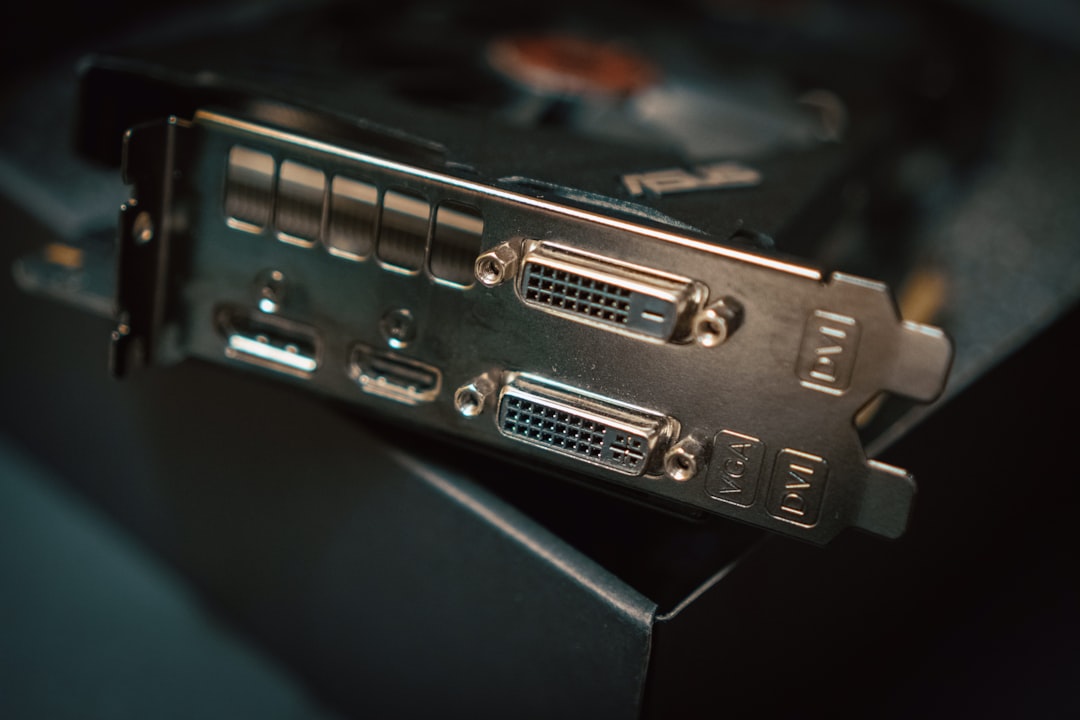
Turn off the computer and monitor, then unplug and reconnect the display cable at both ends. Make sure the cable is connected to the graphics card ports, not the motherboard video output, unless you are intentionally using integrated graphics. If your GPU has multiple ports, try another port. If possible, test with a different cable and a different monitor.
Also confirm that the monitor is set to the correct input source. Some displays automatically switch inputs, while others must be manually set to HDMI, DisplayPort, or USB C. A simple input mismatch can look like a serious computer problem.
Step 2: Restart the Graphics Driver
On Windows, you can attempt to reset the graphics driver without restarting the entire computer. Press Windows + Ctrl + Shift + B. The screen may flicker, and you may hear a beep. This shortcut tells Windows to restart the graphics driver.
If the display returns, the issue may be driver related rather than a complete hardware failure. However, if this happens repeatedly, you should still update, roll back, or reinstall the GPU driver. A driver reset is a temporary recovery step, not a permanent solution.
Step 3: Update or Reinstall the GPU Driver
GPU drivers are a frequent cause of black screen problems. An outdated driver may conflict with newer applications, while a newly released driver may contain bugs. Corrupted driver files can also cause the GPU to stop outputting video.
Start by downloading the correct driver from the official website for your GPU manufacturer. For most users, this means NVIDIA, AMD, or Intel. Avoid random driver websites, as they may provide outdated, modified, or unsafe files.
If the problem began immediately after a driver update, consider rolling back to the previous stable version. In Windows, you can open Device Manager, expand Display adapters, right click your GPU, and check the driver options. If rollback is unavailable, manually install an older known stable driver from the manufacturer.
For persistent issues, a clean driver installation is recommended. Many technicians use a tool such as Display Driver Uninstaller in Safe Mode to remove old driver remnants before installing a fresh driver. This can solve deep driver conflicts that a normal reinstall may not fix.
Step 4: Check GPU Temperature
Overheating is one of the most common GPU related causes of a black screen. When the graphics card becomes too hot, it may throttle performance, crash the driver, or shut down display output to protect itself.
Use reliable monitoring software to check GPU temperature while the computer is idle and under load. Idle temperatures vary by model, but very high temperatures at rest may indicate poor airflow, dust buildup, or a failing fan. Under load, many GPUs can safely reach high temperatures, but repeated black screens near peak temperatures are a warning sign.
Inspect the GPU fans while the computer is running. Make sure they spin when the card is under load. Some modern GPUs keep fans off at low temperatures, so do not assume a stopped fan is faulty while idle. However, if the card is hot and the fans are not spinning, that is a serious problem.
To reduce GPU temperature:
- Clean dust from the GPU heatsink, case filters, and fans.
- Improve airflow by organizing cables and clearing blocked vents.
- Make sure intake and exhaust fans are working correctly.
- Remove aggressive overclocks and return the GPU to default settings.
- Consider replacing old thermal paste if the card is older and out of warranty.
Step 5: Inspect GPU Power Connections
A graphics card needs stable power. If the GPU does not receive enough power, it may fail under load and cause the display to go black. This is especially common with high performance graphics cards, older power supplies, or systems that were upgraded without checking power requirements.
Turn off the computer, unplug it, and open the case. Check that all required PCIe power connectors are firmly seated in the GPU. Some cards require one, two, or even three power connectors. A connector that looks attached may still be slightly loose.
Do not use damaged cables, burnt connectors, or questionable adapters. If your GPU requires multiple PCIe power cables, it is often better to use separate cables from the power supply rather than one daisy chained cable, especially for power hungry cards.
Also consider whether the power supply unit, or PSU, is adequate. A low quality or aging PSU may work during light tasks but fail when the GPU draws more power. If black screens happen only during demanding workloads, power delivery should be taken seriously.
Step 6: Remove Overclocks and Undervolts
Overclocking can improve performance, but unstable settings often cause black screens. This includes GPU core overclocks, memory overclocks, undervolts, custom power limits, and aggressive fan curves. Even settings that worked previously can become unstable after driver updates, game updates, or seasonal temperature changes.
Return the GPU to factory defaults using your tuning software. If you use tools such as MSI Afterburner, AMD Adrenalin, or similar utilities, disable automatic profiles and restart the computer. Then test the system again under the same conditions that previously caused the screen to go black.
If the problem disappears at default settings, the GPU may not be defective. It may simply have been running beyond stable limits. For long term reliability, prioritize stability over small performance gains.
Step 7: Test with Integrated Graphics or Another GPU
If your processor or motherboard supports integrated graphics, you can use it for troubleshooting. Shut down the computer, connect the monitor to the motherboard display output, and remove or disable the dedicated GPU if necessary. If the black screen problem disappears, the dedicated GPU or its power delivery becomes more suspect.
Another strong test is to try the GPU in a different computer or install a known working GPU in your current system. This helps separate a graphics card problem from a motherboard, PSU, monitor, or software issue.
These tests are not always convenient, but they are valuable. Guessing can lead to replacing the wrong component. Hardware testing provides evidence.
Step 8: Check Windows Power and Display Settings
Sometimes the screen appears to go black because of power management settings rather than GPU failure. Review your sleep, display timeout, and power plan settings. Set the display timeout longer for testing, and temporarily disable sleep mode to see whether the problem changes.
Also check multi monitor settings. A display may go black if Windows changes the active monitor, refresh rate, resolution, or HDR setting. If the issue started after connecting a new display, docking station, adapter, or high refresh rate monitor, test with a simpler configuration.
Set the monitor to a standard refresh rate such as 60 Hz for troubleshooting. If the black screen stops, the cable, monitor, GPU port, or driver may be struggling with the higher bandwidth mode.
Step 9: Look for Signs of GPU Failure
A failing GPU can cause repeated black screens even after drivers, cables, temperatures, and power are checked. Hardware failure is more likely if the card shows visual artifacts, crashes in multiple operating systems, fails stress tests quickly, or produces black screens in another computer.
Other warning signs include burnt smells, visible damage, fan failure, unusually loud coil whine combined with instability, or crashes that become more frequent over time. If the GPU is still under warranty, do not disassemble it unless the manufacturer allows it, as this may void coverage.
If the card is old, heavily used, or previously used for mining or constant rendering, wear may be a factor. GPU memory faults can be particularly difficult to repair and often require replacement rather than simple maintenance.
When to Seek Professional Help
If you are uncomfortable opening the computer, testing power connections, or reinstalling drivers, it is reasonable to contact a qualified technician. You should also seek help immediately if you see sparks, melted connectors, burning smells, or repeated shutdowns. These symptoms can involve electrical risk and should not be ignored.
For business systems or workstations, black screen issues should be documented carefully. Note when the problem happens, what software is running, GPU temperature, driver version, and whether the system continues operating. This information can help a technician diagnose the issue faster and avoid unnecessary parts replacement.
Final Checklist for Fixing a GPU Black Screen
- Reconnect or replace the HDMI, DisplayPort, or USB C cable.
- Confirm the monitor input and test another display port.
- Reset the graphics driver with Windows + Ctrl + Shift + B.
- Update, roll back, or clean reinstall the GPU driver.
- Monitor GPU temperatures under load.
- Clean dust and verify GPU fans are working.
- Check PCIe power cables and PSU capacity.
- Disable overclocks, undervolts, and custom tuning profiles.
- Test with integrated graphics or another GPU if possible.
- Consider warranty service if hardware failure is likely.
A computer screen that keeps going black is frustrating, but it is usually diagnosable with a careful process. The GPU is a prime suspect because it controls the display signal and is heavily affected by drivers, heat, and power stability. Start with simple external checks, then move toward driver repair, temperature monitoring, power inspection, and hardware testing. If the issue continues after these steps, the graphics card may need professional evaluation or replacement.