
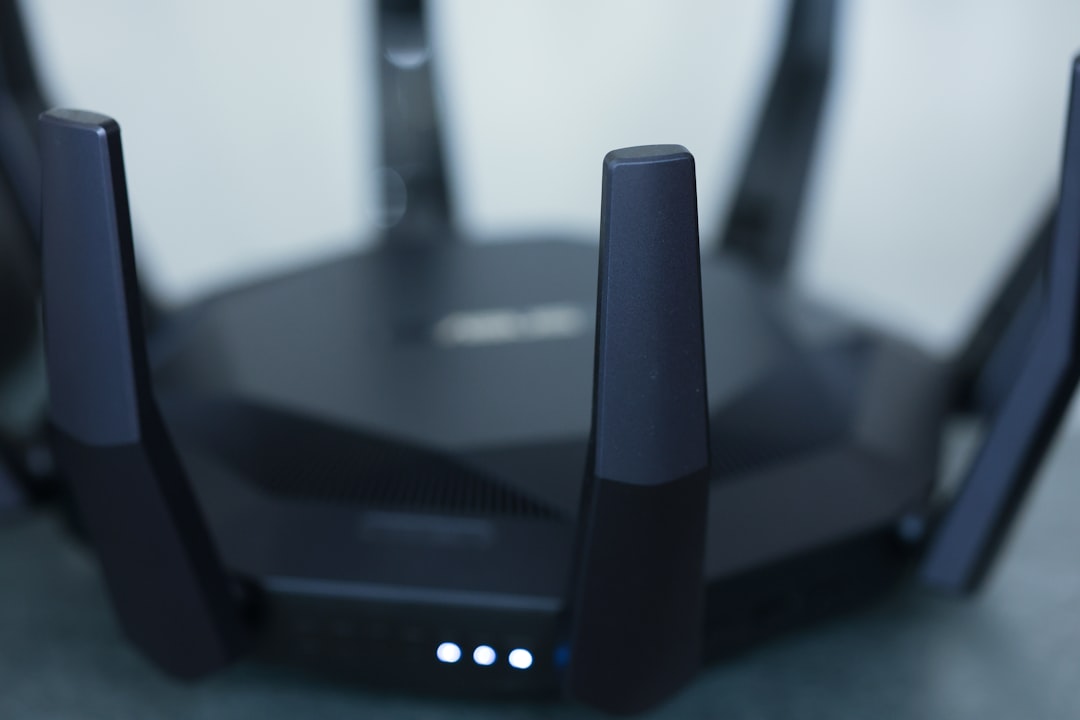
Your Wi-Fi router has a secret. Well, not a spy-level secret. It is the network security key. Most people call it the Wi-Fi password. You need it when you connect a phone, laptop, tablet, smart TV, game console, or that one printer that acts like it owns the house.
TLDR: Your network security key is usually printed on a sticker on your Wi-Fi router. Look for words like Wi-Fi Password, Wireless Key, WPA Key, or Security Key. If the sticker is gone, you can check your router app, router settings page, or a device that is already connected. If all else fails, you can reset the router, but that should be your last move.
What Is a Network Security Key?
A network security key sounds fancy. It is not. It is just the password for your wireless network.
When your device asks for a network security key, it is asking, “Hey, what is the Wi-Fi password?”
This key protects your internet from unwanted guests. Without it, neighbors, strangers, or random people in a parked car could use your Wi-Fi. Not cool.
The key is usually used with security types like:
- WPA
- WPA2
- WPA3
If you see those letters, do not panic. They are just security systems that keep your Wi-Fi safer.
First Stop: Check the Router Sticker
This is the easiest place to look. Your router may have a sticker on it. It is often on the bottom, back, or side.
Pick it up gently. Do not pull the cables like a wild octopus. Look for a label with network info.
The network security key may be listed as:
- Wi-Fi Password
- Wireless Password
- Network Key
- Security Key
- WPA Key
- WPA2 Key
- Pre-Shared Key
You may also see the SSID. That is the Wi-Fi network name. It tells you which network the password belongs to.
For example, the sticker may show:
- SSID: HomeWiFi123
- Password: BlueTiger789
In this case, BlueTiger789 is your network security key.
Check the Router Box or Setup Card
Still have the router box? Nice. You are more organized than many humans.
Some routers come with a small setup card. It may show the default Wi-Fi name and password. Internet providers also sometimes give you a paper with this information.
Look for words like:
- Default Wireless Password
- Wi-Fi Key
- Network Name
- Gateway Login
If you changed the password after setup, the card may not help. It will only show the old default key.
Use Your Router App
Many modern routers have an app. This is great. Apps are much easier than typing strange numbers into a browser.
Your internet provider may also have an app. Big providers often let you view or change your Wi-Fi password there.
Open the app and look for sections like:
- Wi-Fi Settings
- Network
- Wireless
- Password
- Security
You may need to sign in. Use your account email and password. This is not always the same as your Wi-Fi password.
Once inside, you may see your network name and password. Some apps hide the password behind an eye icon. Tap it to reveal the secret treasure.
Log In to the Router Settings Page
If there is no app, you can use the router settings page. This is like the router’s control room.
You usually get there by typing an address into a web browser. Common router addresses include:
- 192.168.0.1
- 192.168.1.1
- 10.0.0.1
Type one into the address bar. Press enter. If it works, you will see a login page.
The admin login may be printed on the router sticker. It may say Admin Username and Admin Password. This is different from the Wi-Fi password.
Common usernames are:
- admin
- user
Common passwords may be printed on the router. If you changed the admin password and forgot it, things get trickier.
After logging in, look for:
- Wireless
- Wi-Fi
- Security
- Wireless Settings
Your network security key should be listed there. It may be hidden. Look for a button that says Show Password.

Find It on a Windows Computer
If your Windows computer is already connected to the Wi-Fi, it may know the key. It has been keeping the secret for you.
Here is a common way to find it:
- Open Control Panel.
- Go to Network and Internet.
- Click Network and Sharing Center.
- Click your Wi-Fi network name.
- Choose Wireless Properties.
- Go to the Security tab.
- Check Show characters.
The password should appear in the Network security key box.
You may need admin permission. If the computer says no, ask the person who manages it.
Find It on a Mac
Macs can also save Wi-Fi passwords. They store them in an app called Keychain Access.
Try this:
- Open Keychain Access.
- Search for your Wi-Fi network name.
- Double-click the network.
- Check Show password.
- Enter your Mac password if asked.
Now the saved Wi-Fi password should appear. Mac makes you prove you are allowed to see it. Very dramatic. Also useful.
Find It on a Phone or Tablet
Phones can sometimes show or share Wi-Fi passwords. It depends on the device.
On many iPhones, you can go to Wi-Fi settings, tap the info button next to the network, and view the password after using Face ID, Touch ID, or your passcode.
On many Android phones, you can open Wi-Fi settings and tap the connected network. You may see a Share option. It may show a QR code and the password.
This is handy when a guest asks for Wi-Fi. Instead of reading out a password like “capital P, tiny goat, seven, question mark, wait no…”, you can show a QR code.
What If the Password Was Changed?
The sticker shows the default password. But someone may have changed it.
This often happens when:
- You set up the router yourself.
- Your internet provider installed it.
- A family member wanted a “better” password.
- The old password was too hard to type.
If the sticker password does not work, try the app or router settings page. You can also check a device that is already connected.
What If You Still Cannot Find It?
If nothing works, you may need to reset the router. This wipes custom settings and returns the router to factory defaults.
Most routers have a small Reset button. You may need a paperclip to press it. Hold it for about 10 to 15 seconds. Lights may blink. The router may restart.
After that, the password on the sticker should work again.
Warning: Resetting can remove your custom Wi-Fi name, password, and settings. If you have smart home devices, they may disconnect. Your robot vacuum may feel abandoned.
Tips for Keeping Your Wi-Fi Key Safe
Once you find the network security key, save it somewhere safe.
- Use a trusted password manager.
- Write it down and store it in a safe place.
- Do not tape it to the front door.
- Do not share it with random people.
- Change it if too many people know it.
A strong Wi-Fi password should be long. It should not be easy to guess. Avoid names like password123, ilovewifi, or letmein. Those are not passwords. Those are invitations.
Final Thought
Your network security key is not hiding in a dragon cave. It is usually on the router sticker, in your router app, inside the router settings, or saved on a connected device.
Start with the sticker. Then try the app. Then check connected devices. Save resetting for last.
Once you find it, guard it like the tiny internet treasure it is. Your Wi-Fi will stay safer. Your devices will stay connected. And your printer will still be weird. But at least it will have internet.