
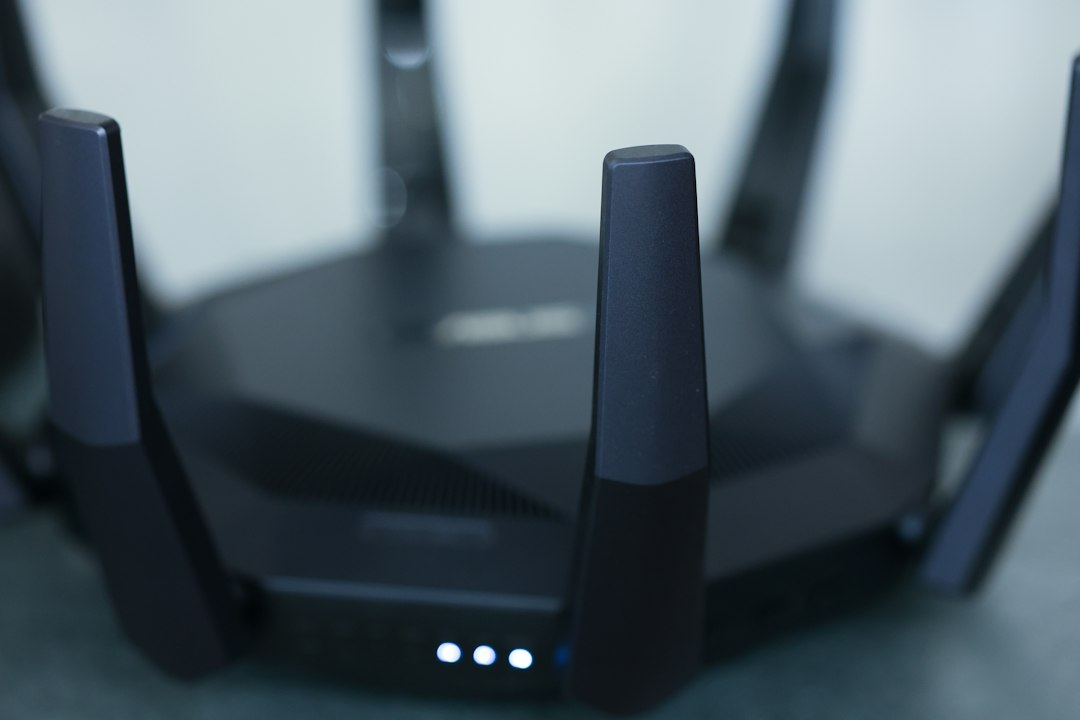
A gateway IP address is the local address your device uses to reach other networks, including the internet. On most home networks, that address is the router’s private IP, often something like 192.168.1.1 or 192.168.0.1. On Windows, it appears as Default Gateway in the ipconfig output [source: Microsoft].
TLDR: Your gateway IP is usually your router’s address inside your local network. If your laptop has the IP address 192.168.1.24 and the gateway is 192.168.1.1, traffic bound for a website first goes to 192.168.1.1. In a small office with 25 devices, one wrong gateway setting can knock several users offline while the WiFi still looks “connected.” Router settings let you change the gateway behavior; diagnostic tools help you read and test it.
What the Gateway IP Actually Does
Your device can talk directly to other devices on the same local network. For example, your computer may send files to a printer at 192.168.1.50. That traffic stays inside the building.
But when your device needs to reach a site such as a bank, email service, or cloud app, it needs a way out. That exit point is the default gateway. In most homes and small offices, the router plays that role.
Think of it as the first stop for traffic that does not belong on your local network. The gateway does not replace your public IP address. It also does not mean your router is the whole internet. It is simply the next device your computer trusts to send traffic onward.
Gateway IP vs Router IP
In many everyday cases, these terms point to the same number. That is why people mix them up.
- Router IP: The address used to reach the router’s admin panel on the local network.
- Gateway IP: The address your device uses to send traffic outside its local network.
- Public IP: The internet-facing address assigned by your ISP to your router or modem.
On a typical home network, the router IP and gateway IP might both be 192.168.1.1. In larger networks, they may differ. A company may use several routers, VLANs, firewalls, and routing rules. In that setup, the gateway IP is part of a wider design.
Router Settings: Where Changes Happen
Router settings are where you can change how the network works. This includes the router’s local IP address, DHCP range, DNS settings, firewall rules, and port forwarding.
If you log in to your router at 192.168.1.1, you are entering the control panel. This is not just a status screen. Changes here can break access for everyone using the network.
Common gateway-related router settings include:
- LAN IP address: The router’s local address, often used as the gateway.
- DHCP server: The feature that hands out IP addresses to devices.
- DHCP gateway option: The gateway address given to connected devices.
- DNS settings: Often sent together with gateway details.
- Static routes: Rules for sending traffic to specific networks.
Honestly, it feels like some router admin pages hide basic settings three menus deep. A simple gateway check can turn into 90 seconds of clicking through “Advanced,” “LAN,” and “Network” tabs. That is annoying, but it also reduces accidental changes by casual users.

Network Diagnostic Tools: Where Checks Happen
Diagnostic tools do not usually change the router. They help you see what your device is using right now. That difference matters.
Use these tools when a device is online but websites fail, when WiFi connects but nothing loads, or when only one machine has trouble.
- Windows: Run
ipconfigin Command Prompt and check Default Gateway. - macOS: Open Network settings, or use
netstat -nrin Terminal. - Linux: Use
ip routeand look for the line starting withdefault via. - Ping: Test the gateway with a command like
ping 192.168.1.1. - Traceroute: See the first hop your traffic uses when reaching the internet.
If you can ping your gateway but not a website, the local network may be fine. The issue may be DNS, ISP service, or a firewall rule. If you cannot ping the gateway at all, focus on WiFi, Ethernet, IP assignment, or router health.
How to Find Your Gateway IP
Here is the practical route. Start on the device with the problem.
- Check the IP address. Is it in the expected range, such as 192.168.1.x?
- Check the default gateway. It should usually match the router’s local IP.
- Ping the gateway. A reply means the device can reach the router.
- Try another device. If all devices fail, the router or ISP may be the issue.
- Log in to the router only if needed. Avoid changing settings until you know the current values.
Expect to waste time on this if the device has both WiFi and Ethernet active. Some systems may use the wrong adapter first. That can show a gateway you did not expect, especially with VPNs, docks, virtual machines, or mobile hotspots.
Common Gateway IP Problems
Gateway issues often look like internet outages. The signal icon may still look normal, which makes the problem more irritating.
- No gateway listed: The device may not have received DHCP settings.
- Wrong gateway: Traffic is being sent to a device that cannot route it.
- Duplicate IP conflict: Two devices may be trying to use the same address.
- Router IP changed: Old saved settings may point to the wrong gateway.
- VPN override: A VPN may force traffic through another gateway.
When to Change It, and When Not To
Most users should not change the gateway IP unless there is a clear reason. Good reasons include replacing a router, merging two networks, fixing an IP conflict, or meeting company network rules.
Bad reasons include “trying things” because the internet is slow. A slow connection is more often tied to WiFi signal, ISP congestion, DNS delay, weak hardware, or overloaded devices. Changing the gateway address can create a larger outage.
The safest rule is simple: use diagnostic tools to observe first. Use router settings to change only after you understand the current setup. That order prevents many avoidable mistakes.
A gateway IP address is small detail with a big job. It tells your device where to send traffic next. If you know how to read it in tools and where it lives in router settings, you can fix network problems faster and with less guesswork.