
Use WP Reset only after you back up the site, confirm what must stay, and accept that a reset will remove content, settings, and database clutter. Testing dozens of themes and plugins on a live WordPress site can leave behind old tables, broken shortcodes, unused options, and weird styling bugs. Since WordPress powers around 43% of all websites, this mess is more common than people admit [source: W3Techs].
TLDR: If your live site has been used as a testing lab, back it up first, then use WP Reset to return WordPress to a clean state. For example, after testing 25 plugins and 12 themes, you may remove hundreds of leftover options and custom settings in minutes instead of hunting them by hand. Expect to rebuild content unless you restore it from a backup or staging copy. For safer cleanup and recovery tools, also check WP Reset.
Why your site feels broken after heavy testing
Every plugin wants a little piece of your database. Every theme adds options, widgets, image sizes, templates, menus, and sometimes custom post types. Delete the plugin, and some of that stuff may stay behind.
That is where the trouble starts. You switch back to your “real” theme, but the site still feels off. Pages load slower. The admin area takes a few extra seconds. A homepage section vanishes. A shortcode appears as plain text. Honestly, it feels like cleaning glitter out of carpet.
A proper reset gives you a clean WordPress database again. It is not the same as clicking “delete” on plugins. It removes the mess those plugins and themes created in the database.
Before you reset, make a real backup
Do not skip this. A reset is not a cute refresh button. It can remove posts, pages, comments, settings, menus, widgets, and users. If the site has any real customer data, orders, forms, downloads, or SEO work, stop and back it up.
At minimum, save:
- The database, including posts, settings, users, and plugin data.
- The wp-content folder, including uploads, themes, and plugins.
- A list of active plugins, so you know what to reinstall.
- Theme settings, if your theme has export tools.
- Analytics, SEO, and tracking codes, because they are easy to forget.
If the live site gets traffic, put it into maintenance mode. Better yet, clone it to staging and reset the staging version first. Testing a reset on production is possible, but it is not relaxing.
Install WP Reset
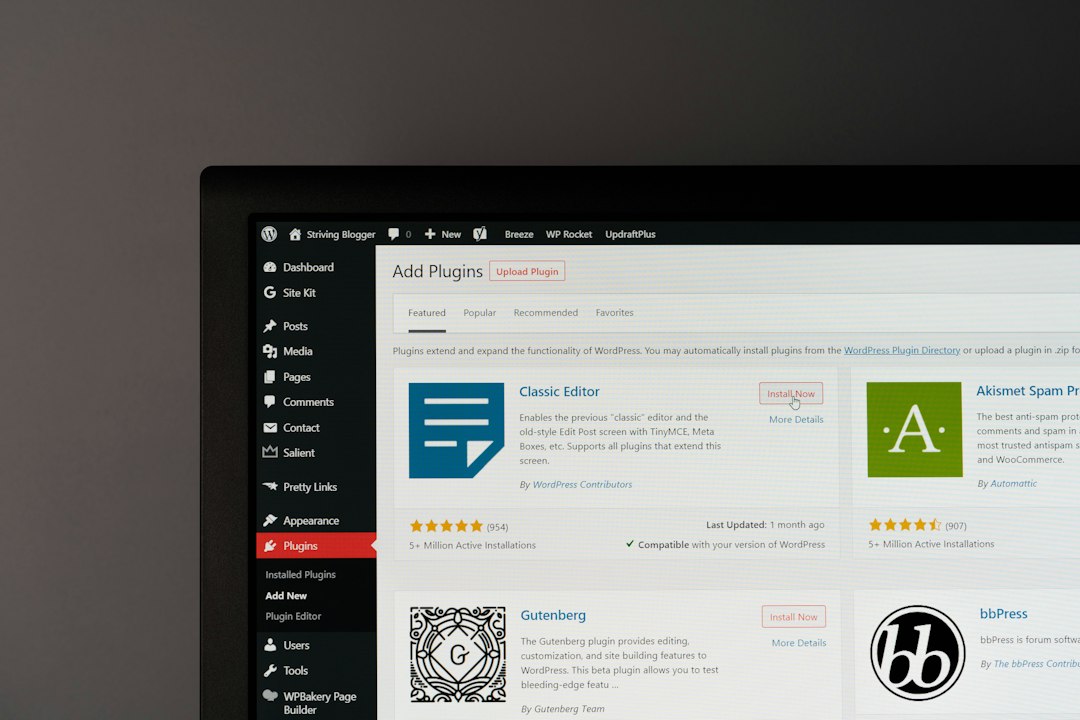
In your WordPress admin area, go to Plugins > Add New. Search for WP Reset, install it, and activate it. You can also download it from the official WordPress plugin page here: WP Reset plugin.
Once active, go to Tools > WP Reset. Read the screen carefully. The plugin is direct, which is good, but it also means you should not click through half-asleep.
Create a snapshot first
WP Reset includes a snapshot feature. A snapshot saves the current database state, so you can roll back if the cleanup goes sideways. This is useful before testing another theme or before running the main reset.
Important: snapshots are not a full backup of your site files. They are not a replacement for a hosting backup. They are best used as a quick safety net for database changes.

Choose the right reset option
WP Reset gives you more than one way to clean things up. Pick the one that matches the mess.
- Site Reset: Resets the database to a fresh WordPress install state. This is the big one.
- Delete Transients: Clears temporary cached data that can linger after plugin tests.
- Clean Uploads Folder: Helps remove unused uploaded files if you choose that tool.
- Delete Themes: Removes themes you no longer need.
- Delete Plugins: Clears out plugin files you installed for testing.
- Reset Theme Options: Useful when a theme panel is full of junk settings.
If your site is only a little messy, start with the smaller tools. If you used the live site to test everything under the sun, a full site reset may be faster.
What happens during a full reset?
A full site reset returns the WordPress database to a clean default state. Your site title, posts, pages, comments, menus, theme settings, and plugin settings can be removed. Your current admin user is usually preserved, so you can log back in after the reset.
WP Reset does not simply uninstall plugins one by one. It clears the database clutter tied to your test site. That is why it is useful after trying many builders, SEO plugins, membership tools, contact forms, gallery plugins, and theme demos.
It drives me crazy that some plugins leave tables behind after uninstalling. One plugin is harmless. Thirty plugins later, your database looks like a junk drawer.
Reset, then rebuild in the right order
After the reset, do not rush. Rebuild the site in a clean order:
- Install the main theme.
- Install only required plugins.
- Restore needed content from backup.
- Rebuild menus and widgets.
- Set permalinks again.
- Reconnect SEO, analytics, caching, and security tools.
- Test forms, checkout, login pages, and mobile layouts.
Keep a list of what you reinstall. If a plugin is not needed, leave it out. A clean reset is pointless if the same pile of test plugins comes back five minutes later.
When not to reset a live site
Do not reset a live store with active orders unless you have a full recovery plan. Do not reset a membership site without exporting users and subscriptions. Do not reset a blog if you have no copy of the posts. That mistake hurts.
If the site earns money, clone it first. Reset the clone. Confirm the process. Then schedule downtime and do it properly.
The smart way to test next time
Use staging for future experiments. Take a WP Reset snapshot before each major test. Try one theme or plugin at a time. Remove failures right away. Keep notes.
A reset is a fix, not a habit. WP Reset makes the cleanup fast, but the real win is learning not to turn your live site into a plugin playground again.