
Proxy settings tell a device or app where to send internet traffic before it reaches the final website or service. Instead of connecting straight to a site, the connection passes through a proxy server first. That server can hide the device’s IP address, apply access rules, cache content, or help a company inspect traffic. Microsoft notes that Windows can use either an automatic setup script or a manual proxy server address and port [source: Microsoft].
TLDR: Proxy settings are the instructions that tell a browser, phone, computer, or app to send traffic through a middle server. For example, an office may route 250 employee laptops through one proxy to block unsafe sites and log web access. A home user may notice a website loads 2 seconds slower when a proxy is enabled, because traffic takes an extra stop. Proxies can improve privacy and control, but bad settings can break internet access completely.
What Proxy Settings Mean
Proxy settings are usually made of a few simple parts. The most common are a proxy address, a port number, and sometimes a username and password. The address points to the proxy server. The port tells the device which “door” on that server to use.
A typical manual proxy may look like this:
- Server: proxy.example.com
- Port: 8080
- Authentication: username and password, if required
Some networks do not ask users to type those details by hand. They use automatic proxy configuration. In that case, the device gets a script or rule file that decides when traffic should use a proxy and when it should connect directly.
Honestly, it feels like proxy menus move every other software update. One version hides them under network settings. Another puts them under browser settings. The idea stays the same, though: the device needs to know whether traffic should go straight to the internet or stop at a proxy first.
How a Proxy Works
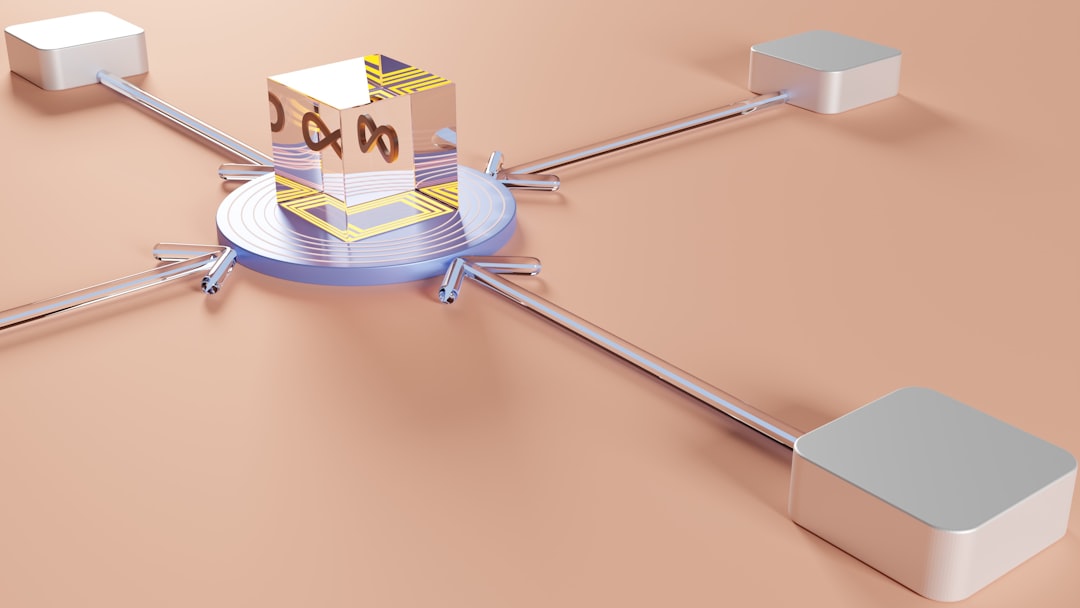
A proxy server sits between a device and the internet. When a person opens a website, the request goes to the proxy. The proxy then requests the page from the website. The website sees the proxy’s IP address, not always the original device’s IP address.
After that, the proxy sends the result back to the device. This can happen in less than a second on a good network. On a poor proxy, it can add delays, failed logins, broken images, or strange location errors.
Common Types of Proxies
Not all proxies work the same way. A simple guide should separate the main types.
- HTTP proxy: Handles web traffic, usually for websites that use HTTP.
- HTTPS proxy: Works with encrypted website traffic. It is common in company networks.
- SOCKS proxy: Handles many traffic types, not just web pages. It is often used for apps, games, or special tools.
- Transparent proxy: Runs without the user changing settings. Schools and offices often use it.
- Reverse proxy: Protects or manages traffic in front of a website or app server.
For most everyday users, the proxy that matters is the one inside the browser, operating system, or work device. If it is wrong, the browser may say there is no internet even when Wi-Fi is fine.
Why People Use Proxy Settings
Proxy settings are used for privacy, security, filtering, speed, and access control. A business may use them to block malware sites. A school may use them to filter adult content. A support team may use them to test how a site appears from another region.
Here are the most common reasons:
- Privacy: A proxy can mask the device’s IP address from the destination site.
- Access rules: A company can allow work tools and block risky sites.
- Traffic logs: Admins can review which sites were visited on a managed network.
- Content caching: A proxy can store copies of files to reduce repeated downloads.
- Regional testing: Teams can check whether content changes by country or city.
The catch is that a proxy is not magic privacy armor. If the proxy provider logs activity, the user’s traffic may still be recorded. If the proxy is free and unknown, it may be unsafe. A bad proxy can inject ads, steal logins, or slow every page.
Where Proxy Settings Are Found
Proxy settings can appear in several places. This is why troubleshooting can be annoying. A browser may use its own proxy. A system may use a different one. An app may ignore both and store a separate proxy setting.
Common places include:
- Windows network settings
- macOS network settings
- Android Wi-Fi network options
- iPhone and iPad Wi-Fi settings
- Browser settings, especially in managed environments
- App settings for tools such as download managers, chat apps, or development tools
Manual vs Automatic Proxy Setup
Manual setup means someone enters the server address and port by hand. This is common with paid proxy services, testing tools, and small office networks.
Automatic setup uses a script or auto detect option. Large companies prefer this because rules can be updated in one place. If a department needs a new blocked category, the network team can change the proxy rules without touching every laptop.
A manual setup is easier to understand. Automatic setup is easier to manage at scale. Both can fail if the address, script URL, or login details are wrong.
Proxy Settings vs VPN
A proxy and a VPN are often confused. Both can route traffic through another server. Still, they are not the same.
- A proxy usually works for selected traffic, such as a browser or app.
- A VPN usually sends most or all device traffic through an encrypted tunnel.
- A proxy may or may not encrypt traffic.
- A VPN is usually better for full-device privacy on public Wi-Fi.
For a simple site test, a proxy may be enough. For protecting all traffic on hotel Wi-Fi, a VPN is often the better tool.
Common Proxy Problems
Proxy errors can look like normal internet problems. That is what makes them irritating. A user may restart the router twice, only to find that one wrong port number caused the issue.
Common signs include:
- Websites fail to load, but messaging apps still work.
- Only work websites open.
- The browser asks for a proxy username and password again and again.
- Pages load slowly or time out after 10 to 30 seconds.
- Search results or prices appear for the wrong region.
Simple fixes include turning the proxy off, checking the port, confirming the server address, or asking the network admin whether a proxy is required. On a work or school device, users should avoid changing managed settings without permission.
Are Proxy Settings Safe?
Proxy settings are safe when the proxy is trusted, maintained, and used for a clear purpose. A company proxy can be part of a strong security plan. A paid proxy from a reputable provider can help with testing or privacy.
Unknown free proxies are risky. They may log traffic, sell data, or tamper with pages. If login pages, banking sites, or private work tools are involved, the proxy provider must be trusted. Otherwise, the safer choice is to turn it off.
FAQ
What are proxy settings in simple words?
Proxy settings tell a device to send internet traffic through another server before reaching the website or app it wants to use.
Should proxy settings be on or off?
They should be on only when a trusted network, workplace, school, or service requires them. For normal home browsing, they are usually off.
Can a proxy hide an IP address?
Yes. A proxy can show its own IP address to websites instead of the user’s device IP address. It does not always hide all identity signals, though.
Why does the internet stop working after changing proxy settings?
The proxy address, port, script, or login may be wrong. If the device sends traffic to a proxy that does not respond, websites may fail to load.
Is a proxy the same as a VPN?
No. A proxy usually works for selected apps or browser traffic. A VPN usually protects most device traffic through an encrypted connection.
Do phones have proxy settings?
Yes. Android and iPhone devices can use proxy settings, often inside the advanced options for a specific Wi-Fi network.