
Your PC should feel like a race car, not a sleepy turtle in a sweater. If your computer takes forever to start, freezes at the worst time, or sounds like a tiny jet engine, do not panic. Most slow PC problems are simple to fix. You can speed things up in minutes with a few smart moves.
TLDR: Restart your computer, close apps you do not need, and stop extra programs from opening at startup. Delete junk files, update your system, and check for malware. If your PC is still slow, free up disk space, clean the fan area, or consider adding more memory. Small fixes can make a big difference fast.
Why Is Your PC So Slow?
A slow PC is not always “old.” Sometimes it is just busy. Very busy. Like a waiter carrying 27 plates.
Your computer may be slow because:
- Too many apps are running at once.
- Startup programs are stealing power.
- Your storage is almost full.
- Malware is hiding in the background.
- Updates are waiting.
- Dust is making the machine too hot.
- Old hardware needs a small upgrade.
The good news? You do not need to be a tech wizard. You just need a plan. Grab a drink. Stretch your fingers. Let us fix that slow PC.
Step 1: Restart Your Computer
Yes, really. The classic “turn it off and on again” works for a reason.
When your PC stays on for days, apps can leave little bits of data behind. Memory gets crowded. Background tasks pile up. Your computer starts to feel like a closet stuffed with mystery cables.
Restarting clears the mess. It gives your PC a fresh start.
Do this:
- Save your work.
- Close open apps.
- Click Restart, not just Sleep.
- Wait for the PC to fully load again.
If your computer is suddenly faster, great. You just won round one.
Step 2: Close Apps You Are Not Using
Every open app uses memory. Some use a little. Some eat memory like snacks at a movie night.
You may have a browser open with 34 tabs. One tab is music. One is email. One is a recipe from 2021. One is doing something weird. They all count.
Close what you do not need. Keep only the important apps open.
On Windows, press Ctrl + Shift + Esc. This opens Task Manager. Look at the Processes tab. You can see which apps use the most CPU and memory.
On Mac, open Activity Monitor. Check the CPU and Memory tabs.
Tip: Do not close things with scary names unless you know what they are. Stick to apps you recognize.
Step 3: Stop Startup Programs
Some programs start every time your PC starts. Many do not need to. They sit in the background like tiny digital roommates. They drink your computer’s coffee.
Common startup hogs include:
- Chat apps
- Game launchers
- Cloud sync tools
- Music apps
- Printer tools
- Update helpers
To manage startup apps on Windows:
- Press Ctrl + Shift + Esc.
- Click Startup apps.
- Look at the list.
- Disable apps you do not need right away.
To manage startup apps on Mac:
- Open System Settings.
- Go to General.
- Click Login Items.
- Remove apps you do not need at login.
This fix can make startup much quicker. It can also help your PC feel lighter once it is running.
Step 4: Delete Junk Files
Your PC collects junk over time. Temporary files. Old downloads. Cache files. Leftovers from updates. Digital crumbs everywhere.
Cleaning these files can free up space. It can also help your system run better.
On Windows, use Disk Cleanup or Storage Sense.
Try this:
- Open Settings.
- Go to System.
- Click Storage.
- Use Cleanup recommendations or turn on Storage Sense.
On Mac:
- Click the Apple menu.
- Open System Settings.
- Go to General.
- Click Storage.
- Review large files and unused apps.
Also check your Downloads folder. It is often a dragon cave of old installers, random PDFs, and files named “final final real final.”
Step 5: Free Up Disk Space
A full drive makes a PC grumpy. Your system needs free space to work. If your storage is almost full, everything can slow down.
Try to keep at least 15% to 20% of your drive free. More is better.
Start with big files. They give you fast wins.
- Delete old videos you no longer need.
- Move photos to an external drive.
- Uninstall games you do not play.
- Clear old project files.
- Empty the Recycle Bin or Trash.
Important: Do not delete system folders. If you do not know what a file does, search before deleting it.
Step 6: Uninstall Apps You Never Use
Unused apps can slow your PC. Some run services in the background. Some take storage. Some just sit there looking suspicious.
Be honest. Do you really need that photo editor you installed once in 2018? What about the coupon toolbar? The mystery scanner app? The game demo?
Remove clutter.
On Windows:
- Open Settings.
- Click Apps.
- Choose Installed apps.
- Sort by size or install date.
- Uninstall what you do not need.
On Mac:
- Open Finder.
- Go to Applications.
- Drag unused apps to the Trash.
- Empty Trash when ready.
After uninstalling several apps, restart your computer. Let it settle.
Step 7: Update Your System
Updates can feel annoying. They pop up when you are busy. They ask to restart. They have terrible timing.
But updates matter. They fix bugs. They improve security. They can also improve speed.
On Windows:
- Open Settings.
- Go to Windows Update.
- Click Check for updates.
- Install what is available.
On Mac:
- Open System Settings.
- Click General.
- Choose Software Update.
- Install updates.
Also update graphics drivers if you play games, edit videos, or use design software. Graphics drivers can make a big difference.
Step 8: Scan for Malware
Malware can make your PC crawl. It may run hidden tasks. It may show popups. It may steal resources. Rude behavior.
Signs of malware include:
- Your browser opens strange pages.
- New toolbars appear.
- Your PC is hot while doing nothing.
- Popups appear often.
- Apps crash for no clear reason.
Run a full scan with your trusted security software. On Windows, Windows Security is built in and works well for many users.
Do this:
- Open Windows Security.
- Click Virus and threat protection.
- Choose Scan options.
- Select Full scan.
- Let it finish.
If anything is found, follow the instructions. Then restart your PC.
Step 9: Tame Your Browser
Your browser may be the main villain. Modern browsers are powerful, but they can be hungry.
Too many tabs can slow down any computer. Extensions can also cause problems. Some extensions track things. Some inject ads. Some are just badly made.
Try this browser cleanup:
- Close tabs you do not need.
- Bookmark pages instead of leaving them open.
- Remove extensions you do not use.
- Clear browser cache if pages act weird.
- Update your browser.
Fun rule: If a tab has been open so long it feels like furniture, close it.
Step 10: Check for Overheating
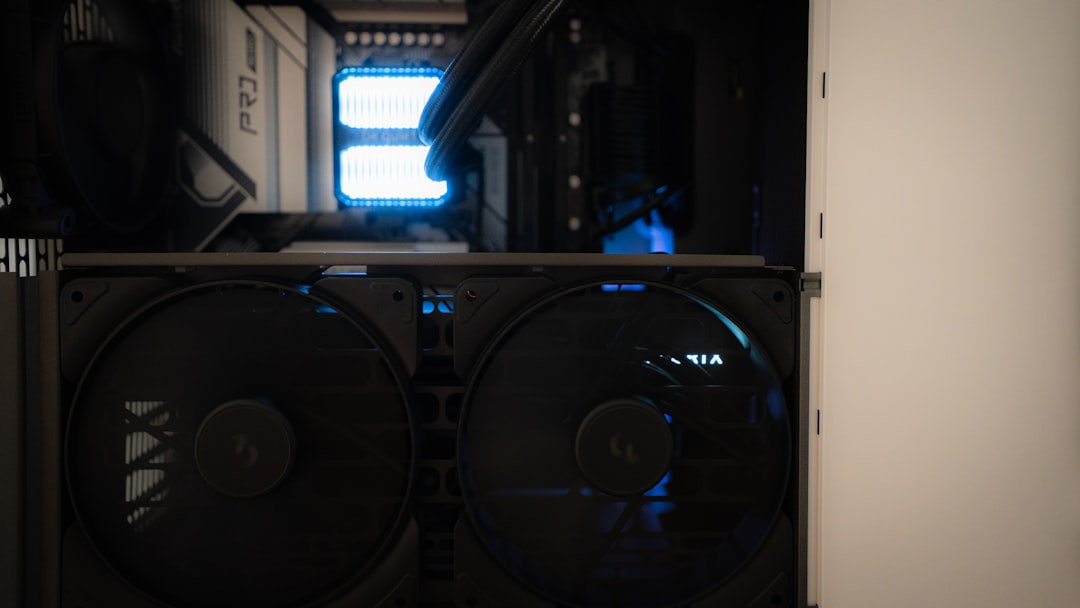
Heat makes computers slow down. When parts get too hot, the system protects itself by reducing speed. This is called thermal throttling. Fancy name. Simple problem.
Your PC might be too hot if:
- The fan is loud all the time.
- The case feels very warm.
- The laptop shuts down suddenly.
- Performance drops during games or video calls.
Give your computer room to breathe. Do not use a laptop on a blanket. Do not block vents. Dust the vents gently.
Use compressed air if you are comfortable. Blow dust out of vents. Short bursts are best. Hold fans still if you can reach them safely.
Safety note: Turn off and unplug the PC first. Be gentle. Computers are not piñatas.
Step 11: Change Power Settings
Your PC might be saving energy so hard that it forgets to be fast. Power settings can limit performance, especially on laptops.
On Windows:
- Open Settings.
- Go to System.
- Click Power and battery.
- Set power mode to Best performance when plugged in.
On Mac, check Battery settings. Make sure Low Power Mode is off when you need speed.
This is great for gaming, video editing, or heavy work. Just remember that higher performance can use more battery.
Step 12: Turn Off Fancy Effects
Animations look nice. Shadows look nice. Transparent menus look nice. But if your PC is older, visual effects can slow things down.
On Windows:
- Search for Performance.
- Open Adjust the appearance and performance of Windows.
- Choose Adjust for best performance.
- Or pick custom options.
This may make Windows look simpler. But it can feel faster. Think of it like removing a fancy hat so you can run.
Step 13: Upgrade RAM
If your PC is still slow, you may need more memory. RAM helps your computer juggle tasks. More RAM means better multitasking.
Signs you need more RAM:
- Your PC slows when many apps are open.
- Browser tabs reload often.
- Task Manager shows memory near full.
- Apps freeze when you switch between them.
For basic use, 8 GB can work. For smoother multitasking, 16 GB is much better. For video editing, gaming, or big projects, you may want more.
Not every laptop allows RAM upgrades. Check your model first.
Step 14: Switch to an SSD
If your PC still uses an old hard drive, an SSD can feel like magic. It is one of the best upgrades ever.
An SSD helps with:
- Faster startup
- Quicker app launches
- Faster file loading
- Less waiting
A PC with an SSD often feels new again. If you only do one hardware upgrade, make it this one.
Quick 10 Minute Speed Boost Plan
Need fast results? Do this mini routine.
- Restart your computer.
- Close extra apps and tabs.
- Disable unneeded startup programs.
- Delete obvious junk from Downloads.
- Empty Recycle Bin or Trash.
- Run a quick malware scan.
- Check for updates.
- Restart again.
This simple routine can turn a crawling PC into a much happier machine.
What Not to Do
Some “speed tricks” are not helpful. Some are risky. Avoid these mistakes.
- Do not install random booster apps. Many are useless or shady.
- Do not delete system files. That can break things.
- Do not run five antivirus apps. They may fight each other.
- Do not ignore strange noises. A failing drive can be serious.
- Do not skip backups. Always protect your files.
A good PC fix is calm and careful. No panic clicking. No mystery downloads.
Back Up Your Important Files
Before major changes, back up your files. This is not exciting. But it is very smart.
Back up:
- Photos
- Documents
- Work files
- School files
- Game saves
- Passwords or recovery codes
Use an external drive or a trusted cloud service. If your drive is failing, a backup can save your day.
When to Get Help
Sometimes a slow PC needs expert help. That is okay. Computers are machines. Machines wear out.
Get help if:
- Your PC makes clicking sounds.
- It shuts down often.
- It will not boot.
- You see lots of blue screens.
- Files vanish or become corrupted.
- You smell burning. Seriously, stop using it.
A repair shop can test hardware. They can check the drive, memory, fan, and power supply. This can prevent bigger problems.
Final Thoughts
A slow PC is annoying, but it is not the end of the world. Start with the easy fixes. Restart. Close apps. Clean startup programs. Delete junk. Update. Scan for malware.
Then look at the bigger fixes. Free up space. Clean dust. Check power settings. Upgrade RAM. Switch to an SSD.
Your computer does not need magic. It needs a little care. Treat it well, and it may go from sleepy potato to speedy sidekick in minutes.