
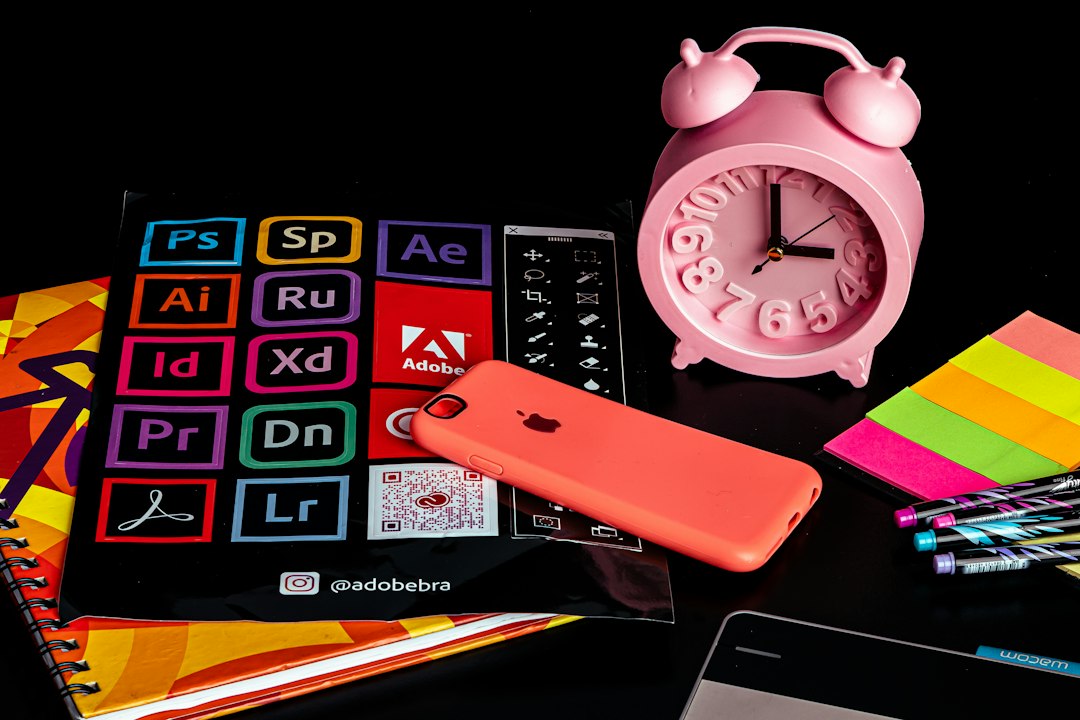
The strongest choice for most teams is a mix of Canva or Adobe Express for layout, Firefly or Midjourney for custom visuals, and a final print check in Acrobat, Affinity Publisher, or a print shop portal before export. That setup covers speed, style, brand control, and file quality. It also matches how content is now made, since Canva’s Visual Economy Report found that 92% of business leaders expect non-design employees to have visual communication skills [source: Canva].
TLDR: AI flyer tools help small teams create social posts, event flyers, menus, sale graphics, and print-ready PDFs much faster than old manual workflows. For example, a local fitness studio could create 20 Instagram promo designs and 300 printed class cards in one afternoon by using AI text, template resizing, and background generation. In a simple team workflow, this can cut revision time by around 30% to 50%, mainly because layouts, captions, and image options appear in seconds. The best results still need human checks for spelling, bleed, margins, contrast, and print specs.
Why AI Flyer Tools Matter
Social media flyers move fast. Print does not forgive mistakes. That is the tension most teams face.
A flyer for Instagram can survive a small alignment issue. A printed poster with low-resolution artwork, missing bleed, or muddy colors can waste a whole print run. AI tools help bridge that gap. They produce layout ideas, write headlines, remove backgrounds, match brand colors, and resize designs for many formats.
The catch is that AI still guesses. It may create fake text in images. It may make hands look odd. It may export a file that looks fine on screen but prints poorly. So the best workflow treats AI as a creative assistant, not as the final authority.
Best AI Tools for Social Media Flyers
Canva is often the easiest option for non-designers. It offers Magic Design, Magic Write, background removal, brand kits, templates, and quick resizing. A restaurant can create an Instagram story, Facebook post, table tent, and A4 flyer from one base layout. That saves time and keeps the offer consistent.
Adobe Express is a strong pick for teams already using Adobe apps. Its Firefly image tools can generate backgrounds, textures, and themed graphics. It also handles quick edits, social templates, and brand assets well. It feels cleaner than many browser editors, though some tasks still take a few extra clicks. Honestly, it feels like changing one tiny element can take longer than it should when the panel layout gets crowded.
Microsoft Designer works well for quick promotional graphics. It can turn a short prompt into a polished flyer concept. It is useful for office teams that already work with Microsoft accounts. It shines with simple social graphics, announcements, and sale posts.
VistaCreate gives small businesses another easy template-based option. It has animated social posts, brand kits, and design presets. It suits creators who need frequent promotional content without opening heavier design software.
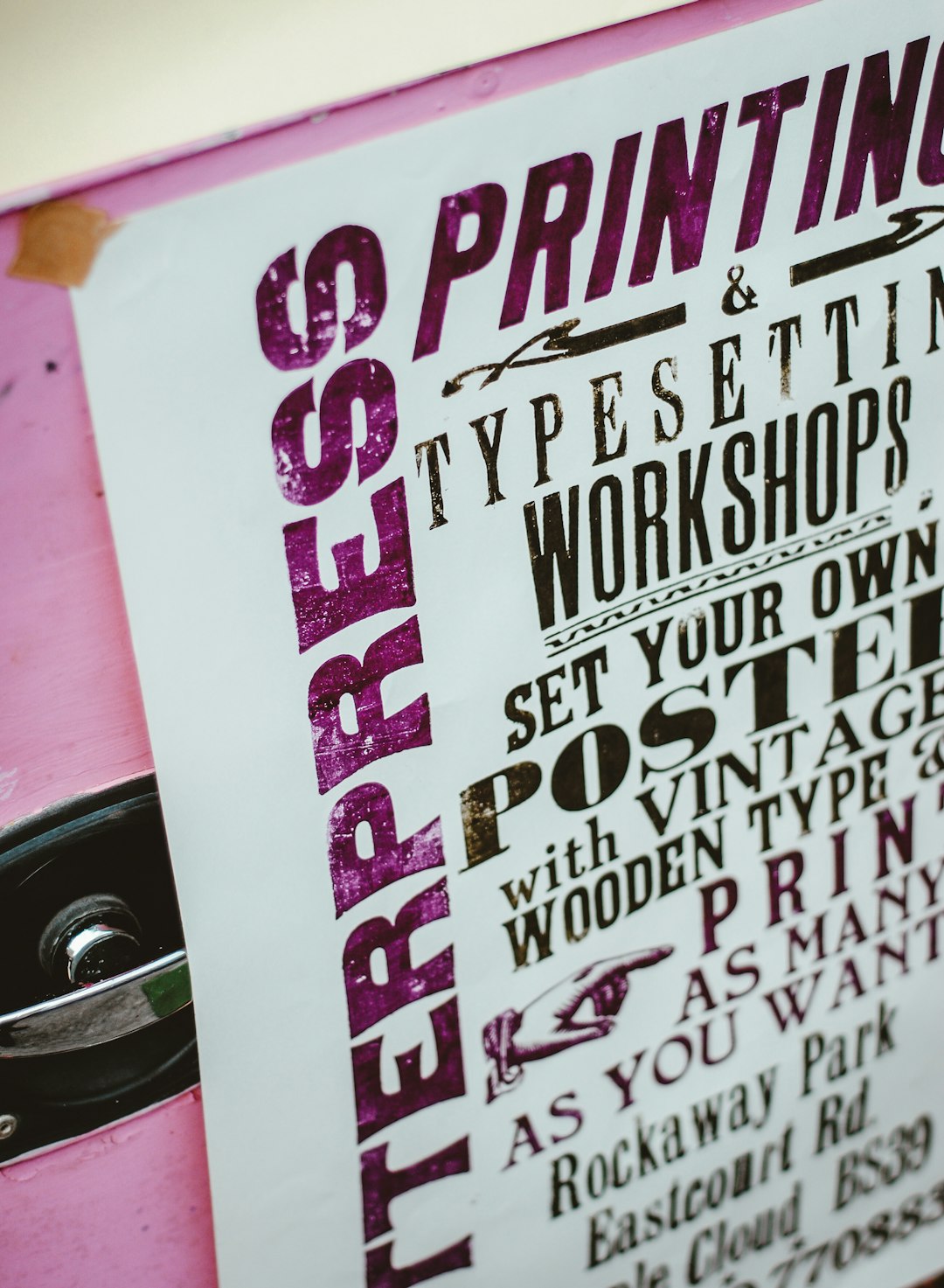
Kittl is especially useful for bold typography, vintage posters, apparel graphics, labels, and merch-style flyers. Its AI features support text effects, logo concepts, and illustration styles. It is a good fit when a design needs personality rather than a plain corporate look.
Best AI Tools for Custom Images and Art
Flyers often need a visual hook. Stock photos can look stale. AI image tools help create unique scenes, campaign visuals, and themed artwork.
- Adobe Firefly: Good for commercial-friendly image generation, text effects, and background creation.
- Midjourney: Strong for artistic, cinematic, and high-impact visuals. It is less simple for beginners but very powerful.
- DALL·E: Useful for quick concept images, social graphics, and visual brainstorming.
- Ideogram: Stronger than many image tools at generating stylized text inside images, though checks are still needed.
- Leonardo AI: Useful for game-style art, product mockups, character concepts, and controlled visual styles.
These tools are best used for backgrounds, hero images, textures, product scenes, and mood boards. For print, the image must be large enough. A tiny AI image stretched onto an A2 poster will look soft. Expect to waste time on upscaling if the image was generated too small at the start.
What Makes a Design Print-Ready?
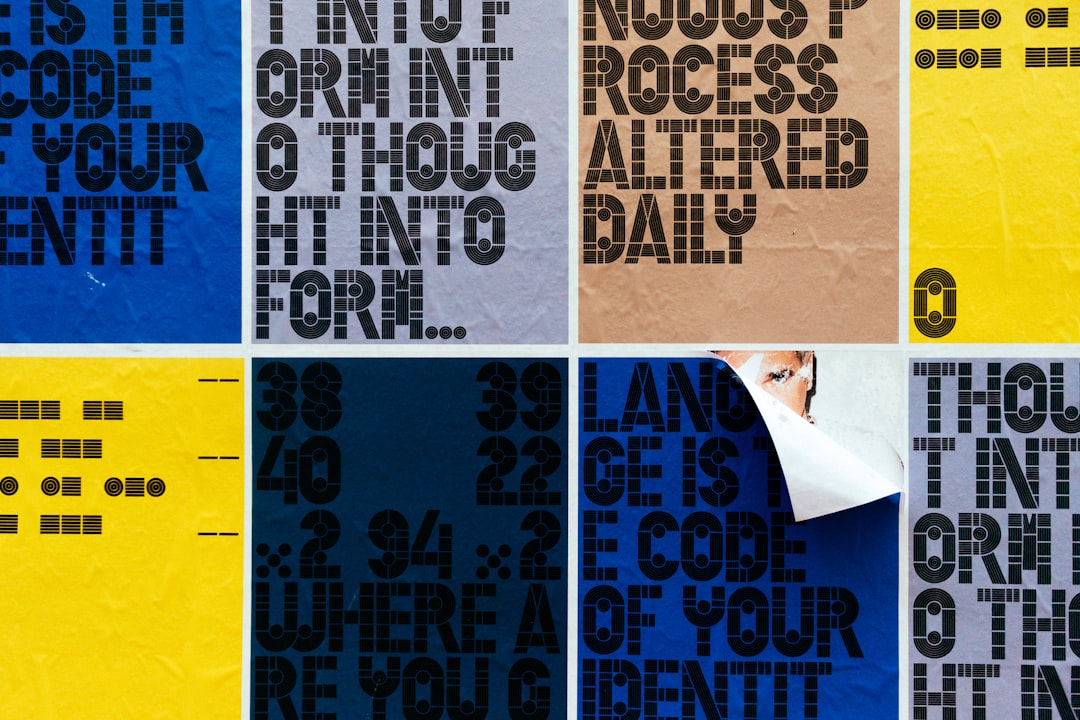
A design is not print-ready just because it looks good on screen. Print has rules. AI tools do not always follow them.
A proper print file should include:
- Correct size: The document must match the final trim size.
- Bleed: Most printers ask for 3 mm or 0.125 inches beyond the trim edge.
- Safe margins: Text and logos should not sit too close to the cut line.
- High resolution: Images should usually be 300 DPI at final size.
- Readable text: Small text should be tested before printing.
- Color setup: Many printers prefer CMYK, though some accept RGB PDFs and convert them.
- PDF export: A high-quality PDF with crop marks is often required.
Affinity Publisher, Adobe InDesign, and Adobe Acrobat are still valuable for final production checks. A designer may create the concept in an AI flyer tool, then finish the print file in one of these apps. That extra step can prevent expensive errors.
A Smart Workflow for Flyers
The best process is simple and repeatable.
- Start with the goal. Is the flyer for sales, event signups, food orders, or brand awareness?
- Write the core message. AI can suggest headlines, but the offer must be clear.
- Choose the format. Pick Instagram square, story, A5, letter size, poster, or postcard.
- Generate concepts. Use Canva, Adobe Express, or Microsoft Designer for layout ideas.
- Create or edit visuals. Use Firefly, Midjourney, DALL·E, or another image tool.
- Apply brand rules. Add fonts, colors, logos, and approved tone.
- Resize for channels. Adapt the design for social feeds, stories, email, and print.
- Run checks. Review spelling, spacing, contrast, image quality, bleed, and PDF settings.
This workflow works for one-person businesses and larger teams. It keeps AI from turning the process into a messy pile of almost-finished files.
Useful Features to Look For
Not every AI design tool is worth the subscription. The most useful features are practical, not flashy.
- Brand kits for logos, fonts, colors, and reusable assets.
- Magic resizing for social and print formats.
- Background removal for product flyers and staff photos.
- AI writing for headlines, calls to action, and short captions.
- Template locking so team members cannot break approved designs.
- PDF export controls for bleed, crop marks, and high-quality output.
- Collaboration tools for comments, approvals, and version history.
Common Mistakes to Avoid
AI makes design faster, but it also makes bad design faster. The biggest mistake is accepting the first result. A flyer still needs hierarchy. The viewer should know what is being offered, when it happens, how much it costs, and what action to take.
Another common mistake is using too many fonts. AI templates sometimes mix styles that look fun on screen but weak in print. Two fonts are usually enough. Three is the limit for most flyers.
Small text is another problem. A caption that looks readable on a laptop may vanish on a printed postcard. Contrast also matters. Pale gray text on a beige background may look trendy, but it can be painful to read.
Teams should also avoid placing QR codes too close to the edge. A QR code needs quiet space around it. It should be tested with a phone before print approval.
Which Tool Should a Business Choose?
A small shop that needs speed should start with Canva or Adobe Express. A brand-heavy team should test Adobe Express with Firefly or pair Canva with a strict brand kit. A creator who wants bold, poster-like style should try Kittl. A team that needs unusual custom art should add Midjourney, Firefly, or DALL·E.
For print-heavy work, AI design tools should be paired with a proper file check. That may mean Acrobat, Affinity Publisher, InDesign, or the printer’s own proofing system. It is not glamorous, but it protects the budget.
FAQ
Can AI tools create print-ready flyers?
Yes, many can export high-quality PDFs. Still, a human should check bleed, margins, image resolution, text, and color settings before sending the file to print.
Which AI tool is best for beginners?
Canva is usually the easiest for beginners. It has templates, AI writing, resizing, brand kits, and simple export options.
Are AI-generated images safe for business flyers?
They can be, but usage rights vary by platform. A business should read the tool’s license terms and avoid generating images that copy protected characters, logos, or artist styles too closely.
What file format is best for printing flyers?
A high-quality PDF is usually best. Printers may ask for bleed, crop marks, embedded fonts, and 300 DPI images.
Can AI replace a graphic designer?
AI can handle drafts, resizing, image ideas, and simple layouts. A skilled designer is still better for brand systems, print accuracy, campaign strategy, and polished visual judgment.