
Use the official sign-in recovery options first, then move to Windows Recovery Environment only if those fail. Windows 11 can reset a Microsoft account password online, recover a PIN, use another administrator account, or reinstall Windows while keeping personal files through Reset this PC [source: Microsoft].
TLDR: If you forgot your Windows 11 password, start with the sign-in screen and pick I forgot my PIN or reset your Microsoft account password from another device. For example, if you have 1 locked laptop and 2 recovery contacts on your Microsoft account, you can often restore access in under 15 minutes. If that fails, use Windows Recovery Environment to reset the PC and keep personal files, but expect installed apps to be removed. Use these steps only on a PC you own or are allowed to manage.
First, identify the account type
Windows 11 sign-in problems usually fall into two groups: Microsoft accounts and local accounts. A Microsoft account uses an email address, such as Outlook, Hotmail, or another linked email. A local account exists only on that PC.
This matters because the fix changes. A Microsoft account password can be reset online. A local account needs a password reset disk, another admin account, security questions, or a full Windows reset.
Method 1: Reset your Microsoft account password
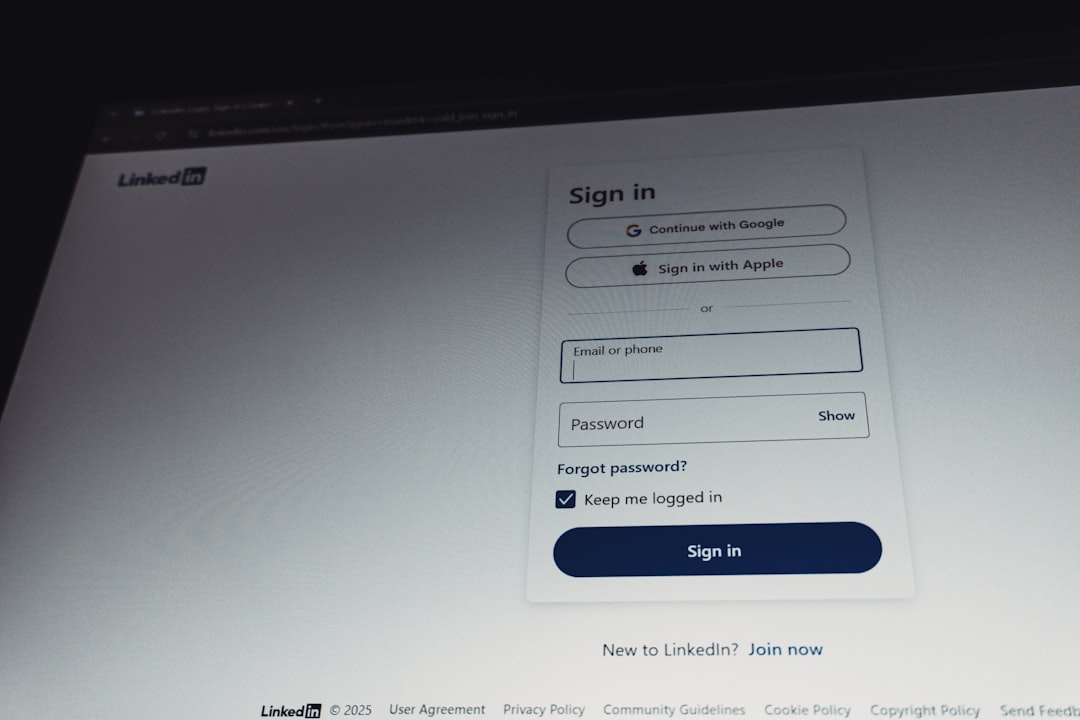
This is the cleanest fix. Use a phone, tablet, or another computer and go to Microsoft’s password reset page [source: Microsoft]. Enter the email address used on the locked Windows 11 PC. Then verify your identity with a code sent to your email, phone, or authenticator app.
After changing the password, return to the locked PC. Make sure it is connected to the internet from the lock screen. Click the network icon if needed. Then sign in with the new password.
The annoying part is that Windows may not accept the new password right away if the laptop is offline. It can feel broken, but it is usually just waiting to sync. Connect to Wi-Fi, wait 20 to 60 seconds, and try again.
Method 2: Use “I forgot my PIN”
If you normally sign in with a PIN, click Sign-in options on the lock screen. Choose the PIN icon, then select I forgot my PIN. Windows will ask you to verify your Microsoft account. After that, you can create a new PIN.
This works well when the password is known but the PIN is forgotten. It is also useful after hardware changes, BIOS updates, or TPM errors. Honestly, it feels like Windows could explain this better. A tiny PIN error can look much scarier than it is.
Method 3: Use another administrator account
If the PC has another administrator account, sign in there. Then reset the locked local account password.
- Press Windows + R.
- Type lusrmgr.msc and press Enter. This works on Pro editions.
- Open Users.
- Right-click the locked account.
- Select Set Password.
On Windows 11 Home, use Settings > Accounts > Family & other users where available. If the account is not listed in a way that allows reset, this method may not help.
Method 4: Use a password reset disk for a local account
A password reset disk is old-school, but it still works. The catch is simple: you must have created it before you forgot the password.
At the sign-in screen, enter the wrong password once. Windows may show a Reset password option. Insert the USB reset disk, follow the wizard, and create a new password. This will not affect personal files.
Method 5: Open Windows Recovery Environment
If normal sign-in recovery fails, use Windows Recovery Environment, also called WinRE. This is the repair area built into Windows 11.
To open it from the lock screen:
- Click the Power icon.
- Hold Shift.
- Click Restart.
- Keep holding Shift until the blue recovery screen appears.
Then choose Troubleshoot. From here, you can use several repair tools. Startup Repair can fix boot issues, but it will not reset a forgotten password. System Restore can roll back bad system changes, but it usually will not solve a lost password either.
Method 6: Reset this PC and keep files
If no account recovery option works, choose Troubleshoot > Reset this PC > Keep my files. This reinstalls Windows 11 while keeping files stored in user folders such as Desktop, Documents, Pictures, and Downloads.
It does remove installed apps. You may need to reinstall browsers, office apps, printer tools, games, and VPN software. Settings may also return to defaults.
If BitLocker is enabled, Windows may ask for the BitLocker recovery key. You can often find it in your Microsoft account devices page [source: Microsoft]. Without that key, the reset may stop. That is frustrating, but it protects your files if the laptop is stolen.
What you should avoid
- Do not use random password cracking tools from unknown sites. Many are malware.
- Do not follow registry swap tricks that replace system files. They can break Windows updates and security.
- Do not reset a work PC without permission. Company devices may use domain, Azure AD, or Intune controls.
- Do not ignore backups. If files matter, back them up before choosing any reset option.
Best order to try
- Reset the Microsoft account password online.
- Use I forgot my PIN.
- Try another administrator account.
- Use a password reset disk if one exists.
- Open Windows Recovery Environment.
- Use Reset this PC with Keep my files as the last safe option.
Most people regain access with the first two methods. If you end up resetting the PC, take five extra minutes afterward to add recovery email, phone verification, and a second sign-in method. Future you will be grateful.