
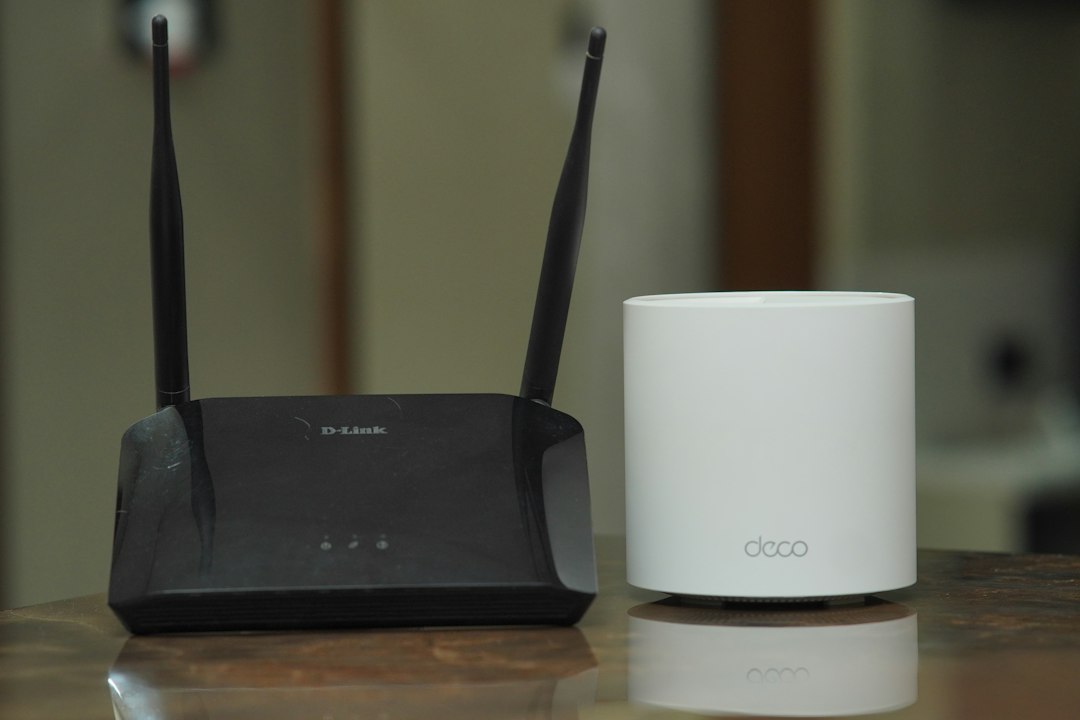
Secure your home Wi-Fi in this order: update your router firmware, turn on DNS filtering, then add network monitoring if you want deeper visibility. Most homes now have a pile of connected gear; Deloitte reported an average of 21 connected devices in U.S. households, which means one weak camera, speaker, or laptop can become the soft spot [source: Deloitte].
TLDR: Router firmware fixes security holes at the source, so do that first. DNS filtering blocks many bad domains before devices connect to them; for example, a family with 20 devices can apply one filtering rule to phones, tablets, TVs, and laptops at once. Network monitoring helps you spot odd behavior, such as a smart bulb uploading data at 3 a.m. Use all three if you can, but do not skip firmware updates.
Why router firmware comes first
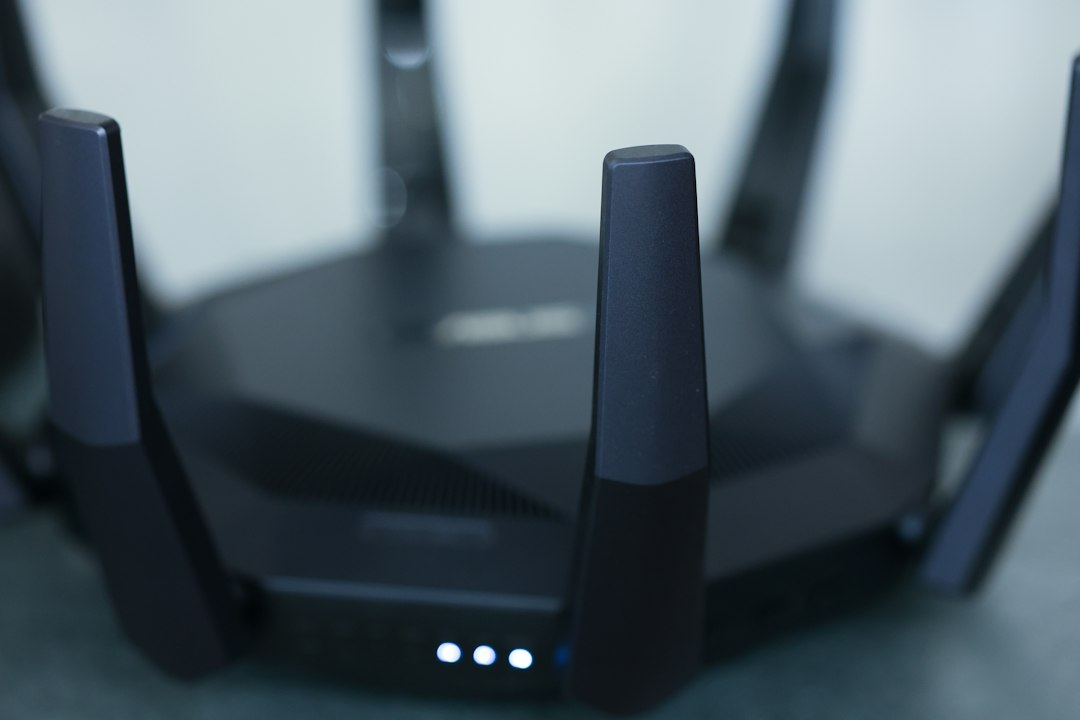
Your router is the front door to your home network. If its firmware is old, every other safety tool is working behind a weak lock. Firmware is the router’s built-in software. It controls Wi-Fi, firewall rules, device handling, and security patches.
What firmware updates protect against:
- Known router bugs that attackers already scan for
- Weak admin panels and remote access flaws
- Wi-Fi stability issues that cause random drops
- Old security standards and poor device handling
Honestly, it feels like router makers hide firmware updates on purpose. Some apps take three taps. Others bury the update button under “advanced administration,” because apparently that is where normal people love to spend Tuesday night.
What to do: open your router app or web dashboard and check for updates once a month. If your router supports automatic firmware updates, turn them on. Also change the admin password. Not the Wi-Fi password. The router admin password. Those are often different.
Where DNS filtering fits
DNS filtering is like a bouncer for web requests. When a device tries to visit a site, DNS turns that site name into an internet address. A DNS filter checks the request first. If the site is tied to malware, phishing, scams, adult content, or tracking, the request can be blocked.
DNS filtering is great for:
- Blocking phishing links before they load
- Reducing exposure to malware domains
- Adding parental controls without installing apps on every device
- Stopping many smart devices from talking to junk servers
The best part is scale. Set DNS filtering on the router, and it can cover the whole home. Phones, tablets, laptops, consoles, TVs, and smart speakers all follow the same rule when they use your Wi-Fi.
The catch is that DNS filtering is not magic. It will not fix an outdated router. It will not stop every scam site. It may also break a site now and then. Expect to waste time on one annoying false block someday, usually when someone in the house is trying to print a shipping label in a hurry.
Good DNS options include family-safe DNS, security DNS, and paid services with reports. Some routers include these features. Others let you enter custom DNS servers manually.
What network monitoring adds
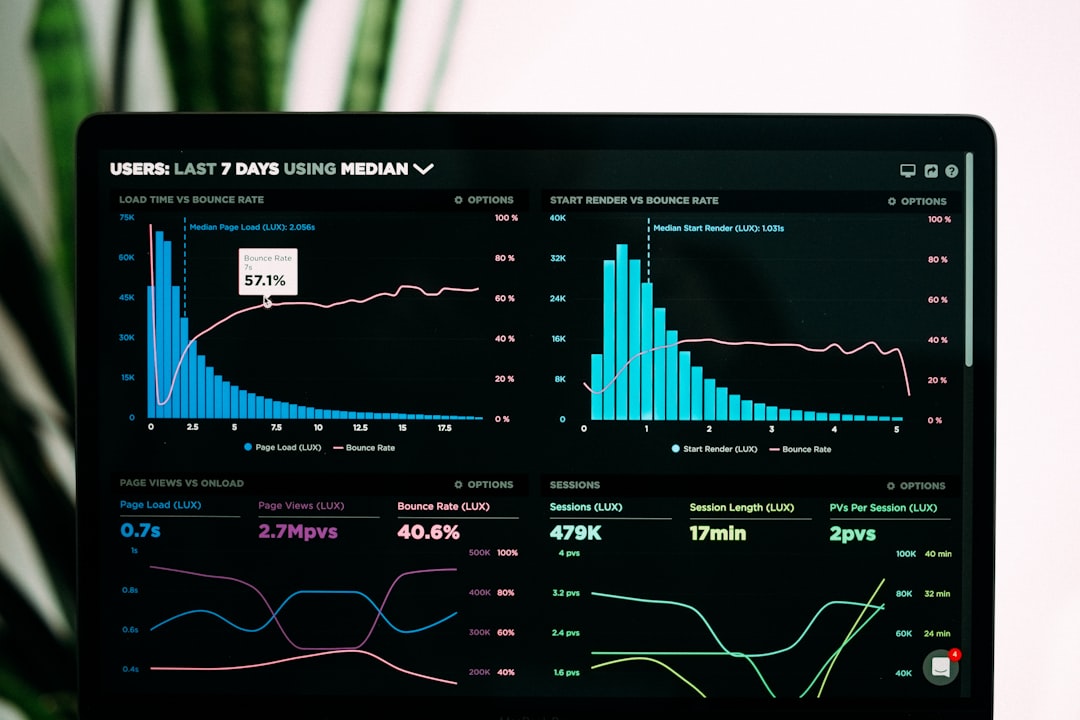
Network monitoring tells you what is happening on your Wi-Fi. It can show new devices, data spikes, odd connections, and devices that are active when they should be quiet.
Network monitoring helps answer questions like:
- Who joined my Wi-Fi?
- Why is the internet slow?
- Is my smart camera sending too much data?
- Did a guest device stay connected?
This is useful because many home networks are messy. You may have old phones, work laptops, streaming sticks, printers, cameras, doorbells, and mystery devices named something like “ESP 32.” That name means nothing to most people, which is exactly the problem.
Monitoring tools can be simple or advanced. A router app may show device names and usage. A stronger system can send alerts when a new device joins. More advanced users may run tools that inspect traffic patterns. Keep it simple unless you enjoy graphs more than sleep.
Firmware vs DNS filtering vs monitoring
These tools do different jobs. Do not treat them as rivals. Treat them as layers.
| Tool | Best use | Weak spot |
|---|---|---|
| Router firmware | Fixes security flaws in the router itself | Depends on vendor updates |
| DNS filtering | Blocks risky domains and adds simple content rules | Cannot stop every threat |
| Network monitoring | Shows strange devices and odd traffic | Needs attention and setup |
A simple setup plan
- Update router firmware. Turn on auto updates if available.
- Change default admin login. Use a long, unique password.
- Use WPA2 or WPA3. Avoid old WEP security.
- Set up DNS filtering. Choose a security or family filter.
- Create a guest network. Put visitors and smart gadgets there.
- Check connected devices monthly. Remove anything you do not know.
If you want the biggest security gain with the least effort, start with firmware and passwords. Then add DNS filtering for broad protection. Add monitoring when you want proof of what is happening, not just hope. Home Wi-Fi security does not need to be fancy. It needs to be current, filtered, and watched just enough to catch the weird stuff early.