
The safest way to lower audio volume without losing quality is to reduce gain non destructively, keep headroom, and export in a clean format. Audacity is the better pick for quick free edits. Adobe Audition is stronger for batch work, precision mixing, and professional delivery. A drop of 6 dB cuts signal amplitude by about half, which is a normal volume move in digital audio, not a quality hit by itself [source: Wikipedia].
TLDR: Lowering volume does not ruin audio if the editor keeps the signal in high resolution and avoids extra lossy encoding. For example, a podcaster with a voice file peaking at -1 dBFS can reduce it by 5 dB to leave safer headroom at -6 dBFS, then export as WAV for no added compression damage. Audacity is fast and free for one file. Adobe Audition is better when 20 files need the same loudness target, fades, metering, and delivery settings.
Why Volume Reduction Usually Keeps Quality
Lowering volume is one of the cleanest audio edits. The software simply multiplies every sample by a smaller value. If the file is processed in 32 bit float or another high resolution internal format, the change is usually transparent.
The real quality problems come from other places:
- Exporting to MP3 or AAC again: extra lossy compression can smear transients and dull detail.
- Fixing clipped audio too late: if the recording is distorted, lowering volume will only make quieter distortion.
- Using normalization without checking peaks: loud sections can still feel uneven.
- Saving at the wrong bit depth: 16 bit exports may need dither when reducing from higher resolution.
So the editor matters less than the workflow. Still, the tool can make the job easy or oddly painful.
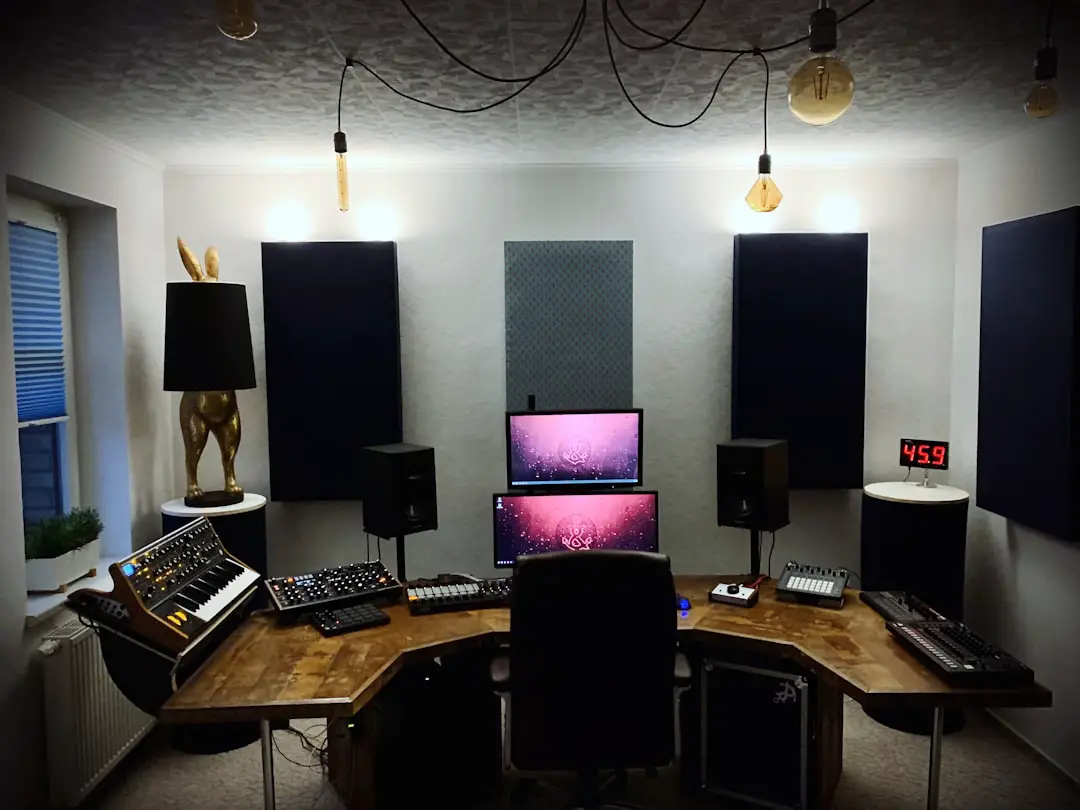
Audacity: Best for Simple Volume Cuts
Audacity is a strong choice when someone needs to lower volume on a voice note, podcast episode, interview, music demo, or lecture recording. It is free, light, and direct. The user opens the file, selects the audio, applies gain, and exports.
A common Audacity workflow looks like this:
- Open the audio file.
- Select the full track with Ctrl + A or Cmd + A.
- Go to Effect > Volume and Compression > Amplify.
- Enter a negative value, such as -3 dB or -6 dB.
- Check that peaks stay below 0 dBFS.
- Export as WAV or FLAC when quality matters.
Audacity also lets the editor use the track gain slider. That is useful for quick listening and balancing, but applying an exact gain change through the effect menu gives clearer control. The Normalize effect can also set peak level, such as -1 dB or -3 dB, which helps avoid accidental clipping.
The catch is that Audacity can feel clunky for repeat work. If a user must adjust 30 voice files to the same target, the process starts to feel slow. Macros help, but setting them up is not as smooth as a paid post production app. It drives some editors crazy that a simple batch job can take a few extra clicks every time.
Adobe Audition: Better for Precision and Batch Work
Adobe Audition suits users who need control across sessions, clips, buses, and full mixes. It is built for podcast houses, video editors, radio teams, and anyone who handles audio often. It costs money, but it saves time when jobs repeat.
There are several clean ways to lower volume in Audition:
- Clip Gain: lowers one clip without changing the source file.
- Normalize: sets peak volume to a chosen level.
- Match Loudness: helps bring multiple files to a shared loudness target.
- Amplitude and Compression effects: offer exact gain changes and processing chains.
- Multitrack faders: reduce playback and mix levels without touching original clips.
For quality, the best choice is often clip gain or multitrack fader control. These methods are non destructive. The original audio remains unchanged, while the session stores volume instructions. That gives the editor room to change decisions later.

Audition also has better metering. Peak meters, loudness tools, and spectral views make it easier to spot trouble. A video editor preparing dialogue for web delivery can pull a harsh clip down by 4 dB, check overall loudness, and export once. That is cleaner than guessing by ear and fixing the render later.
Quality Rules Both Apps Should Follow
To lower volume with no audible loss, the editor should follow a few rules:
- Work from the best source file. WAV, AIFF, or FLAC is preferred over MP3.
- Use negative gain, not compression, for simple volume reduction. Compression changes tone and punch.
- Leave headroom. Peaks around -1 dBFS to -6 dBFS are safer than peaks at 0.
- Avoid repeated MP3 exports. If MP3 is needed, export it once at the end.
- Keep a project copy. This allows later changes without processing the same file again.
Lowering volume will not remove noise. If tape hiss, room hum, or fan noise is present, it will get quieter along with the voice or music. The signal to noise ratio stays about the same. That can disappoint beginners. Quieter audio is not always cleaner audio.
Audacity vs. Adobe Audition: Which One Wins?
| Need | Better Choice | Reason |
|---|---|---|
| One quick file | Audacity | Free, simple, fast enough. |
| Podcast editing every week | Adobe Audition | Better workflow, templates, and metering. |
| Batch volume changes | Adobe Audition | Match Loudness and batch tools save time. |
| No budget | Audacity | No subscription required. |
| Video post production | Adobe Audition | Works well with multitrack sessions and pro delivery. |
For most casual users, Audacity is enough. A clean -3 dB or -6 dB reduction will not damage the sound when exported properly. For teams, creators, and editors dealing with many clips, Audition earns its place by cutting setup time and reducing mistakes.

Best Export Settings After Lowering Volume
If quality is the priority, the editor should export to WAV or FLAC. WAV is widely accepted and ideal for archiving. FLAC saves space while staying lossless. For sharing online, MP3 at 320 kbps is reasonable, but it should be the final export, not an intermediate working file.
For spoken word, 24 bit WAV is a safe master format. For final podcast delivery, the platform may require MP3 or AAC. That is fine, as long as the project was not exported to lossy formats several times before final delivery.
FAQ
Does lowering volume reduce audio quality?
No, not by itself. A basic gain reduction is usually transparent. Quality loss happens when the file is clipped, over processed, or exported repeatedly to lossy formats.
Is Audacity good enough for lowering volume?
Yes. Audacity is more than good enough for simple volume reduction. It works well for podcasts, interviews, voiceovers, and music files when exported correctly.
Is Adobe Audition worth it for this task?
For one file, probably not. For regular editing, batch jobs, loudness control, and multitrack work, Adobe Audition is much more efficient.
What dB level should a file be lowered to?
There is no single perfect number. Many editors keep peaks between -1 dBFS and -6 dBFS. Spoken content may also need loudness targets based on the platform.
Should volume be lowered with Normalize or Amplify?
Amplify is best for a fixed reduction, such as -4 dB. Normalize is best when the editor wants the highest peak to land at a set level, such as -3 dBFS.
Can clipped audio be fixed by lowering volume?
No. Lowering volume makes clipped distortion quieter, but it does not restore missing waveform peaks. Some repair tools may help, but prevention is better.