
Fix Windows 11 hibernation first by checking power settings, then drivers, then system files. Hibernate saves your open work to the drive and powers the PC down, which is great when it behaves and annoying when it acts like a sleepy raccoon [source: Microsoft].
TLDR: Turn hibernation on, reset your power plan, update problem drivers, then run system repair commands. If your laptop fails to resume 3 times out of 5, start with power settings, because they are the fastest fix. For example, a user named Mia fixed random hibernation failure in 4 minutes by re enabling Hibernate and turning off Fast Startup. If that fails, drivers and Windows file repairs are next.
Why Windows 11 hibernation breaks
Hibernation is simple in theory. Windows writes your current session to a file called hiberfil.sys. Then it shuts down. When you press the power button, Windows reads that file and brings your apps back.
Nice. Clean. Cozy.
Until it is not.
Common problems include:
- The Hibernate option is missing.
- The PC shuts down instead of hibernating.
- The laptop wakes to a black screen.
- The computer wakes up by itself at 2:00 AM. Rude.
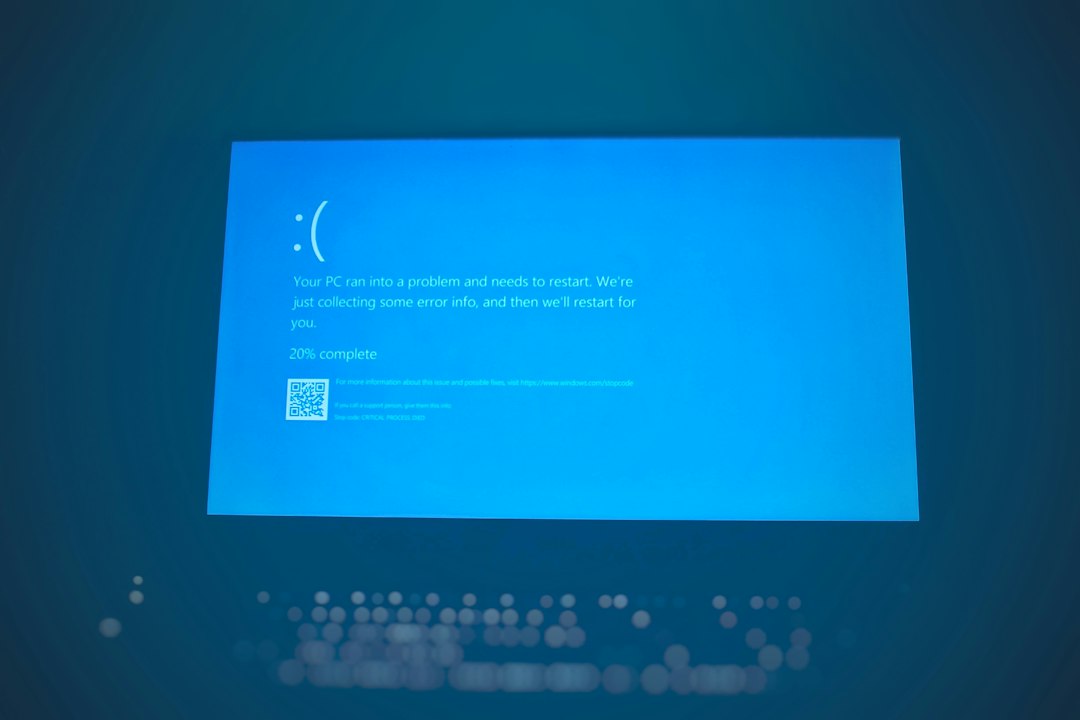
- Windows hangs on resume.
Honestly, it feels like Windows hides the useful switches in a junk drawer. So let’s open that drawer.
Step 1: Turn Hibernate back on
Sometimes Hibernate is simply disabled. This can happen after updates, cleanup tools, or power plan changes.
Do this:
- Right click the Start button.
- Choose Terminal Admin or Command Prompt Admin.
- Type this command:
powercfg /hibernate onPress Enter. That is it.
Now check if Hibernate appears:
- Open Control Panel.
- Go to Hardware and Sound.
- Select Power Options.
- Click Choose what the power buttons do.
- Click Change settings that are currently unavailable.
- Tick Hibernate.
- Click Save changes.
If the box appears, great. If not, keep going.
Step 2: Check what the power buttons do
Your laptop lid and power button may not be set to hibernate. They may be set to sleep. Or shut down. Or do nothing, which is peak Windows chaos.
Open Power Options again. Then pick Choose what closing the lid does.
Set these options:
- When I press the power button: Hibernate
- When I close the lid: Hibernate
- On battery: Hibernate
- Plugged in: Hibernate
Click Save changes. Test it once. Close the lid. Wait 20 seconds. Open it again.
If Windows resumes cleanly, you found the gremlin.
Step 3: Turn off Fast Startup
Fast Startup sounds helpful. Sometimes it is. Sometimes it trips over hibernation because it uses a similar trick. Expect to waste time on this if you ignore it.
Turn it off like this:
- Open Control Panel.
- Go to Power Options.
- Click Choose what the power buttons do.
- Click Change settings that are currently unavailable.
- Uncheck Turn on fast startup.
- Click Save changes.
Restart the PC. Then test hibernation again.
This fix is boring. It also works more often than it should.
Step 4: Reset the power plan
A custom power plan can get messy. Maybe a setting changed months ago. Maybe a battery app did it. Maybe nobody knows. Classic.
Reset the active plan with this command:
powercfg -restoredefaultschemesThis brings Windows power plans back to default. You may need to set your screen timeout again. Small price.
You can also check advanced settings:
- Open Power Options.
- Click Change plan settings.
- Click Change advanced power settings.
- Expand Sleep.
- Check Hibernate after.
For laptops, try these values:
- On battery: 30 minutes
- Plugged in: 60 minutes
Step 5: Find devices that wake the PC
If your PC wakes by itself, a device may be poking it. Mouse. Keyboard. Network card. All can do it.
Open Terminal Admin and run:
powercfg /lastwakeThis shows what woke the machine last time. Then run:
powercfg /devicequery wake_armedThis lists devices allowed to wake the PC.
To stop a device:
- Right click Start.
- Open Device Manager.
- Find the device.
- Right click it.
- Choose Properties.
- Open the Power Management tab.
- Uncheck Allow this device to wake the computer.
Start with the network adapter. It is often the tiny goblin.
Step 6: Update display, chipset, and network drivers
Bad drivers can break resume from hibernation. Display drivers are a big one. Chipset drivers matter too. Network drivers can cause surprise wake ups.
Update drivers in this order:
- Graphics driver, from Intel, AMD, or NVIDIA.
- Chipset driver, from your laptop or motherboard maker.
- Network driver, for Wi Fi and Ethernet.
- BIOS or firmware, only if the maker recommends it.
Use the PC maker’s support page when possible. Dell, HP, Lenovo, ASUS, Acer, and Microsoft Surface tools can find drivers for your exact model.
Device Manager can help, but it is not magic. It may say “best driver installed” while your laptop maker has a newer one waiting. That message has fooled many people.
Step 7: Roll back a bad driver
If hibernation broke right after a driver update, roll it back.
- Open Device Manager.
- Right click the suspect device.
- Choose Properties.
- Open the Driver tab.
- Click Roll Back Driver.
If the button is grey, Windows has no old driver stored. In that case, download the previous driver from the maker’s site.
Step 8: Repair Windows system files
If settings and drivers look fine, Windows files may be damaged. This sounds scary. It is not.
Open Terminal Admin. Run this first:
DISM /Online /Cleanup-Image /RestoreHealthWait. It can take 5 to 20 minutes. Do not close the window.
Then run:
sfc /scannowSFC checks protected system files and replaces broken ones when possible. Microsoft recommends these tools for repairing Windows images and system files [source: Microsoft].
Restart after both commands finish. Then test hibernation again.
Step 9: Check disk space and hibernation file size
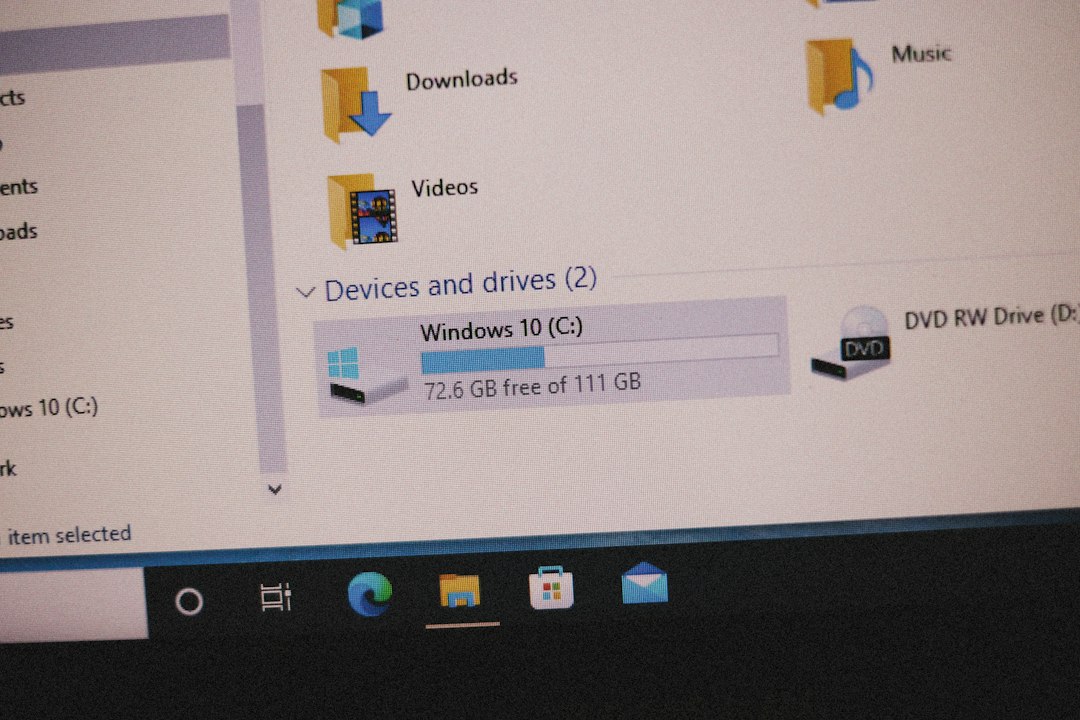
Hibernate needs disk space. The hibernation file can be several gigabytes. If your C drive is packed full, hibernation may fail or act weird.
Keep at least 10 to 15 GB free on the system drive. More is better.
You can also set the hibernation file type to full:
powercfg /hibernate /type fullThis is useful if Hibernate is missing or hybrid sleep is acting odd.
Quick fix checklist
- Run
powercfg /hibernate on. - Show Hibernate in the power menu.
- Set lid and power buttons to Hibernate.
- Turn off Fast Startup.
- Reset power plans.
- Block mouse, keyboard, or network wake events.
- Update graphics, chipset, and network drivers.
- Run DISM and SFC.
- Free space on the C drive.
When nothing works
If hibernation still fails, try a clean boot. This starts Windows with fewer background apps. Security tools, RGB apps, battery tools, and old VPN clients can interfere.
Also check Windows Update. Install pending updates. Then restart twice. Yes, twice. Windows sometimes needs the second restart to finish cleanup.
If the PC is new, check for BIOS updates from the maker. If it is old, the battery or storage drive may be weak. Hibernation writes and reads a large file. Failing hardware can make that process crumble.
Best order: settings first, drivers second, system files third. That saves time. It also keeps you from reinstalling Windows because one checkbox was hiding in Control Panel like a smug little gremlin.