

Your network security key is the password that protects access to a Wi-Fi network. You may need it when connecting a new laptop, phone, printer, smart TV, or guest device. In most cases, it is the same thing people casually call the Wi-Fi password, although routers and operating systems may use terms such as WPA key, WPA2 password, or wireless password.
TLDR: You can usually find your network security key in your device’s saved Wi-Fi settings, in your router’s admin panel, or on the physical router label. Windows and macOS can show saved passwords if you have administrator access. Android and iPhone can often reveal or share Wi-Fi passwords from the Wi-Fi settings screen. If you cannot retrieve it, you can sign in to the router and change the Wi-Fi password to a new secure one.
Before You Begin: Know What You Are Looking For
A network security key is used to authenticate devices on a wireless network. It is not the same as your router’s admin password, though both may appear on the router label. The Wi-Fi password connects devices to the network, while the router admin password lets you change router settings.
Only retrieve or share a network security key for networks you own or are authorized to use. If you manage a workplace, school, or shared building network, follow your organization’s security policy rather than bypassing access controls.

How to Find Your Network Security Key on Windows
Windows can display the password for a Wi-Fi network you are currently connected to, and it can also retrieve saved passwords using Command Prompt.
Using Windows Settings
- Click the Start button and open Settings.
- Go to Network & Internet.
- Select Advanced network settings, then choose More network adapter options if available.
- Right-click your active Wi-Fi adapter and select Status.
- Click Wireless Properties.
- Open the Security tab.
- Check Show characters.
The value shown in the Network security key field is your Wi-Fi password. You may be asked for administrator permission before Windows reveals it.
Using Command Prompt
If you need the key for a previously saved network, use this method:
- Open Command Prompt as an administrator.
- Type
netsh wlan show profilesand press Enter. - Find the network name in the list.
- Type
netsh wlan show profile name="NetworkName" key=clear, replacing NetworkName with the exact Wi-Fi name. - Look under Security settings for Key Content.
The Key Content entry is the saved network security key.
How to Find Your Network Security Key on Mac
On macOS, saved Wi-Fi passwords are stored in Keychain Access, Apple’s password management system.
- Open Finder.
- Go to Applications, then Utilities.
- Open Keychain Access.
- In the search bar, type the name of your Wi-Fi network.
- Double-click the matching network entry.
- Check the box labeled Show password.
- Enter your Mac administrator username and password, or use Touch ID if prompted.
After authentication, the saved Wi-Fi password will appear. If the password does not appear, make sure you selected the correct keychain entry and that the network was previously joined on that Mac.
How to Find Your Network Security Key on Android
Modern Android phones often make it simple to view or share a saved Wi-Fi password. The exact wording can vary depending on the manufacturer, Android version, and carrier settings.
- Open Settings.
- Tap Network & Internet, Connections, or Wi-Fi.
- Select the connected Wi-Fi network, or open Saved networks.
- Tap Share, QR Code, or a similar option.
- Authenticate with your PIN, fingerprint, or face unlock.
Android may display a QR code that another device can scan to join the network. On many devices, the password also appears in plain text below the QR code. If it does not, you can use another trusted phone to scan the QR code and read the network details.
Older Android versions may not show saved Wi-Fi passwords unless the device is rooted, which is not recommended for most users because it can weaken security and void warranties.
How to Find Your Network Security Key on iPhone
On iPhones running newer versions of iOS, Apple allows users to view saved Wi-Fi passwords directly from settings.
- Open Settings.
- Tap Wi-Fi.
- Tap the information icon next to the connected network.
- Tap Password.
- Authenticate with Face ID, Touch ID, or your passcode.
The password will be revealed, and you can copy it if needed. This is useful when setting up another device or helping a trusted family member connect.
If you use iCloud Keychain, saved Wi-Fi passwords may also sync across Apple devices that use the same Apple ID. For example, a Mac signed in to the same Apple account may show the password through Keychain Access.
How to Find the Network Security Key on Your Router
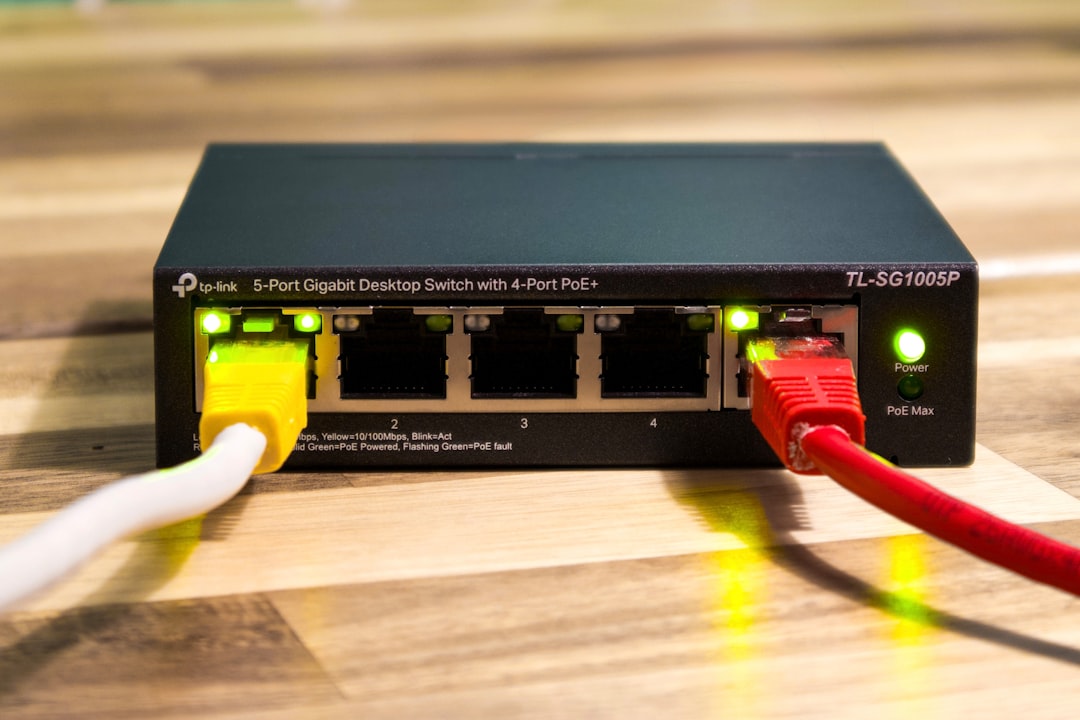
If you cannot retrieve the key from a device, your router is the next best place to check. Many home routers have a printed label with default Wi-Fi details.
- Look for labels on the bottom, back, or side of the router.
- Search for terms such as Wi-Fi Password, Wireless Key, WPA Key, WPA2 Key, or Network Key.
- Make sure you are reading the Wi-Fi password, not the router admin password.
If the default password was changed, the label may no longer be accurate. In that case, sign in to the router’s admin interface:
- Connect to the router by Wi-Fi or Ethernet.
- Open a browser and enter the router address, commonly 192.168.0.1, 192.168.1.1, or the address printed on the router.
- Sign in with the router admin credentials.
- Open the Wireless, Wi-Fi, or Security section.
- Find the password field for the relevant network band, such as 2.4 GHz, 5 GHz, or guest network.
If you do not know the router admin password, check your internet provider’s documentation or router app. As a last resort, you can factory reset the router, but this will erase custom settings and require you to configure the network again.
What If You Cannot Find the Key?
If the password is unavailable or outdated, the safest solution is to change the Wi-Fi password in the router settings. Choose a strong password that is easy for authorized users to type but difficult to guess.
- Use at least 12 to 16 characters.
- Combine uppercase letters, lowercase letters, numbers, and symbols.
- Avoid names, addresses, phone numbers, and common words.
- Use WPA2 or WPA3 security if available.
- Do not reuse passwords from email, banking, or work accounts.
After changing the key, every previously connected device will need to reconnect using the new password. Update smart home devices, printers, streaming boxes, and guest devices as needed.
Final Security Tips
Treat your network security key like any other sensitive password. Share it only with people you trust, and consider using a separate guest network for visitors. A guest network helps protect your personal devices, files, and smart home equipment from unnecessary exposure.
It is also wise to change the default router admin password, keep router firmware updated, and disable outdated security options such as WEP. With the right settings and a properly protected key, your Wi-Fi network will be significantly more resistant to unauthorized access.