
For professionals and aspiring creators alike, video editing has become an essential skill. But as powerful as editing software has become, it can also be demanding — both in terms of hardware and mental endurance. If you’re using a MacBook Pro to do your video editing, you’re already a step ahead. Apple’s flagship laptops are built to handle resource-heavy tasks with ease. However, even the best hardware needs smart strategies to ensure you maintain both productivity and sanity. This article dives into how you can edit like a pro on a MacBook Pro without losing your mind in the process.
Why Choose a MacBook Pro for Video Editing?
The MacBook Pro has earned its place as a favorite among video editors, and not without reason. Here are a few key advantages:
- Processing Power: With Apple’s M1 Pro, M1 Max, and now the M2 chipsets, MacBook Pros offer massive power that rivals many desktops.
- Color-Accurate Displays: The Liquid Retina XDR display offers exceptional brightness and color accuracy — a major requirement for editors.
- Optimized Software: Apple’s macOS is well-optimized for leading video editing software like Final Cut Pro, Adobe Premiere Pro, and DaVinci Resolve.
- Portability: Whether you’re in a studio or on the go, the MacBook Pro gives you the flexibility to edit anywhere.
But having the right tools isn’t enough. Let’s look at how to effectively use your MacBook Pro to enhance your workflow.
Set Up a Professional Editing Environment
Before diving into timelines and transitions, it’s vital to set up an editing environment that maximizes your productivity and minimizes stress. This includes both your physical and digital workspace.
Optimize Your Physical Setup
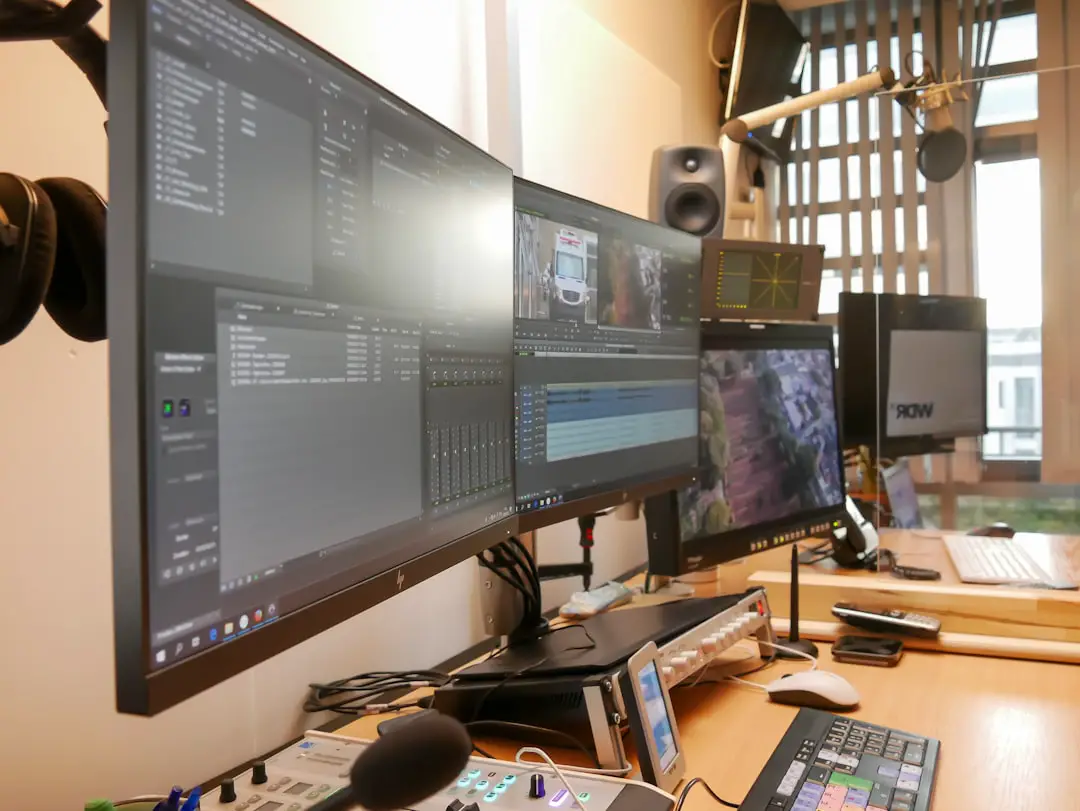
- Use an External Monitor: While the MacBook’s display is amazing, an external monitor provides more screen space, reducing eye strain and boosting efficiency.
- Invest in Quality Peripherals: A good keyboard, ergonomic mouse, and external SSD can drastically improve your editing experience.
- Maintain Clean Cable Management: Tidiness is underrated. A clutter-free desk leads to better mental focus.
Digital Workflow Organization
- Use Folder Structures: Create a consistent folder hierarchy for each project. For example: Raw Footage, Project Files, Exports, Music, Graphics.
- Label Your Files: Use clear, descriptive names to avoid hours wasted hunting for “Final-v2-FINAL-final.mp4”.
- Backup Regularly: Use Time Machine or third-party apps like Carbon Copy Cloner to back up your projects often.
Choose the Right Software
Your MacBook Pro may be powerful, but choosing the right software will help unlock its full potential. Here are the top three options favored by professionals:
- Final Cut Pro: Optimized for Apple Silicon, Final Cut Pro offers fast rendering, deep integration with macOS, and a straightforward interface. Ideal for those heavily invested in the Apple ecosystem.
- Adobe Premiere Pro: Known for its flexibility and integration with Creative Cloud. Best for editors who need advanced features and cross-platform compatibility.
- DaVinci Resolve: A favorite for color grading professionals, it offers robust editing tools and an industry-leading color correction suite.
Whichever software you choose, it’s crucial to spend time learning its shortcuts and capabilities. Mastery saves time and significantly reduces frustration in the long run.
Optimize Performance on Your MacBook Pro
Even with exceptional specs, every machine has its limits. You can take several steps to ensure your MacBook Pro runs at peak performance throughout complex video editing sessions.
Performance Tips
- Close Unnecessary Applications: This frees up RAM and prevents crashes during rendering or playback.
- Use Proxy Files: Editing high-resolution footage? Generate proxy files to ease up your system during timeline edits.
- Monitor System Resources: Use Activity Monitor to check CPU and memory usage. It helps identify bottlenecks before they cause crashes.
Master Time Management and Workflow
Time is one of the most critical aspects of video editing. You can have all the technical skills, but if your workflow is inefficient, you’ll burn out fast.
Follow a Structured Approach
- Script and Plan: Know your story. Planning saves hours in the timeline later.
- Rough Cut First: Don’t obsess over transitions or color during your first pass. Focus on the story structure.
- Fine-Tuning: Once the rough cut is solid, fine-tune cuts, add transitions, and adjust color and audio levels.
- Final Polish: Export a draft first for feedback, then deliver the final version with full confidence.
Use Keyboard Shortcuts
Faster editing is less about moving the mouse and more about muscle memory. Memorize keyboard shortcuts for your editing software. On Final Cut Pro, trimming, ripple delete, and timeline navigation can reduce hours of work each week.
Stay Sane During Long Editing Sessions
There’s no denying video editing can be mentally exhausting. Long hours staring at timelines, troubleshooting bugs, and rendering issues can drain even the most dedicated creators.
Protect Your Health
- Take Breaks: Use the Pomodoro method or set hourly timers. Brief breaks increase focus and reduce fatigue.
- Eyes and Posture: Follow the 20-20-20 rule — every 20 minutes, look 20 feet away for 20 seconds to reduce eye strain.
- Hydrate and Stretch: Creative burnout is real. Stay hydrated and incorporate short stretching or walk breaks.
Improve Mental Workflow
- Don’t Chase Perfection: The desire for ‘perfect’ sometimes leads to unnecessary delays. Know when a piece is “done enough.”
- Use Templates and Presets: Save repetitive work for future edits by designing your own transitions, lower thirds, or LUTs.
- Keep a Task List: Clarity reduces overwhelm. Use task managers like Things, Todoist, or Trello to track key tasks.
Conclusion: Maximize Creativity, Minimize Stress
Video editing on a MacBook Pro doesn’t have to be a stressful, hair-tearing experience. With a clear workflow, proper setup, and smarter editing habits, your laptop becomes a high-functioning creative partner rather than a source of frustration. The key lies in preparation, organization, and treating yourself like the professional creator you are.
Edit smarter, not harder. With these strategies, your MacBook Pro will help you produce stunning videos — all while keeping your sanity intact.