
Many gamers expect lightning-fast download speeds when using Steam, especially if they are subscribed to high-speed internet plans. However, it can be frustrating to see Steam capping out at only 100Mbps while other platforms or speed tests show much higher bandwidth availability. Understanding why Steam might be limited to 100Mbps—despite having a faster connection—requires a closer look at both software settings and hardware configurations.
TL;DR (Too Long, Didn’t Read)
If Steam is only downloading at 100Mbps, the cause might be outdated network drivers, incorrect Ethernet cabling, Steam’s server selection, or other background processes using bandwidth. The issue is often fixable by updating hardware drivers, using a Cat 5e or higher cable, changing Steam settings, or disabling bandwidth limits. Read on to discover all the potential causes and how to resolve them.
Common Causes of Steam Capping at 100Mbps
1. Improper or Outdated Ethernet Cables
One of the most overlooked reasons for Steam’s download cap is the use of an Ethernet cable that only supports up to 100Mbps. This often happens with older Cat 5 cables.
Solution: Ensure you are using a Cat 5e, Cat 6, or higher cable. These support gigabit speeds and can handle connections above 100Mbps. Older cables simply can’t keep up and will restrict your overall data transfer rate.
2. Network Interface Card (NIC) Limitations
Even if your internet plan allows higher speeds, your computer’s network adapter might be limited to 100Mbps if it’s an older model or misconfigured.
Solution: Check your network adapter’s maximum supported speed:
- Go to Control Panel > Network and Sharing Center > Adapter Settings.
- Right-click your active network and choose Status.
- The speed should display as 1000 Mbps for Gigabit Ethernet.
If the speed shows 100Mbps, either your card is limited by hardware or not paired with the appropriate cable and settings.
3. Steam Bandwidth Limit Settings
Steam allows users to configure bandwidth limits to help manage data usage. If you ever set this option and forgot about it, or if it was changed by accident, it could restrict downloads to 100Mbps or less.
Solution:
- Open Steam and go to Steam > Settings > Downloads.
- Under Download Restrictions, make sure “Limit bandwidth to” is unchecked or set appropriately.
4. Wrong or Overloaded Download Region
Steam automatically selects a download server based on your geographical location, but sometimes it picks a region that is overloaded or far from your actual location.
Solution:
- Go to Steam > Settings > Downloads.
- Try switching to a different Download Region, preferably one closer to you or known for better speeds.

5. Background Applications Consuming Bandwidth
Another reason Steam downloads may seem slower is because other apps or devices on the network are using up your bandwidth. Common culprits include cloud backup services, video streaming, or Windows updates.
Solution: Use the Task Manager or third-party tools like GlassWire to monitor real-time network usage. Close or pause any background activity consuming too much data.
6. Router or Switch Port Limitation
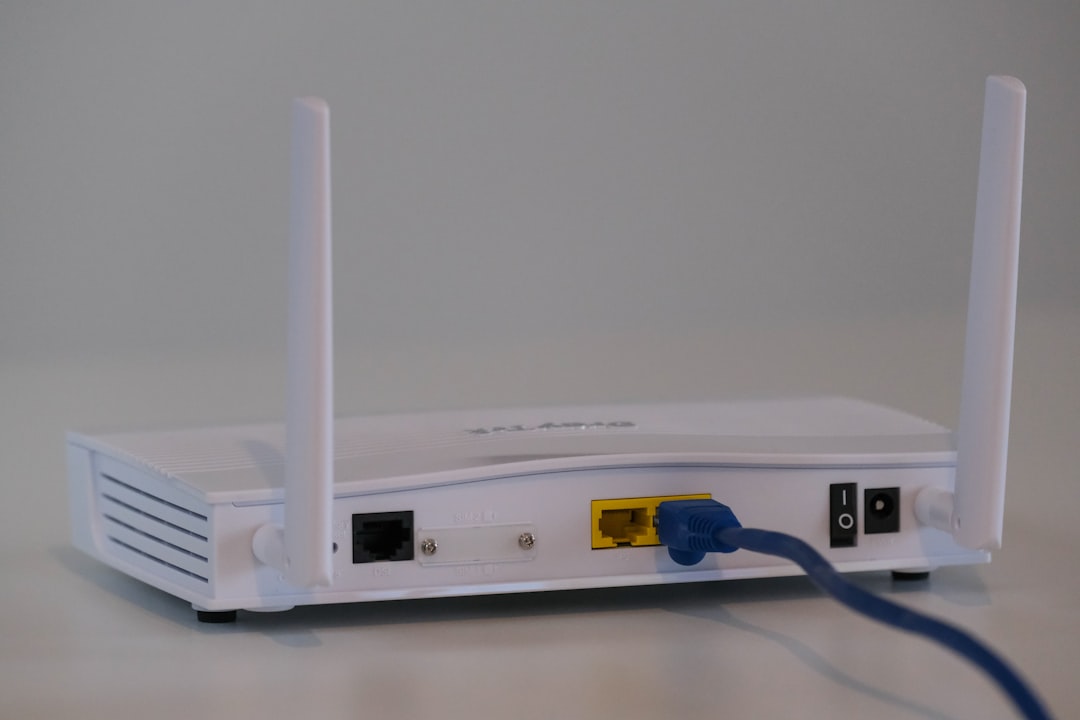
If you are plugged into a router or switch that supports only Fast Ethernet (100Mbps), your entire connection will bottleneck at that speed.
Solution: Make sure that both your router and switch (if using one) support Gigabit Ethernet (1000Mbps). Most modern routers do, but some cheaper models still have limited ports.
7. Drive Performance Bottlenecks
Steam extracts game files during downloads, and if your hard drive or SSD is slow or full, it can hamper the download performance. This isn’t a network issue per se, but it can look like one if Steam pauses frequently.
Solution: Monitor disk usage in the Task Manager. If your disk usage spikes to 100% during downloads, consider upgrading your drive or freeing space.
8. VPN or Proxy Services
Using a VPN or proxy while downloading through Steam can throttle speeds—especially if the VPN provider doesn’t support high-speed connections.
Solution: Disable the VPN and try downloading directly through your ISP. Steam generally performs best without intermediaries.
How to Check Steam’s Actual Download Speed
Sometimes users get confused because Steam reports download speed in MB/s (megabytes per second) rather than Mbps (megabits per second). 1 MB/s is equal to 8 Mbps.
If Steam shows a download of 12.5 MB/s, that’s actually 100Mbps. So, it’s possible your network is performing correctly but you’re misinterpreting the numbers.
Tip: Multiply Steam’s reported MB/s by 8 to get your actual Mbps rate.
Advanced Solutions
1. Update Network Drivers
Outdated drivers can limit performance even with newer hardware.
What to do:
- Open Device Manager, expand Network adapters.
- Right-click your adapter and choose “Update Driver.”
2. Change Duplex Settings
Steam download speed can sometimes be constrained by the duplex settings (how data is sent and received) on your network card.
Steps:
- Navigate to Device Manager > Network Adapter.
- Right-click and select Properties > Advanced.
- Look for an option called Speed & Duplex. Set it to Auto Negotiation.
3. Use a Wired Connection
While Wi-Fi has improved vastly, it still doesn’t compare to a stable, wired gigabit connection, especially during large downloads.
Recommendation: If you’re using Wi-Fi and seeing poor speeds, switch to Ethernet and use a proper Cat 5e or above cable.
Conclusion
While a download cap of 100Mbps on Steam might cause frustration, the root issue rarely lies with Steam itself. Typically, the culprit is a mix of hardware limitations, incorrect configurations, or external bandwidth usage. By systematically checking cables, settings, and hardware, users can often get their download speed up to the level they expect—and take full advantage of their high-speed internet connection.
FAQ
-
Q: Why does Steam show speeds in MB/s rather than Mbps?
A: Steam uses megabytes per second (MB/s), while your ISP advertises megabits per second (Mbps). To convert, multiply MB/s by 8. -
Q: Can Steam’s download speed be capped by my router?
A: Yes, if your router’s Ethernet ports are only Fast Ethernet (100Mbps), they will throttle all wired connections to that speed. -
Q: Is using a VPN safe for Steam downloads?
A: Generally, yes, but it can slow your downloads considerably due to bandwidth restrictions and longer routing paths. -
Q: Does Steam throttle download speeds intentionally?
A: No, but it may adjust speeds during peak traffic or if limits are set in your settings. Always check your download restrictions in Steam settings. -
Q: What Ethernet cable should I use for the best download speed?
A: Use at least a Cat 5e or better (like Cat 6 or Cat 7) cable to ensure full gigabit speeds.