
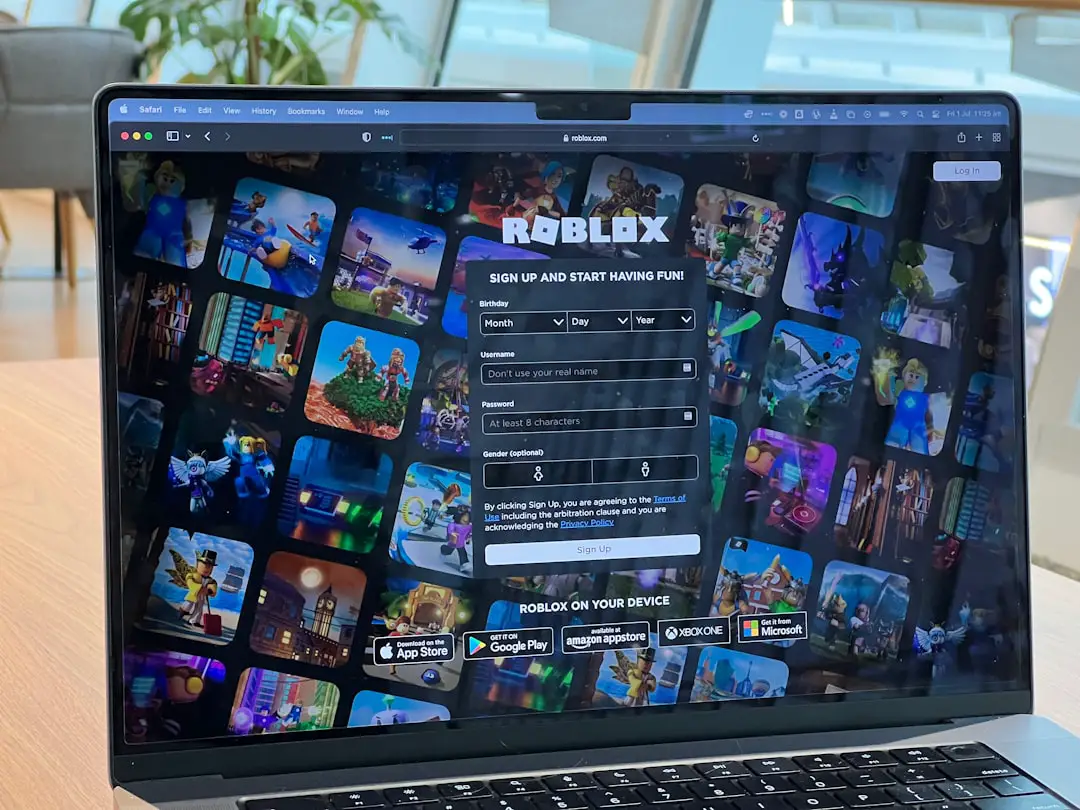
PLS DONATE is one of the most popular games on Roblox. You set up a stand. You sell gamepasses. You earn Robux. Simple, right? Well… not always. Sometimes your gamepasses do not show up. And that can be very frustrating.
TLDR: If your gamepasses are not showing in PLS DONATE, it is usually because they are not linked correctly, not on sale, or Roblox has not updated yet. Make sure they are public and for sale. Rejoin the game and check your game settings. If nothing works, wait a bit because Roblox servers can lag.
Why Are My Gamepasses Not Showing?
This problem happens a lot. Do not panic. It is usually something small.
Here are the most common reasons:
- Your gamepass is not set to For Sale.
- The gamepass belongs to the wrong experience.
- Roblox has not refreshed yet.
- You just created it and the system is delayed.
- There is a temporary Roblox bug.
The good news? All of these are fixable.
Step 1: Make Sure the Gamepass Is For Sale
This is the most common issue.
You may have created the gamepass. But forgot one tiny step. Making it public does not automatically make it purchasable.
Follow these steps:
- Go to Roblox Creator Dashboard.
- Click Creations.
- Select your experience.
- Click Associated Items.
- Choose Passes.
- Select your gamepass.
- Click Sales.
- Toggle Item for Sale.
- Set a price.
- Save changes.
Yes. You must set a price. Even if it is small.
If it is not for sale, PLS DONATE cannot display it.
Image not found in postmetaStep 2: Check You Created the Gamepass Correctly
Did you create the pass under the correct game?
This is very important.
PLS DONATE pulls gamepasses from your experience. Not from random places.
Common mistake:
- Uploading a shirt instead of a gamepass.
- Creating a badge instead.
- Attaching the gamepass to a different game.
Double-check that:
- The pass is under the game linked to your account.
- You are the owner of that experience.
- It is not under a group game (unless intended).
If it is under the wrong place, create a new one correctly.
Step 3: Rejoin PLS DONATE
This might sound too simple.
But it works often.
After fixing settings:
- Leave the game completely.
- Wait 30 seconds.
- Join again.
Sometimes it takes a few minutes for Roblox to update everything.
Be patient.
Roblox servers are not instant.
Step 4: Wait for Roblox to Catch Up
You just made your gamepass?
Then this is probably the issue.
New passes can take:
- 5 minutes
- 10 minutes
- Sometimes even longer
This is normal.
Roblox needs time to update across all servers.
During this time:
- Do not delete and remake it repeatedly.
- Do not keep changing the price constantly.
Just wait a little.
Step 5: Refresh Your Booth
Inside PLS DONATE you can refresh your stand.
Try this:
- Claim a different booth.
- Unclaim and reclaim your current booth.
- Switch servers.
Switching servers helps a lot.
Some servers load data slower than others.
Image not found in postmetaStep 6: Check If You Are in a Group Game
This is a sneaky problem.
If your game is owned by a group:
- The gamepass must be made under the group.
- You must have permission in that group.
If you made it under your personal account but the game is group-owned, it will not show.
Make sure everything matches.
Personal game? Personal pass.
Group game? Group pass.
Step 7: Clear Cache or Switch Device
Sometimes the problem is not the gamepass.
It is your device.
Try this:
- Close Roblox fully.
- Restart your device.
- Clear browser cache (if on browser).
- Try another device.
If it appears on another device, the issue was local.
Step 8: Check Roblox Server Status
Yes. Roblox goes down sometimes.
Or parts of it stop working.
If many people are having problems:
- It is likely a server issue.
- It will usually fix itself.
You can:
- Check Roblox status pages.
- Look on social media.
- Ask friends if theirs work.
If everyone has missing passes, just wait.
Common Mistakes to Avoid
Let us save you time.
Here are mistakes players often make:
- Pricing the gamepass at 0 Robux.
- Not clicking save.
- Making a developer product instead.
- Editing the pass while in the game.
- Expecting instant updates.
Remember:
Gamepasses must cost at least 1 Robux.
How to Test If It Works
After fixing everything, test it.
Here is how:
- Join a new PLS DONATE server.
- Claim a booth.
- Wait 10–20 seconds.
- Check your stand menu.
Your gamepasses should appear automatically.
If they do, you are good to go.
If not, repeat the checklist calmly.
Extra Tips to Increase Donations
Since you are here… let us help you more.
Once your gamepasses show properly, you want people to buy them.
Try this:
- Use clear pricing (5, 10, 20, 50).
- Add funny descriptions.
- Create multiple price options.
- Use bright booth text.
- Be friendly in chat.
People are more likely to donate when:
- You are polite.
- You say thank you.
- You interact with them.
Good energy helps a lot.
When Nothing Works
You tried everything.
Still nothing?
Here is your final checklist:
- Gamepass created under correct experience?
- Item set to for sale?
- Price added?
- Saved properly?
- Waited at least 15 minutes?
- Rejoined PLS DONATE?
If all answers are yes, then:
It is most likely a Roblox delay.
These issues usually fix themselves within hours.
Very rarely, it may take longer.
Quick Recap
Gamepasses not showing in PLS DONATE is common.
It is usually because:
- They are not for sale.
- The wrong game was used.
- Roblox needs time to update.
- You need to rejoin.
The fix is simple once you know where to look.
Most players solve it in under 10 minutes.
Final Thoughts
PLS DONATE is fun.
But technical issues can ruin the vibe.
The good news?
This problem is rarely permanent.
Stay calm. Follow the steps. Double-check settings.
Once fixed, your booth will display your gamepasses.
And then? The Robux can start flowing.
Good luck. And happy donating!