
In today’s digital-first workplace, secure access to applications is paramount, and tools like Okta Multi-Factor Authentication (MFA) play a critical role in enforcing identity controls. However, when something as seemingly minor as a mobile app update disrupts this delicate security layer, it can cause widespread confusion and panic among users and IT admins alike. Recently, many users reported an issue where the Okta Verify app stopped delivering push notifications after an update—a bug that left many locked out or scrambling for backup methods to log in. Fortunately, there’s good news: a swift re-enrollment process turned out to be the simple trick to restore full functionality.
TLDR: The Push Notification Glitch with a Simple Fix
After a recent update to the Okta Verify mobile app, many users suddenly stopped receiving push notifications for MFA approvals, even though the app looked properly configured. This glitch disrupted workflows and increased helpdesk calls. Fortunately, a straightforward re-enrollment of the device within the Okta dashboard resolved the issue in most cases. Read on for why this happened, how to fix it, and steps to prevent future issues.
Understanding the Root of the Problem
The issue first appeared after users updated their Okta Verify app to the latest version on iOS and Android. Suddenly, the expected push notifications for MFA approvals no longer arrived. The app was still installed, notifications were enabled in OS settings, and there were no visible errors in the Okta dashboard—but the push functionality had silently failed.
After digging deeper into community forums, admin forums, and Okta support channels, it became clear that this was not an isolated issue. Organizations saw a spike in login failures and growing lines at IT desks. The culprit: the recent app update likely broke the connection between existing devices and the Okta push service.
Push notifications rely on device tokens registered with Apple’s or Google’s notification services. A glitch during an app update can invalidate this token without properly refreshing it in Okta’s system. Consequently, even though everything appears correctly set up, the device never receives the push message it’s supposed to.

Recognizing the Symptoms
To troubleshoot effectively, you need to recognize the common signs that your user’s Okta Verify app is affected by this push notification issue:
- The app no longer triggers a push notification when users attempt to log in via accounts protected with MFA.
- Logging in through alternate factors, such as a TOTP code or SMS, still works.
- Notifications from other apps continue to function normally on the device.
- The Okta Verify app appears registered and active in the user’s Okta dashboard.
- Uninstalling and reinstalling the Okta app doesn’t resolve the issue on its own.
Troubleshooting That Doesn’t Work (And Why)
When users first ran into the issue, the instinctual response was to try the following:
- Restart the phone
- Check OS notification settings
- Toggle notification permissions for Okta Verify
- Uninstall and reinstall the Okta Verify app
While these steps are valid in many cases, they didn’t resolve the issue here because the link between the device and Okta’s push system had been fundamentally broken—particularly the push token. That token needs to be freshly registered and authenticated with Okta, something that doesn’t happen with a general reinstall.
The Re-Enrollment Trick That Saved the Day
The solution turned out to be both elegant and surprisingly simple: remove the current device enrollment and re-add the device in the user’s Okta account.
Here’s a step-by-step walkthrough you can use to guide affected users:
- Log into the Okta dashboard using an alternate MFA method (such as a hardware token, backup code, or SMS).
- Go to Settings > Extra Verification.
- Find the device listed under “Okta Verify” and click Remove.
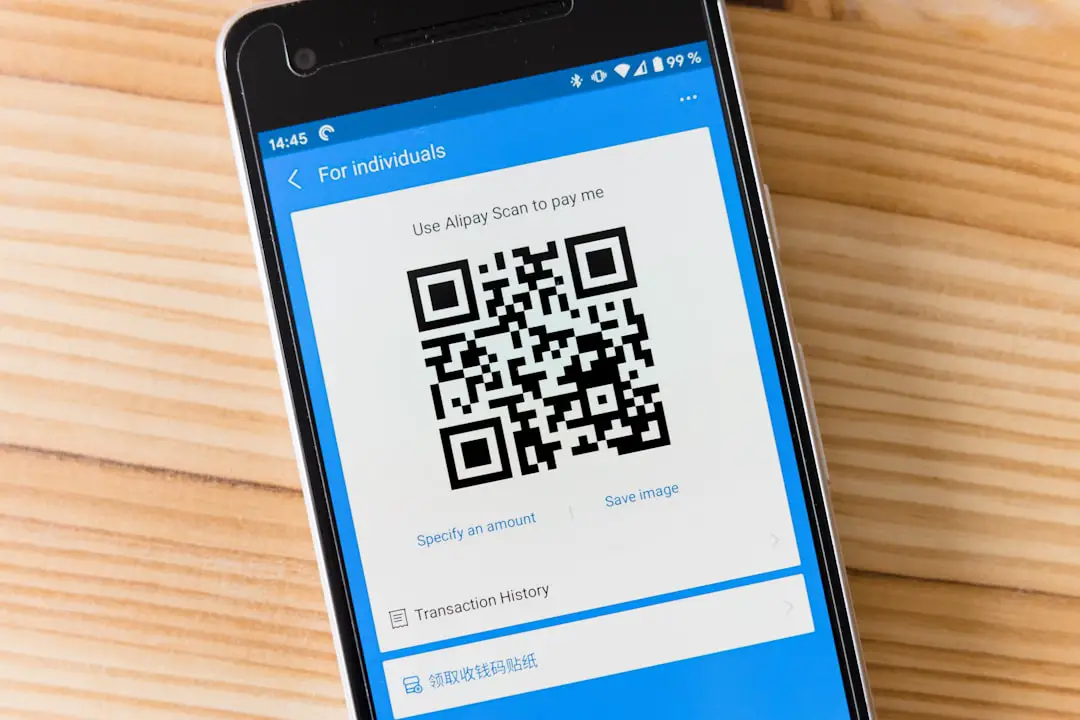
- Once removed, click Set up again and follow the prompts to scan the new QR code with the updated Okta Verify app.
- Test the authentication flow to confirm that push notifications have resumed working.
In most cases, re-enrollment registered the device with a fresh token and fully restored push functionality. IT administrators also reported immediate resolution when assisting on behalf of users through the admin console.
How Long Does This Take to Fix?
For a single user, the re-enrollment process takes less than 5 minutes. But for IT teams supporting hundreds or thousands of users, a sudden push notification outage can be a significant burden.
In such environments, proactive communication and well-documented reenrollment guides are essential. Some companies even built short instructional videos or internal knowledge base articles to streamline the process and reduce helpdesk loads.
Preventing Future Outages
While glitches happen, there are steps admins and users can take to minimize the impact:
- Enable Multiple MFA Factors: Ensure users have a backup factor enabled (like SMS or TOTP) in case push fails, so they can still log in and self-remediate.
- Monitor App Updates: Delay automatic rollout of updates in enterprise app management systems until verified safe.
- Utilize Okta Reports: Use Okta’s system logs and factor enrollment reports to catch spikes in push rejections or failed login attempts.
- Train Users: Educate end-users on how to check if push notifications stop working and what alternate methods they can use (or who to contact).
Vendor’s Response and Long-Term Resolution
Okta eventually acknowledged the issue in a community post and confirmed that the problem was related to device token invalidation not being properly handled in the update process. They recommended administrators to prompt affected users to reenroll their device as the fastest resolution.
For a longer-term fix, they suggested keeping watch on upcoming app versions, which would include improved state management for push tokens during app updates. Admins can also subscribe to Okta’s product release notes and known issue alerts to stay ahead of such disruptions.
Final Thoughts
In the world of cybersecurity, even small changes—like a background app update—can ripple into large-scale issues when access is tightly gated by layered defenses like MFA. While the Okta Verify glitch challenged users and IT teams alike, it also served as a valuable reminder of the importance of redundancy, proactive monitoring, and clear communication channels.
The next time a user walks into IT saying, “I’m not getting the push anymore,” you’ll know exactly how to fix it: a quick re-enrollment could be all it takes to restore secure, seamless access.
Stay secure, stay proactive.