

In today’s digital age, integrating technology into education enhances both teaching and learning experiences. One of the most efficient tools for educators and students is Google Classroom. Often referred to as “Gmail Classroom” due to its linkage with Google accounts, this free platform allows streamlined communication, assignment distribution, and grading. If you’re new to Google Classroom, setting it up may seem daunting. But don’t worry — in just a few steps, both teachers and students can be fully immersed in a virtual learning environment that is both powerful and user-friendly.
Why Use Google Classroom?
Google Classroom is an essential tool for educators in both physical and remote settings. Here’s why so many institutions choose it:
- Integration with Google Workspace: Seamlessly integrates with Google Docs, Drive, Calendar, and Gmail.
- Easy Assignment Management: Teachers can assign, collect, and grade work efficiently.
- Real-Time Communication: Enables direct communication between teachers and students.
- Paperless Workflow: Reduces the need for printing and physical distribution of learning materials.
Setting up Google Classroom is straightforward, but it’s essential to follow a structured approach to make the most of its features. Below, we’ll walk through the setup for both educators and students.
Prerequisites for Teachers and Students
Before jumping in, ensure you have the following:
- A Google Account: This can be a personal Gmail or an institution-provided Google Workspace for Education Account.
- Internet Access: A reliable connection will help maintain student engagement and assignment submissions.
- Compatible Device: Google Classroom can be accessed via desktops, laptops, tablets, or smartphones.
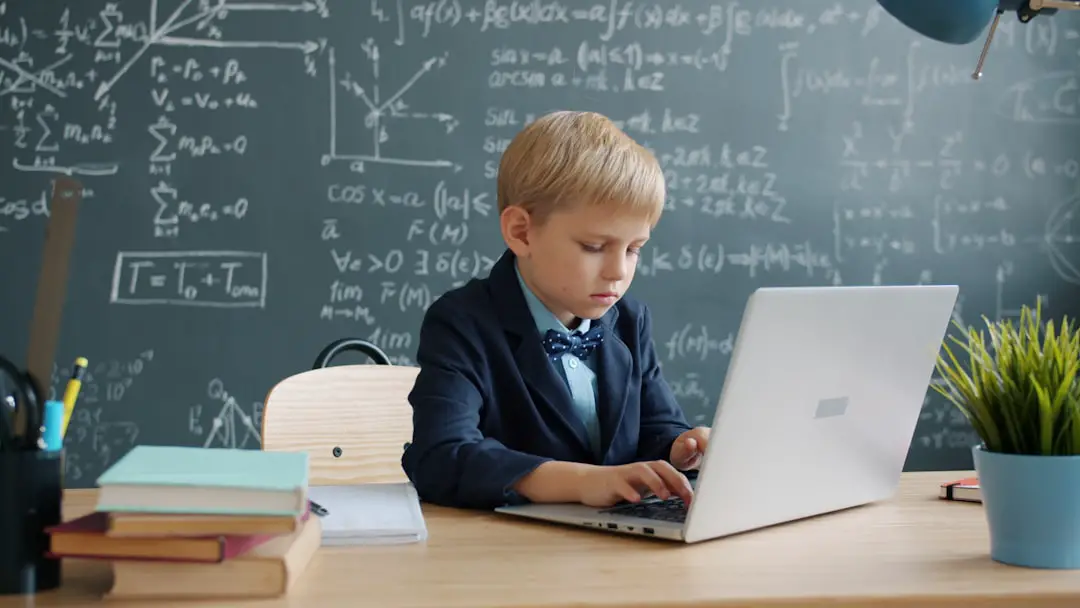
Setting Up Google Classroom: A Step-by-Step Guide for Teachers
Teachers are the initiators in Google Classroom. They create and manage virtual classrooms, distribute assignments, and provide feedback. Here’s how to get started:
- Sign In: Go to classroom.google.com and sign in with your Google account.
- Create a Class:
- Click the ‘+’ icon in the top right and select ‘Create class’.
- Fill in the required information: Class Name, Section, Subject, and Room (optional).
- Click on ‘Create’ and Google will generate your classroom.
- Customize Your Class:
- Add a class theme or upload a custom banner image.
- Change settings like stream permissions and class invite codes.
- Invite Students:
- Share the class code shown on the header of your class page.
- Alternatively, click ‘People’ tab, then ‘Invite students’ by entering email addresses.
- Post Materials and Assignments:
- Use the ‘Classwork’ tab to create assignments, quizzes, questions, or post learning materials.
- Tag these posts with topics to maintain organization.
- Grading Setup:
- Under ‘Classwork’, click the settings icon and set up grading categories and overall grade calculation preferences.
Tip: Regularly check the Stream tab for student updates, announcements, or questions.
Google Classroom from the Student’s Perspective
Joining and using Google Classroom is equally intuitive for students. Here’s how they can get started:
- Sign In: Students should go to classroom.google.com and log in with their Google account.
- Join a Class:
- Click the ‘+’ icon and select ‘Join class’.
- Enter the class code provided by the teacher and click ‘Join’.
- Navigate the Interface:
- Explore tabs like Stream, Classwork, and People to find announcements, assignments, and educator contact info.
- Submit Assignments:
- Go to the Classwork tab, click on the assignment, and follow submission instructions.
- Make sure to click on ‘Turn in’ when work is completed.
- Check Grades and Feedback:
- View grades and teacher comments within each assignment.
Tips for Effective Use of Google Classroom
After setup, it’s key to maintain best practices for optimal productivity and learning outcomes:
- Consistency is Key: Post assignments and updates consistently to help students form routines.
- Utilize Announcements: Keep communication flowing with timely reminders and encouraging messages.
- Engage Students: Use discussion questions or polls to spark interaction and collaborative learning.
- Use Integration Tools: Leverage additional tools like Google Meet, Jamboard, and Forms for enhanced interactivity.
Managing Class Settings & Privacy
Google takes privacy seriously, especially in educational settings. Teachers can control many settings to ensure a safe environment:
- Student Permissions: Decide whether students can post or comment in the class stream.
- Guardian Summaries: Enable email summaries for guardians to keep them informed on student progress.
- Invite Control: Only allow trusted users to invite others to the class.
Note: If you’re using a Google Workspace for Education account, your school may already have security settings in place.
Common Issues and How to Solve Them
No platform is without hiccups. Here are a few common problems and how to handle them:
- Can’t Join Class: Ensure the class code is typed correctly, and the Google account is authorized by your institution (if required).
- Assignment Submission Errors: Check file formats and make sure Google Drive has sufficient space.
- Notifications Overload: Customize your email or mobile app notifications from settings.
Beyond the Classroom: Additional Features
Google Classroom isn’t just for assignments. Explore these additional uses:
- Virtual Meetings: Link a Google Meet session for live classes.
- Integrated Calendar: Automatically syncs assignment due dates with Google Calendar.
- Quiz Creation: Use Google Forms to build auto-graded quizzes for quick assessments.
Conclusion
Setting up Gmail or Google Classroom is a game-changer for both students and teachers. With its seamless integration, ease of use, and rich features, it promotes a collaborative and efficient virtual learning environment. By taking the time to configure settings properly and using the platform consistently, educators can transform the way classrooms function in the 21st century. Whether for homework assignments, discussions, or one-on-one support, Google Classroom bridges the gap between traditional and digital education — turning every device into a gateway for learning.