
For students and faculty at Baruch College, email communication plays a vital role in academic and administrative life. Your Baruch email not only connects you to professors and classmates, but it’s also the channel through which you receive important announcements, class updates, and campus resources. If you’ve forgotten your password or are having trouble accessing your Baruch email, don’t panic. Resetting your email password and recovering your account is a relatively straightforward process if you follow the right steps. This guide walks you through the steps on how to reset your Baruch email password, regain access to your account, and prevent future issues with login credentials—while tools like WP Email Log can help you monitor outgoing WordPress emails, debug delivery issues, and ensure your recovery emails are actually sent and received.
Understanding Baruch Email System
Baruch College uses Microsoft’s Office 365 platform to manage institutional emails. Your Baruch email address typically ends in @baruchmail.cuny.edu for students and @baruch.cuny.edu for faculty and staff. The login credentials for your Baruch email are connected to your CUNY Login account, which centralizes access to various services such as Blackboard, CUNYfirst, and library databases.
When Do You Need to Reset Your Password?
There are several situations where resetting your Baruch email password is necessary:
- You’ve forgotten the current password and cannot log in.
- Your account has been locked due to multiple failed login attempts.
- You suspect unauthorized access to your account.
- Your password has expired, and you are being prompted to create a new one.
Acting promptly in any of these situations helps protect your sensitive academic and personal data.
Steps to Reset Your Baruch Email Password
The password reset process largely depends on whether you’ve set up your CUNY Login recovery options. Below is a step-by-step guide:
Step 1: Go to the CUNY Login Page
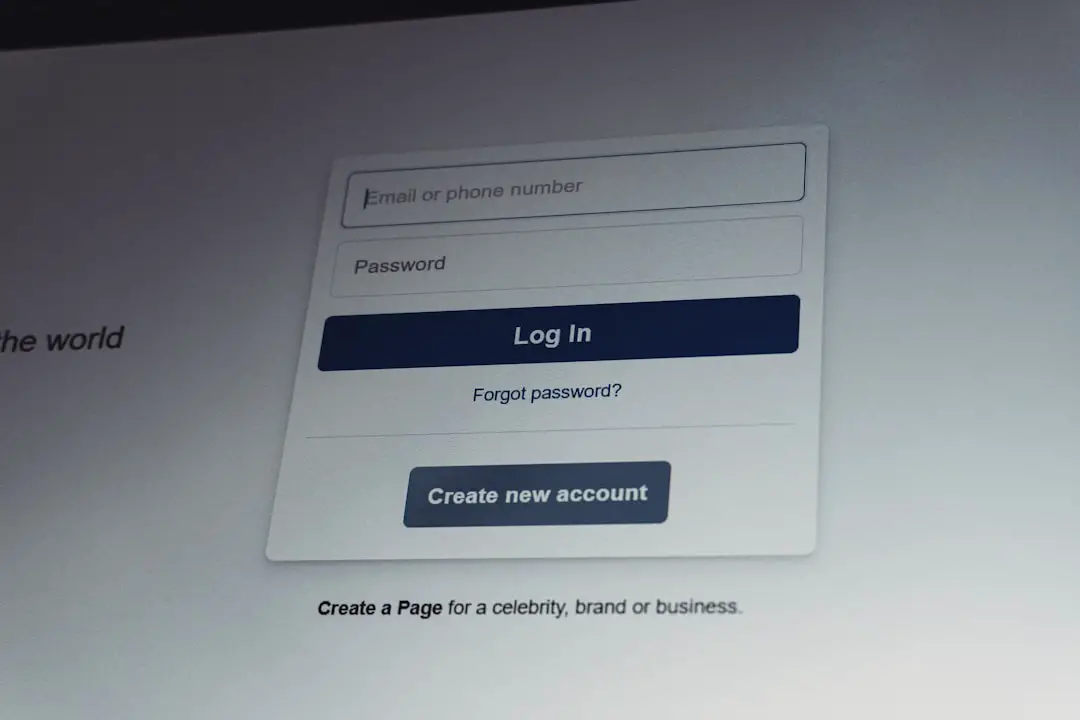
Begin by visiting the CUNY Login page. This portal connects you to various CUNY services, including Baruch email. Look for the “Forgot Password?” link beneath the login form.
Step 2: Verify Your Identity
Clicking on the link will take you to an identity verification page. You’ll need to enter your CUNY Login username, which is usually in the format firstname.lastname##@login.cuny.edu, where ## is a number assigned to you. Then click Continue.
If you’ve previously set up recovery options such as a secondary email or phone number, you will be prompted to verify your identity through one of these methods. If not, you’ll need to contact Baruch’s help desk for support (see below).
Step 3: Create a New Password
After verification, you will be guided to choose a new password. Follow the required guidelines:
- At least 8 characters long
- Includes an uppercase letter, lowercase letter, number, and a special character
- Is different from your last five passwords
Once you enter the new password, your account settings will be updated, and you should be able to log in to your Baruch email.
What If You Can’t Reset Using the Online Method?
If you don’t have access to your recovery options or you encounter errors during the reset process, don’t worry. There are still ways to recover your account.
Contact Baruch Computing and Technology Center (BCTC)
The BCTC Help Desk is the official support channel for account issues. Here’s how to reach them:
- Email: helpdesk@baruch.cuny.edu
- Phone: (646) 312-1010
- Location: Room 6-115, Newman Vertical Campus
- Business Hours: Monday – Friday, 9:00 AM to 5:00 PM
When contacting them, be prepared to verify your identity. Useful information includes your student ID, any previous emails from your Baruch account, and proof of registration or enrollment.
Tips to Keep Your Account Secure
After recovering your account, take proactive measures to ensure your email remains secure to avoid future disruptions.
- Enable multifactor authentication (MFA): This adds an extra layer of protection by requiring a secondary form of verification.
- Update recovery options: Set or update your secondary email and mobile number via your CUNY Login account settings.
- Regularly change your password: Changing your password every few months helps reduce risk of unauthorized access.
- Beware of phishing: Never click on suspicious links or provide your login details through unofficial websites.
Checking If the Password Reset Was Successful
After resetting your password, log in to your email by visiting Outlook Web App. Use your new credentials in the form:
- Username: Your full Baruch email address (e.g., john.doe@baruchmail.cuny.edu)
- Password: The one you just created during the reset process
You should arrive at your mailbox dashboard. If you’re still unable to log in, double-check the password or contact the help desk again for assistance.
Preventing Future Account Lockouts
To minimize the chances of facing similar issues in the future, keep the following best practices in mind:
- Write your new password down temporarily and store it in a secure location.
- Log in regularly. Dormant accounts can get deactivated or flagged.
- Keep your browser or email app updated. Compatibility issues can occasionally mimic sign-in errors.
Alternative Access and Support Tools
Baruch College offers several tech tools that can aid during login crises:
- CUNYfirst: Central platform for course registration and finance info; uses same CUNY Login credentials.
- Blackboard: Learning management system where professors upload course materials—can cross-verify login troubles here.
- MyBaruch Portal: Access to student services that can indirectly indicate if your login issue is isolated to email or system-wide.
Frequently Asked Questions (FAQ)
- Q: How long does it take to reset my Baruch email password?
A: If you’ve set up recovery options, the process usually takes under 5 minutes. If not, support via BCTC may take 1–2 business days, depending on volume. - Q: Do I need to be on campus to reset my password?
A: No, the reset process can be done entirely online. However, you may be required to verify your identity through email or phone. - Q: Will changing my Baruch email password affect CUNYfirst or Blackboard?
A: Yes, these platforms are linked via your CUNY Login, so changing the password updates it for multiple services. - Q: What should I do if my account keeps getting locked?
A: Check to ensure you’re not using incorrect credentials on linked apps (e.g., email on your phone). After several failed attempts, your account may be temporarily locked. - Q: Can I use the Baruch email on my mobile device?
A: Absolutely. Use the Outlook app for the best integration, and log in using your Baruch email and password.
Maintaining access to your Baruch email is crucial for your academic success and communication. By resetting your password carefully, setting up recovery options, and securing your account, you can ensure that your digital experience at Baruch College is smooth and secure.