
Apple’s HomePod lineup has evolved over the years, but one thing remains constant: sometimes you need to reset it. Whether you’re troubleshooting connectivity problems, preparing to sell your speaker, or fixing an unresponsive device, knowing how to properly reset your HomePod can save you time and frustration. This comprehensive 2026 guide walks you through resetting every HomePod model step-by-step, including HomePod (1st generation), HomePod (2nd generation), and HomePod mini.
TL;DR: Resetting a HomePod can fix connectivity issues, Siri glitches, and setup problems. You can reset directly from the Home app, using touch controls on the speaker, or via a Mac/PC for HomePod mini and newer models. The process varies slightly depending on the model, but all methods are simple and take only a few minutes. Always remove the device from the Home app before selling or giving it away.
Why You Might Need to Reset Your HomePod
A reset restores your HomePod to its factory settings, erasing Wi-Fi credentials, Apple ID associations, and custom configurations. Here are the most common reasons you may need one:
- Wi-Fi connection problems that won’t resolve
- Siri not responding or acting inconsistently
- Speaker not appearing in the Home app
- Preparing to sell or give away the device
- Transferring ownership to another Apple ID
Before resetting, ensure your iPhone or iPad is updated to the latest iOS or iPadOS version, as software compatibility can sometimes mimic hardware issues.
Know Your Model: HomePod Reset Methods Compared
While the HomePod family looks similar, reset steps differ slightly. Use the table below to identify the correct reset method for your model.
| Model | Reset via Home App | Manual Touch Reset | Computer Reset (Mac/PC) |
|---|---|---|---|
| HomePod (1st Gen) | Yes | Yes | No |
| HomePod (2nd Gen) | Yes | Yes | Yes (USB C) |
| HomePod mini | Yes | Yes | Yes (USB C) |
This chart gives you a quick overview, but the detailed steps below ensure you do it correctly.
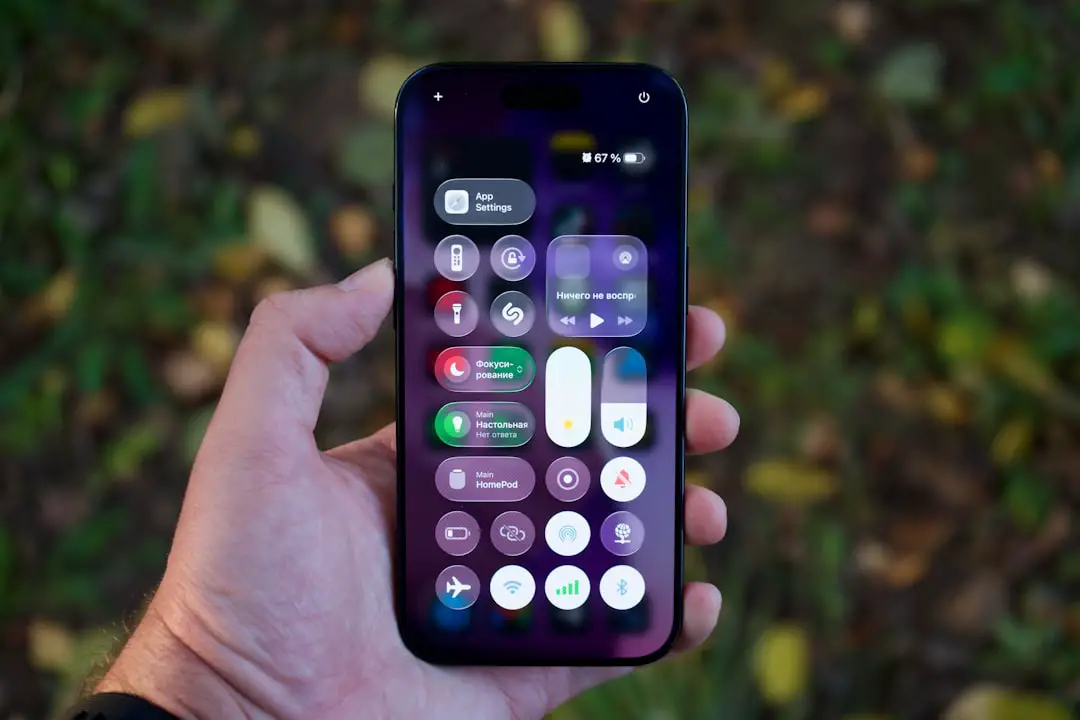
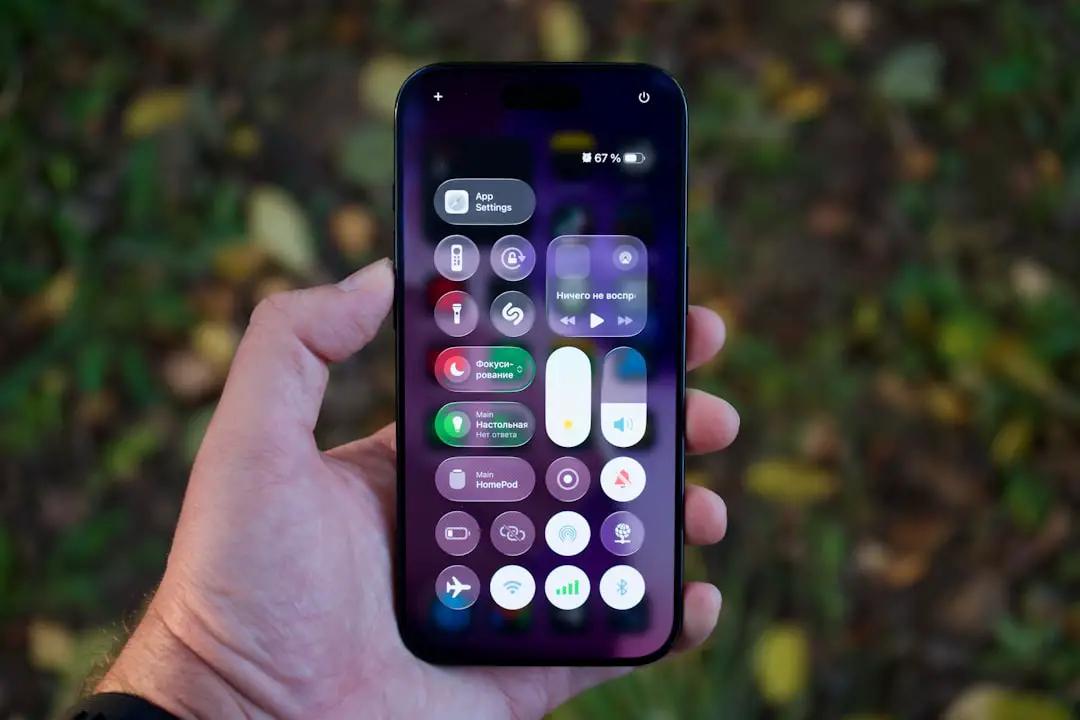
Method 1: Reset HomePod Using the Home App (All Models)
This is the easiest and most recommended method if your speaker is still responsive and connected to your Apple ID.
Follow these steps:
- Open the Home app on your iPhone or iPad.
- Press and hold the HomePod icon.
- Scroll down and tap Remove Accessory.
- Confirm by tapping Remove.
Your HomePod will reset and restart automatically.
Tip: If you’re removing it because you’re selling or gifting it, make sure it disappears from your Home app entirely before handing it over.
Method 2: Manual Reset Using Touch Controls (All Models)
If your HomePod isn’t responding in the Home app, you can reset it directly from the device itself.
Steps for HomePod (1st and 2nd Generation)
- Unplug your HomePod and wait 10 seconds.
- Plug it back in.
- Wait 5 seconds.
- Touch and hold the top of the HomePod.
- Keep holding until the spinning white light turns red.
- Siri will say your HomePod is about to reset.
- Continue holding until you hear three beeps.
After the beeps, the device will reset.
Steps for HomePod mini
The process is nearly identical:
- Unplug the HomePod mini and wait 10 seconds.
- Plug it back in and wait 5 seconds.
- Touch and hold the top center.
- Keep holding through the white light until it turns red.
- Wait for three beeps before releasing.
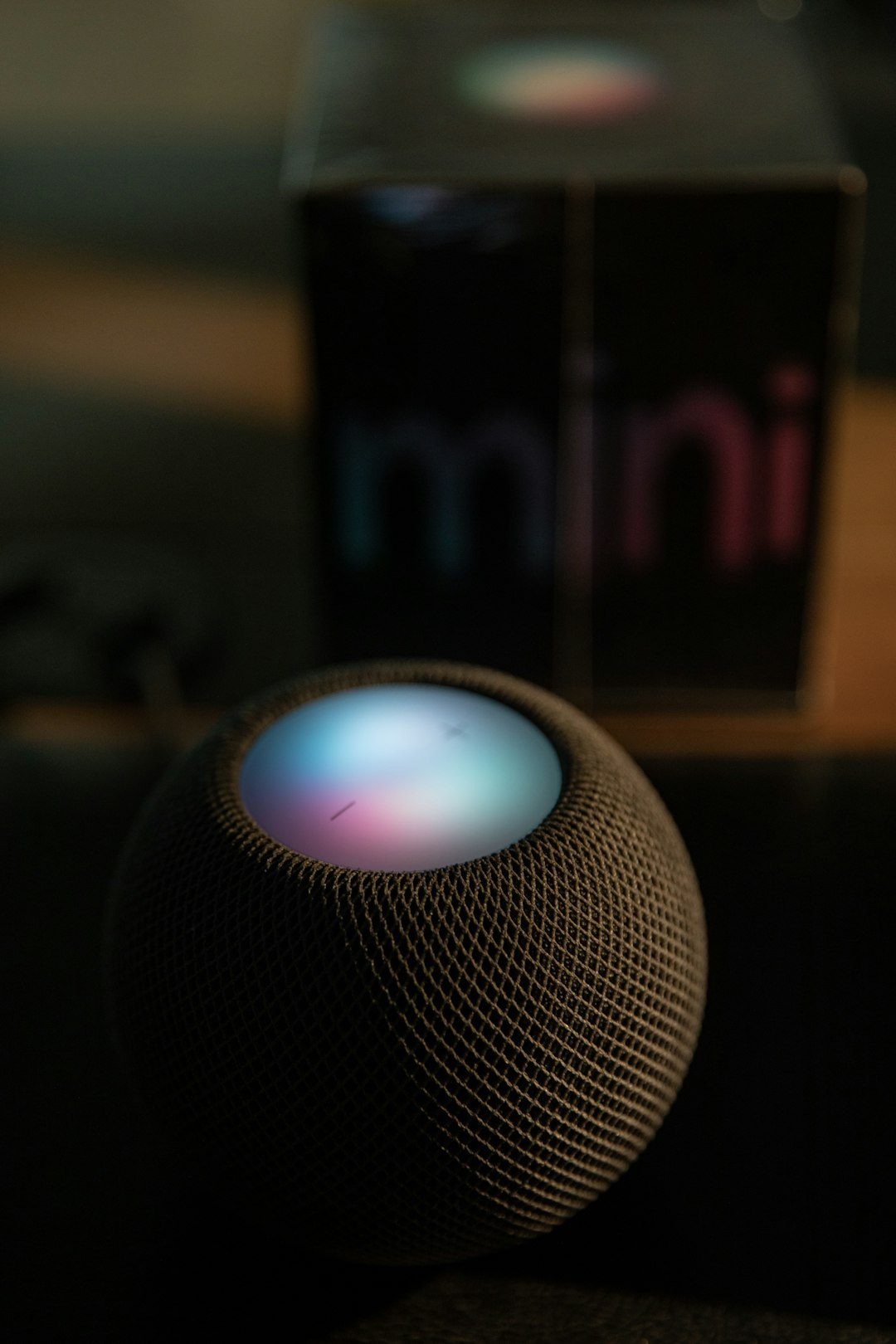
Important: If you release too soon, the reset won’t complete. Hold firmly until all three beeps finish.
Method 3: Reset Using a Mac or PC (HomePod mini & 2nd Gen Only)
This method is particularly useful if your HomePod mini or 2nd generation HomePod is completely unresponsive.
What You Need
- A Mac (macOS Catalina or later) or Windows PC with iTunes
- USB C cable
Steps on Mac
- Connect HomePod mini or HomePod (2nd Gen) using a USB C cable.
- Open Finder.
- Select your HomePod under Locations.
- Click Restore HomePod.
- Wait for the restore process to complete.
Steps on Windows PC
- Install or open the latest version of iTunes.
- Connect your HomePod using USB C.
- Select the device when it appears.
- Click Restore HomePod.

This method reinstalls the speaker’s firmware alongside resetting it, which is ideal if the system software has become corrupted.
What Happens After a Reset?
When you reset a HomePod:
- It disconnects from your Apple ID.
- All Wi-Fi settings are erased.
- Siri personalization is removed.
- HomeKit automations are deleted.
The speaker returns to its original setup state, just like when first unboxed.
To set it up again:
- Unlock your iPhone.
- Hold it near the HomePod.
- Follow the onscreen setup instructions.
Troubleshooting: Reset Not Working?
If your reset attempts fail, try these solutions:
- Check power source: Make sure the outlet works properly.
- Update iOS: Ensure your iPhone is on the latest version.
- Use the computer method: Especially for persistent firmware issues.
- Restart your router: Connectivity glitches can interfere with removal from the Home app.
If your HomePod still doesn’t respond after all methods, contact Apple Support as there may be a hardware issue.
When to Restart Instead of Reset
Not every problem requires a full factory reset. Sometimes a simple restart is enough.
To restart from the Home app:
- Open the Home app.
- Press and hold the HomePod icon.
- Tap Settings.
- Select Restart HomePod.
A restart keeps your data intact while refreshing the system.
Preparing HomePod for Sale or Transfer
If you’re giving away or selling your HomePod in 2026, follow these best practices:
- Reset using the Home app first.
- Confirm removal from your Apple ID.
- Clean the mesh exterior gently with a soft cloth.
- Include the original packaging if available.
Failing to reset correctly may prevent the new owner from setting it up.
Common Questions About Resetting HomePod
Does resetting remove Apple Music subscriptions?
No. Your subscriptions remain active on your Apple ID.
Will I lose stereo pairing?
Yes. If you’ve paired two HomePods as stereo speakers, resetting one breaks the pair.
Is there a reset button?
No physical reset button exists. All resets are done via touch controls, the Home app, or a computer.
Final Thoughts
Resetting your HomePod in 2026 is easier than ever, with multiple recovery methods available depending on your situation. Whether you’re troubleshooting, transferring ownership, or starting fresh, Apple provides straightforward solutions for every model.
The key is choosing the correct reset method for your specific HomePod version. In most cases, the Home app will do the trick. For stubborn software issues, the computer restore option offers a powerful fallback.
By following this step-by-step guide, you’ll have your HomePod reset and ready to go in just minutes—so you can get back to enjoying seamless smart home control and premium sound.