
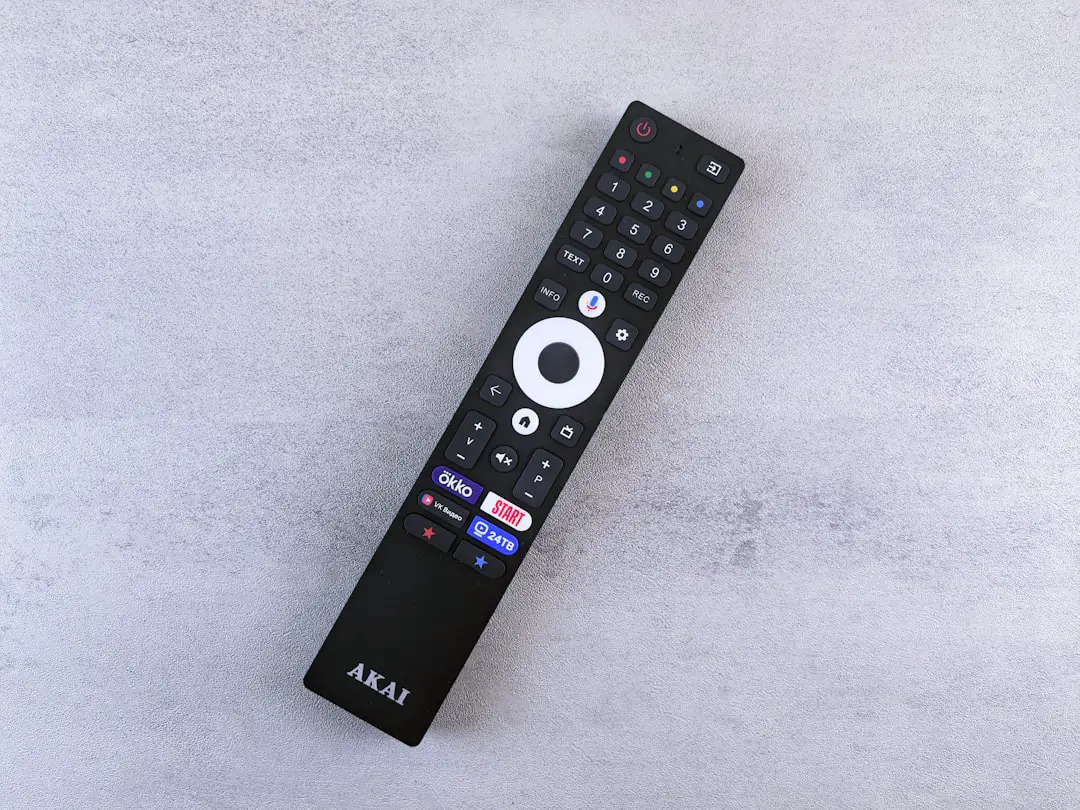
Imagine this: You’ve finally sat down with your snack of choice, ready to binge your favorite show. You grab your Fios remote to turn on your TV… and nothing happens. Yep, your remote isn’t programmed to your TV yet. But don’t worry—we’re here to fix that in just a few simple steps!
TL;DR:
Programming your Fios remote is super easy and takes just a few minutes. You can do it manually using a code or let the remote find the right one automatically. Just follow the step-by-step instructions below, and you’ll be changing channels like a pro in no time. No tech wizardry needed—just your remote and a little patience!
What You’ll Need
- Your Fios remote
- Your TV (turned on!)
- A little finger strength for button holding
But First, Identify Your Remote
There are a couple of different Fios remotes out there. The two most popular are:
- Fios TV Voice Remote – It has a microphone button on top.
- P265 or P283 Remote – These are a bit more old-school, with no mic.
Find which one you have before diving in. Ready? Let’s get programming!
Option 1: Using the Fios TV Voice Remote
This remote is the newer version and super simple to use.
- Turn on your TV and Fios set-top box.
- Press and hold the “OK” and “FiOS TV” buttons at the same time.
- Release both buttons when the red light on the remote blinks twice and stays on.
- Point the remote at the TV and press the “Play/Pause” button.
- Keep pressing “Play/Pause” every second or so until the TV powers off.
- As soon as it turns off, press the “TV Power” button to turn your TV back on.
- Try the volume buttons. If they work, you’re done!
Still not working? You can also program it through the Fios menu:
- Press the “Menu” button on your remote.
- Go to “Settings” > “Voice Control” > “Fios TV Voice Remote”.
- Select “Program TV”.
- Follow the on-screen directions. Easy-peasy.

Option 2: Using the P265 or P283 Remote
Okay, old souls… here’s your section. This will take just a little elbow grease.
- Turn on your TV and Fios box.
- Press and hold the “OK” and “0” buttons together.
- When the red light blinks twice, release both buttons.
- Now enter the 3-digit remote code for your TV.
- The red light should blink twice again—this means the code worked!
Don’t have a code? No problem. You can find a list of codes on the Verizon website or use the manual scan method below.
Manual Code Search (A.K.A. the Scan Method)
- Press and hold the “OK” and “0” buttons until the red light blinks twice.
- Slowly press the “Channel Up” button, one press per second.
- When the TV shuts off, press “OK” right away to lock in the code.
- Turn your TV back on using the remote and test all the key buttons.
Feeling like a remote ninja yet?
Troubleshooting Tips
- If the remote light doesn’t blink, try replacing the batteries. Duh, right?
- If your TV doesn’t respond, double-check model codes or try scanning again.
- Be patient. Sometimes it takes a few minutes to find the right code.
- Always point the remote directly at the TV with no obstructions.
Resetting the Remote
Oops, hit the wrong code a hundred times? No sweat. Let’s start fresh.
For Fios TV Voice Remote:
- Press and hold “Menu” and “0”.
- When the red light blinks twice, it’s reset.
For P265/P283:
- Press and hold “OK” and “2” until the red light blinks twice.
- Your remote is now back to factory settings.
Frequently Asked Questions
1. Can I control both the TV and Fios box with one remote?
Yes! Once programmed, your Fios remote can power your TV, adjust volume, and change channels on your Fios box.
2. What if I have a soundbar?
You can also program your remote to control your soundbar. Just use the same process as with the TV, but select the soundbar brand when asked.
3. Does the remote work with smart TVs?
Absolutely! Just make sure you use the correct codes or scanning method for your TV brand.
Life After Programming
Congrats! Your Fios remote and TV are now best friends. This means no more juggling multiple remotes. You’ve simplified your setup like a boss.
Now go ahead—sit back, grab that popcorn, and start watching. Want to get fancy? Try using voice commands if you have the mic version.
Programming a remote may seem small, but it’s one of those things that makes life just a little bit easier. And hey, you did it. High five! 🙌
Bonus Tip: Label It!
If you’ve got more than one remote in the house, stick a little label on it. Write down the room or the TV it controls. Future You will be grateful.
The End (But Just the Beginning of Couch Relaxation)
Hopefully, this guide made the process fun and stress-free. Now, no more excuses—go on and enjoy your favorite series, sports game, or that bizarre cooking show you’re secretly obsessed with.
Happy channel surfing!