
The 4K Video Downloader is a powerful tool used by millions to download high-quality videos from platforms like YouTube, Facebook, and Vimeo. While it generally performs well, some users may occasionally encounter the dreaded “Download Failed” error. This error can be frustrating—especially when you’re in a hurry or working with time-sensitive materials. Fortunately, there are several tried-and-true ways to resolve this problem and resume your downloads without issue.
This article provides a trustworthy, step-by-step guide to fixing the “4K Video Downloader Failed to Download” error. By following the methods below, users can identify the root causes of the issue and apply effective solutions to get back on track.
Common Reasons Behind the Error
Before diving into solutions, it’s important to understand why this error may occur. Here are a few common causes:
- Outdated software version
- Incorrect or expired video URL
- Network connectivity issues
- Blocked ports or firewall settings
- YouTube or other platform changes (e.g., new encryption or API updates)
Now that we know the likely culprits, let’s explore how to fix this error effectively.
1. Update 4K Video Downloader to the Latest Version
4K Video Downloader regularly releases new updates to accommodate the frequent changes on platforms like YouTube. Running an outdated version can cause compatibility issues.
To update:
- Open 4K Video Downloader
- Go to Help > Check for Updates
- Download and install the latest version if available
If the automatic update doesn’t work, you can manually download the latest installer from the official website: 4kdownload.com.
2. Check the Video URL
Sometimes the issue is as simple as a malformed or expired URL. Ensure that the video is publicly accessible and the URL is copied correctly.
Double-check the following:
- The link opens and plays in a browser
- The video is not set to private, region-locked, or deleted
- The link is copied from the browser’s address bar, not from redirects or shortened URLs
Invalid URLs are among the most common reasons for this error, so it’s an easy first step to rule out.
3. Analyze Your Internet Connection
A poor or intermittent internet connection can prevent successful downloads. This is particularly true for larger file downloads like 4K content.
Try the following:
- Restart your modem and router
- Switch to a wired connection for better stability
- Run a speed test to verify bandwidth is sufficient
- Temporarily disable other network-heavy applications
If you’re behind a corporate or school network, certain ports may be blocked. In that case, switching to a different connection or using a VPN might help.
4. Clear the Program Cache and Settings
Corrupt settings or outdated cache files may interfere with downloads. Resetting 4K Video Downloader settings can often resolve this issue.
Here’s how:
- Close 4K Video Downloader
- Navigate to the cache folder:
- Windows: C:\Users\[Your Username]\AppData\Local\4kdownload.com
- macOS: ~/Library/Application Support/4kdownload.com
- Delete the folder named 4kvideodownloader
- Restart the application
Let the program regenerate fresh configurations on the next launch. This effectively resets the application to its default state.
5. Disable Firewalls and Antivirus Temporarily
Firewall or antivirus software can sometimes identify 4K Video Downloader as a threat and block essential connections. Depending on your software, it might silently prevent downloads from being initiated.
Temporarily disable these protections and check if the issue persists:
- Open your antivirus software and disable real-time protection
- Go to your Windows/Mac firewall settings and disable them temporarily
- Try downloading the video again
Important: Always re-enable your firewall and antivirus after testing. If the issue stems from these tools, add 4K Video Downloader to their “allowed” list.
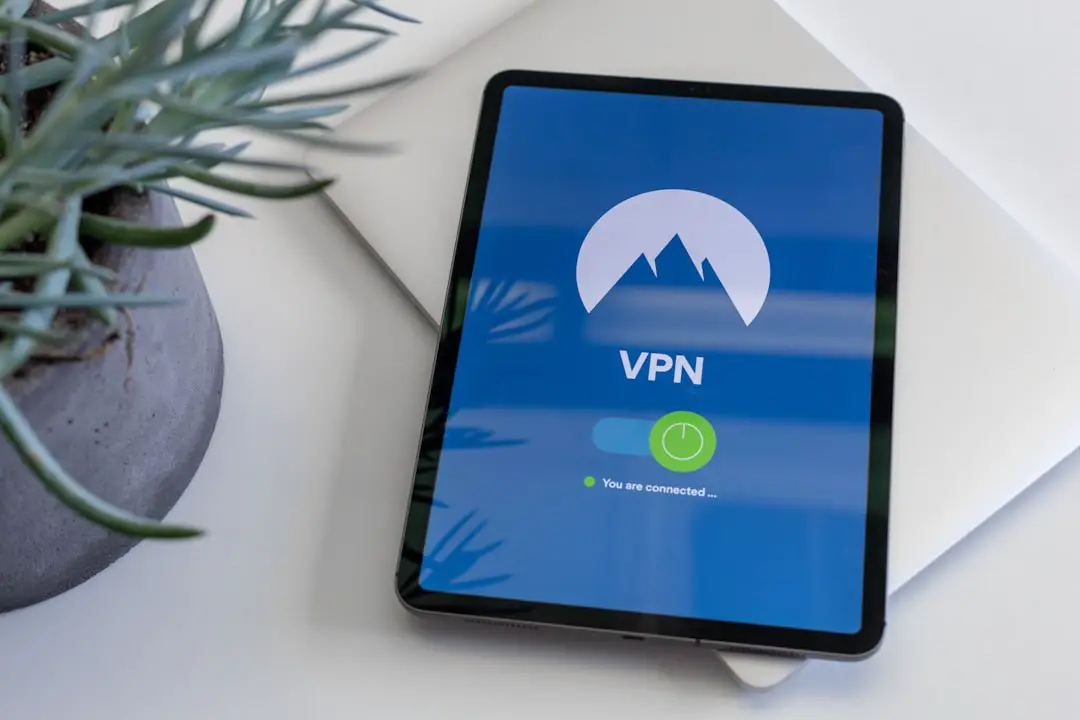
6. Use a VPN to Bypass Location Restrictions
Some content is geo-restricted and can only be viewed or downloaded in specific countries. If you attempt to download such videos from a restricted location, the download will fail.
Use a reputable VPN service to change your virtual location:
- Choose a VPN server in a supported country (e.g., U.S., Canada, Germany)
- Connect and refresh your IP address
- Try downloading the video again
VPNs can also help bypass ISP throttling and firewalls that may be causing the error.
7. Try Using Smart Mode in 4K Video Downloader
Smart Mode allows you to set your preferred download format, folder, and subtitles settings. When activated, it automatically applies these choices to all downloads, lowering the chances of configuration-related errors.
To enable Smart Mode:
- Click the magic wand icon in the top-right corner
- Configure your preferred settings (format, quality, location)
- Click Enable
This feature also speeds up the download process and reduces the incidence of repetitive errors caused by file format incompatibility.
8. Try Downloading a Different Video
If none of the above solutions work, the problem may be with the specific video you’re trying to download. Issues such as copyright restrictions or platform-level changes can prevent downloaders from accessing particular videos.
Try downloading a different video from the same platform to confirm whether the issue is isolated or widespread. If other videos download successfully, the original content may be protected or unsupported.
9. Reinstall 4K Video Downloader
Sometimes, the best fix is to start fresh. Uninstallation and reinstallation can remove corrupted files or registry entries that aren’t resolved through other means.
Follow these steps:
- Uninstall 4K Video Downloader from your computer
- Download the latest version from the official website
- Install the application and try again
Be sure to remove all temporary and residual data during uninstallation to ensure a clean installation.
Final Thoughts
While the “4K Video Downloader Failed to Download” error can be troubling, it is rarely permanent. Most issues are due to software bugs, internet problems, or URL restrictions—all of which are fixable with the right approach.
Use this guide as a checklist. Start with basic steps like checking internet connectivity and updating the software, then move on to more advanced fixes like clearing the cache or using a VPN. One of these solutions will likely get you back to downloading high-quality videos in no time.
If none of the listed solutions work, consider reaching out to 4K Download support for professional assistance. They can provide application logs and deeper insights based on your specific setup.