
Have you ever dropped the little yellow Pegman onto a street in Google Maps, only to find that the view looks blurry, pixelated, or just not as sharp as you expected? You are not alone. While Google Street View is an incredibly powerful tool for exploring neighborhoods, checking travel destinations, or even scouting real estate, its image quality is not always perfect. Understanding why Street View sometimes looks fuzzy can help you manage expectations—and even improve the clarity on your own device.
TLDR: Google Street View can look blurry due to camera limitations, image compression, zoom levels, internet speed, and device display settings. Zooming too far, using a slow connection, or viewing older imagery often reduces sharpness. While you cannot control Google’s original image resolution, you can improve clarity by adjusting zoom, checking your connection, updating your browser, and using higher resolution screens. In many cases, what seems like poor quality is simply a technical limitation rather than a problem with your device.
Why Google Street View Sometimes Looks Blurry
At first glance, Street View imagery might seem like a simple photograph. In reality, it is a complex system of stitched panoramic images, compression algorithms, and online streaming technology. Several factors contribute to how sharp—or unsharp—the final image appears on your screen.
1. Camera and Capture Limitations
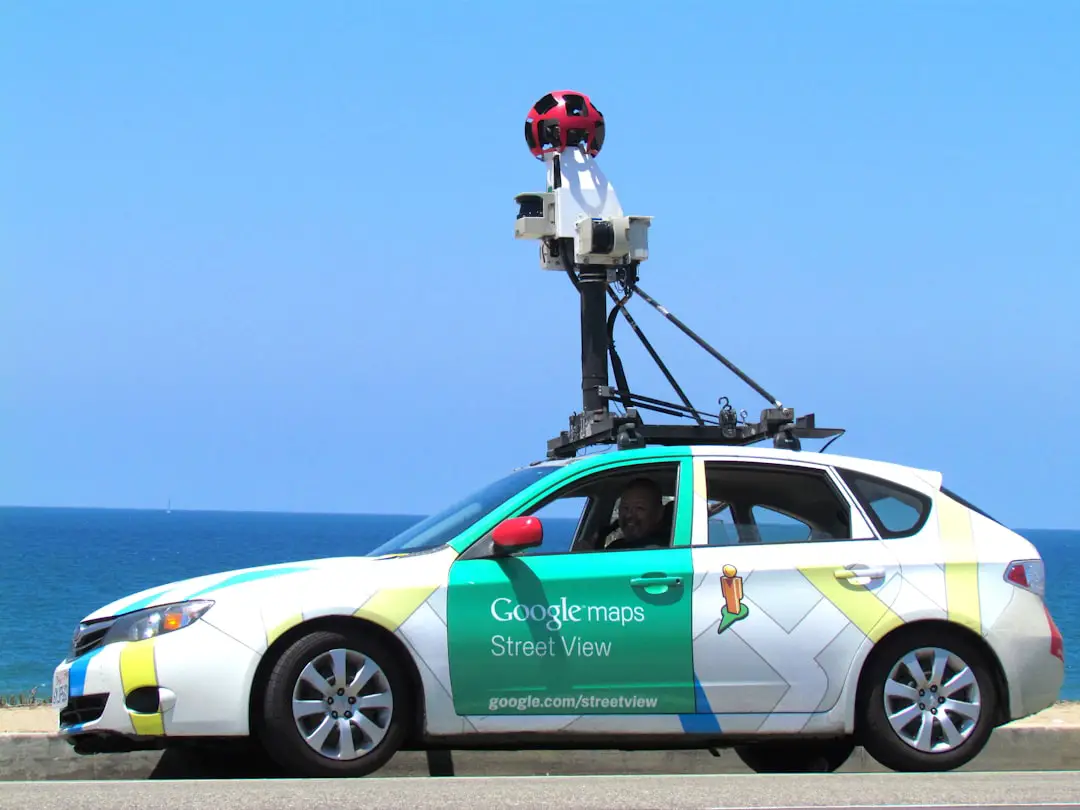
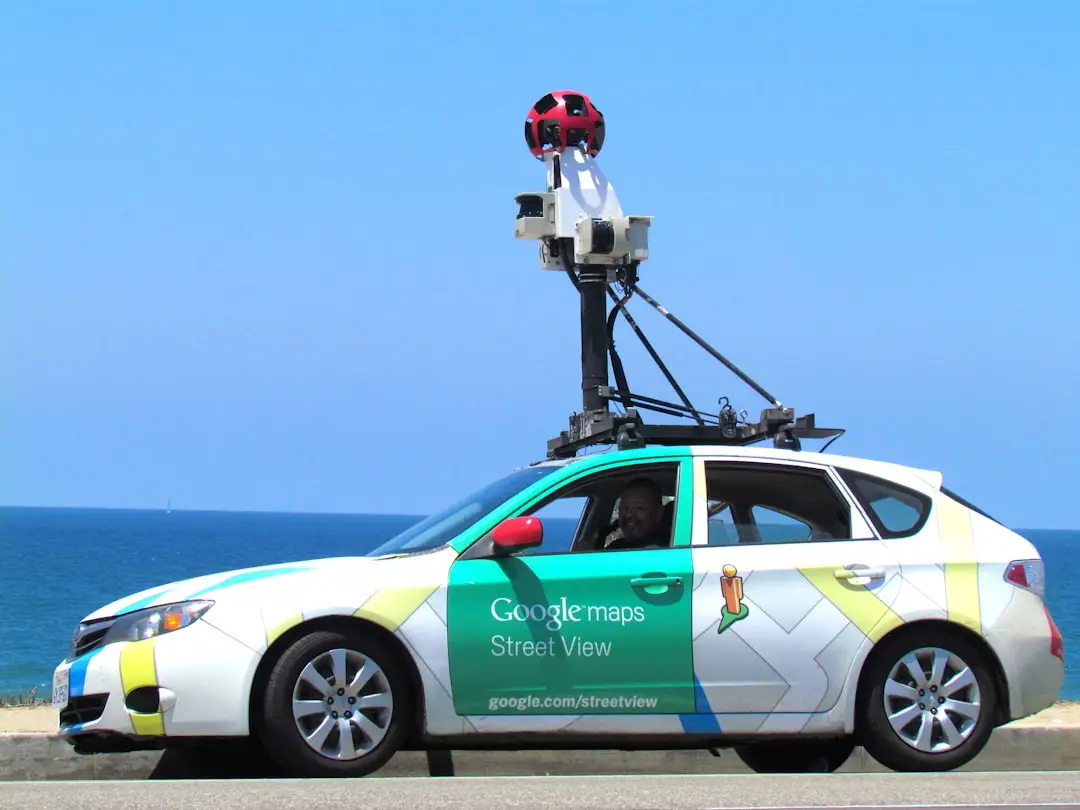
Google Street View cars are equipped with multi-lens camera systems that capture 360-degree imagery. Over the years, these cameras have improved significantly, but older imagery still exists in many locations.
- Older Street View cameras had lower overall resolution.
- Lighting conditions (cloudy days, glare, dusk) affect image clarity.
- Movement during capture can soften fine details.
- Weather conditions like rain or haze reduce sharpness.
In areas where imagery has not been updated recently, you might be seeing content captured many years ago with earlier camera technology.
2. Image Stitching and Compression
Street View images are composed of multiple photographs stitched together into a seamless spherical panorama. This stitching process can introduce subtle distortions or softness, especially around edges and seams.
Additionally, the images are heavily compressed before being delivered to your browser or mobile device. Compression reduces file size so images load quickly, but it also reduces fine detail. The stronger the compression, the more noticeable the loss of clarity—particularly when zooming in.
3. Zooming Beyond Native Resolution
One of the most common reasons Street View looks blurry is simple: you are zooming in too far.
Every digital image has a fixed resolution. When you zoom beyond that native resolution:
- Pixels become enlarged.
- Details appear smeared or blocky.
- Edges lose crispness.
Street View is optimized for navigation and environmental context—not forensic-level detail. If you try to zoom into a house window or read distant signage, the system stretches limited pixel data across a larger display area, creating blur.

4. Internet Speed and Streaming Quality
Street View does not instantly load the highest-resolution image available. Instead, it often loads a lower-resolution preview first and then refines the image as more data streams in.
If your internet connection is:
- Slow
- Unstable
- Heavily shared with other devices
…you may be stuck viewing a lower-detail version of the panorama. In some cases, the image never fully sharpens because the connection cannot sustain the higher data rate required.
5. Display and Device Limitations
Your screen also plays a significant role in clarity. Viewing Street View on:
- An older low-resolution laptop screen
- A budget smartphone
- A monitor with incorrect scaling settings
can make images look fuzzier than they actually are. Conversely, high-resolution monitors (such as 4K displays) can make imagery appear sharper—but they may also reveal compression artifacts more clearly.
Why Some Locations Look Better Than Others
Have you noticed that Street View in major cities often looks sharper than in rural areas? That is not a coincidence.
Urban locations are updated more frequently and often captured using newer camera systems. Tourist-heavy or commercially important zones typically receive priority for image updates. Remote areas, on the other hand, may rely on older data.
There is also the matter of mapping priority. Highly trafficked areas justify higher capture frequency and improved data quality.
Common Zoom Issues Explained
Zooming inside Street View behaves differently from zooming into a typical photograph on your computer.
Street View uses a dynamic tiling system. Instead of loading one giant image, it loads smaller image tiles at varying resolutions depending on your zoom level. When you zoom:
- The system swaps in higher-resolution tiles if available.
- If no higher-resolution tile exists, it enlarges existing ones.
- This enlargement reduces sharpness.
In short, you cannot zoom beyond what was originally captured. Unlike in movies, there is no hidden ultra-high-definition detail waiting to be revealed.
How to Improve Google Street View Clarity
While you cannot upgrade Google’s cameras yourself, you can optimize your viewing experience.
1. Check Your Internet Connection
- Use a stable Wi-Fi connection instead of mobile data.
- Avoid heavy downloads while browsing.
- Wait a few seconds for the image to fully load.
If you notice progressive sharpening after standing still for a moment, that is streaming at work.
2. Avoid Over-Zooming
Try navigating closer to the object rather than zooming excessively. Clicking forward along the street often yields better visual results than digital zoom alone.
3. Update Your Browser or App
Outdated browsers may not render modern web image formats efficiently. Make sure:
- Your browser is updated to the latest version.
- The Google Maps app is current.
- Hardware acceleration is enabled.
4. Adjust Screen Resolution Settings
Ensure your monitor is set to its native resolution. Incorrect scaling—such as running a display below its recommended setting—can soften all content, including Street View imagery.
5. Try a Different Device
If possible, compare the same location across devices. Viewing on a newer tablet, high-resolution laptop, or external monitor can noticeably improve perceived clarity.
6. Look for Updated Imagery
In Google Maps, you can sometimes see multiple capture dates for a location. Selecting a newer image set may offer better sharpness due to improved camera systems.
Is Street View Supposed to Be This Way?
It helps to remember that Google Street View was designed primarily for:
- Navigation
- Orientation
- Geographic context
- Virtual exploration
It was not intended for surveillance, license plate reading, or identifying small personal details from long distances. In fact, Google deliberately blurs faces and license plates for privacy reasons, which can enhance the perception of overall softness in the image.
The platform balances three critical factors:
- Image quality
- Privacy protection
- Fast global accessibility
Improving one often compromises another.
The Future of Street View Image Quality
Google continues to upgrade its camera hardware, incorporating:
- Higher-resolution sensors
- Improved dynamic range
- Better low-light performance
- AI-powered image stitching
Artificial intelligence is also enhancing image processing, reducing stitching artifacts and optimizing clarity even under challenging conditions. Over time, more areas will benefit from these advances—but given the sheer scale of global coverage, complete uniform sharpness is unlikely anytime soon.
When Blurriness Is Not a Technical Problem
Sometimes what appears to be blur is simply environmental reality. Heat shimmer, atmospheric haze, fog, or dirty camera lenses at the time of capture can soften the scene naturally. Even the time of day—like harsh midday sunlight—can flatten contrast and reduce perceived sharpness.
In these cases, Street View is not malfunctioning. It is accurately capturing the moment as it was.
Final Thoughts
If Google Street View looks blurry or not sharp, the cause is usually a combination of resolution limits, compression, zoom behavior, streaming quality, and device settings. The system is designed for speed and global access, not microscopic detail.
By understanding how Street View images are captured, processed, and delivered, you can adjust your expectations—and your settings—for the best possible clarity. In many cases, patience, better navigation instead of zooming, and a stable internet connection make a surprisingly large difference.
Street View remains an impressive technological achievement: a navigable visual record of much of the world. Even if it is not always razor sharp, it continues to bring streets, cities, and landscapes to your screen in a way that would have seemed almost magical just a decade ago.