
If you’ve recently fired up Halo: The Master Chief Collection and encountered a frustrating message saying “Contacting Server Error”, you’re not alone. It’s a common issue that players encounter from time to time, and while it can be concerning, the good news is that it’s usually fixable with a few straightforward steps. Whether you’re diving back into the legendary campaign or gearing up for multiplayer matches, this guide will help you get back in the fight quickly.
What Is the “Contacting Server Error”?
This error usually appears when the game client is unable to establish a stable connection with the Halo MCC servers. It often occurs during game launches, attempts to reach multiplayer lobbies, or even while accessing player stats. Factors contributing to this issue can range from network interruptions to outdated game files or incorrect settings.

Common Causes
Before jumping into the solutions, let’s break down some of the most frequent culprits behind the “Contacting Server” error:
- Network inconsistencies: Unstable or disrupted internet connectivity can prevent access to game servers.
- Server maintenance/outages: Sometimes, the issue is on the server side, and there’s nothing wrong on your end.
- Corrupted game files: File integrity issues can sometimes block the game from communicating properly with servers.
- Incorrect time/date settings: A mismatch in system time could cause connection problems in some cases.
How to Fix the “Contacting Server Error”
Try the following solutions to troubleshoot and potentially fix the error.
1. Check Halo MCC Server Status
Before anything else, check if there are any known issues with the Halo servers. Visit the official Halo Support or use community-based platforms like Reddit or DownDetector to see if others are experiencing the same issue.
2. Restart Your Game and Console/PC
Sometimes the simplest solution works. Exit the game completely and restart your PC or console. This can reset your connection and clear any temporary glitches.
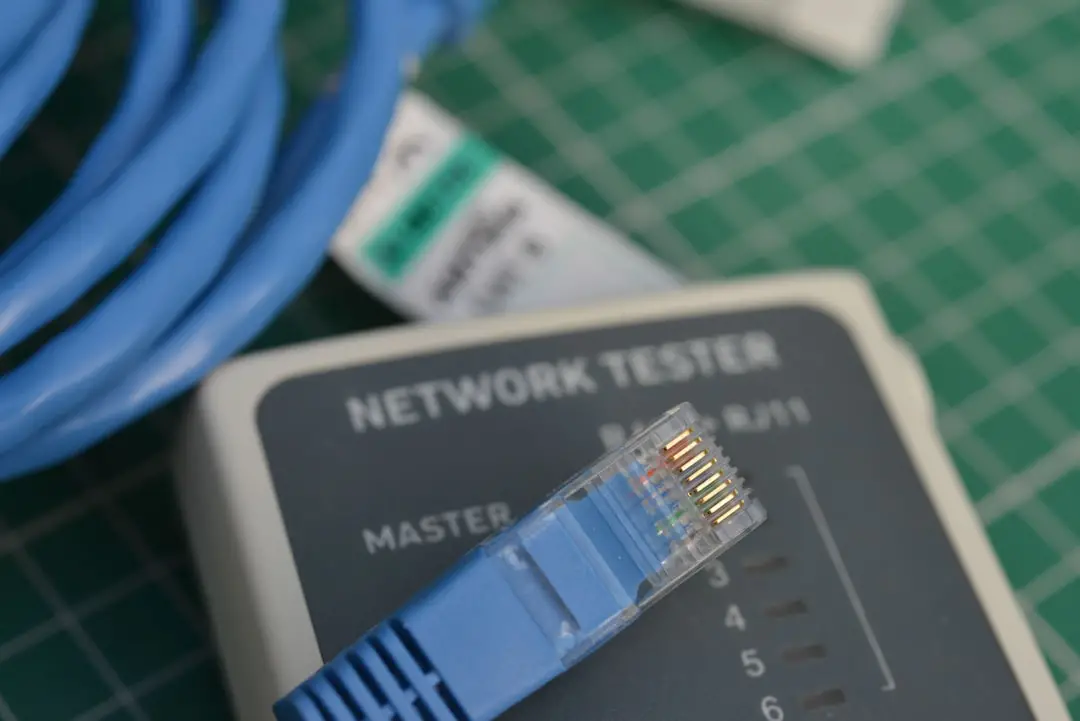
3. Test and Restart Your Internet Connection
Ensure your network is functioning optimally. You can try:
- Restarting your router and modem
- Using a wired connection instead of Wi-Fi
- Running a speed test to diagnose connection strength
4. Check for Game Updates
An outdated version of Halo MCC may no longer be compatible with the current server settings. Be sure to:
- Check for any available game patches or updates
- Install the latest version of Halo MCC
5. Verify or Reinstall Game Files
If you’re playing on PC via Steam or Xbox app, corrupted or missing files can be a culprit. Here’s how to verify your files:
- On Steam: Right-click the game in your library > Properties > Local Files > Verify Integrity of Game Files.
- On Xbox App: Use the “Repair” or “Reset” option in App Settings > Halo MCC.
6. Sync Your Date and Time
Ensure your computer or console is using accurate date and time settings. Time discrepancies can lead to authentication failures with Halo’s servers. Enable “Set time automatically” in your system settings.
7. Use a VPN (With Caution)
If your ISP has issues routing traffic to Halo servers, a VPN may help. However, use it with caution since it can also introduce latency or even violate some game policies. Make sure to choose a reputable provider and test your connection thoroughly before jumping into multiplayer.
When All Else Fails
If you’ve tried everything and are still facing the issue, consider reaching out to Halo Support directly. They’ll be able to analyze your logs and potentially resolve deeper network or account-related issues. It’s also worth visiting community forums for updated workarounds and advice from fellow Spartans.
Final Thoughts
The “Contacting Server” error can definitely put a damper on your Halo MCC experience, but with a bit of troubleshooting, it’s often easy to fix. From checking your internet connection to updating the game, small steps can lead to quick success. With these fixes in place, you’ll be back to enjoying the campaigns and dominating in multiplayer in no time.