
So you plugged in your drone. You opened Betaflight Configurator. You selected the right COM port. You hit connect. And boom… “Serial Port Successfully Opened.”
Great, right?
Except… nothing shows up.
No setup tab. No 3D model moving. No data. Just a blank or frozen screen. Annoying!
Don’t worry. This is a super common issue. And yes, you can fix it.
TL;DR: If Betaflight says the serial port is open but shows nothing, it is usually a driver problem, a bad USB cable, wrong firmware, or the board being in the wrong mode. Try a different USB cable first. Then check drivers and confirm the firmware matches your flight controller. Most cases are solved in under 15 minutes.
Why This Happens
“Serial Port Successfully Opened” only means one thing.
Your computer can see the flight controller.
That’s it.
It does not mean:
- The firmware is correct
- The drivers are working properly
- The board booted normally
- Betaflight can actually talk to the firmware
So when nothing shows, something is blocking communication.
Let’s fix it step by step.
1. Try a Different USB Cable (Seriously)
This sounds too simple. But it works.
Many USB cables are charge-only. They provide power but no data.
Your board lights up. Betaflight sees a port. But no real communication happens.
Try this:
- Use another USB cable
- Use a short cable
- Avoid super thin or old cables
- Plug directly into your computer (not a hub)
If it suddenly works… well, now you know.
This single fix solves a surprising number of cases.
2. Check If Your Board Is Stuck in Bootloader Mode
If your board is in bootloader mode, Betaflight won’t show the normal interface.
It connects… but shows nothing useful.
Look at your flight controller.
- Is there a solid boot LED?
- Did you press the boot button while plugging it in?
- Does it say “DFU” instead of COM port?
If it’s in bootloader mode:
- Unplug USB
- Do NOT press the boot button
- Plug it back in normally
Now try connecting again.
If you were trying to flash firmware, that’s different. But for configuration, you want normal mode.
3. Driver Problems (Very Common on Windows)
If you use Windows, drivers can be tricky.
Your PC needs the correct driver to talk properly to the flight controller.
Sometimes Windows installs the wrong one automatically.
How to Check
Open Device Manager.
Look under:
- Ports (COM & LPT)
- Universal Serial Bus devices
If you see:
- STM32 device
- CP210x
- USB Serial Device
That’s good. But it might still be the wrong driver version.
Quick Fix: Use ImpulseRC Driver Fixer
This tool automatically installs correct drivers.
Steps:
- Close Betaflight
- Unplug your quad
- Run the driver fixer tool
- Plug your quad when asked
- Let it finish
Open Betaflight again and try connecting.
If drivers were the issue, it should now work.
4. Wrong Firmware Target
This one confuses a lot of people.
You flashed firmware. It seemed fine. But now Betaflight connects and shows nothing.
Why?
Because you flashed the wrong firmware target for your board.
For example:
- You own an F405 V3 board
- You accidentally flashed F405 V2 firmware
It connects. But the configurator can’t interpret it correctly.
Image not found in postmetaFix It
- Go to Firmware Flasher tab
- Search your exact flight controller model
- Confirm on manufacturer website
- Flash correct firmware target
- Check “Full chip erase”
Reconnect after flashing.
This often brings everything back to normal.
5. Mismatched Configurator Version
Old configurator. New firmware.
Or new configurator. Very old firmware.
They might not talk nicely to each other.
If Betaflight loads but shows blank elements or errors:
- Update Betaflight Configurator
- Or downgrade firmware to a stable version
Best combo?
Latest stable firmware + latest configurator.
Simple.
6. Browser or Configurator Glitch
Sometimes the issue is not your drone.
It’s the app.
Quick things to try:
- Close Betaflight completely
- Reopen it
- Restart your computer
- Reinstall Betaflight Configurator
If you’re using the web version (if supported), switch to the standalone desktop version.
Glitches happen. A clean restart fixes many of them.
7. Power-Only USB Ports
Yes, this exists.
Some front panel PC ports or cheap hubs only give partial data communication.
Try:
- Rear motherboard USB ports
- A different laptop
- A powered USB hub
If it suddenly works on another computer, your original USB port may be the problem.
8. Damaged USB Port on the Flight Controller
This one hurts.
If you’ve crashed hard, the USB port might be loose or partially broken.
Symptoms:
- Connects only when cable is held at an angle
- Random disconnects
- Board powers but no data
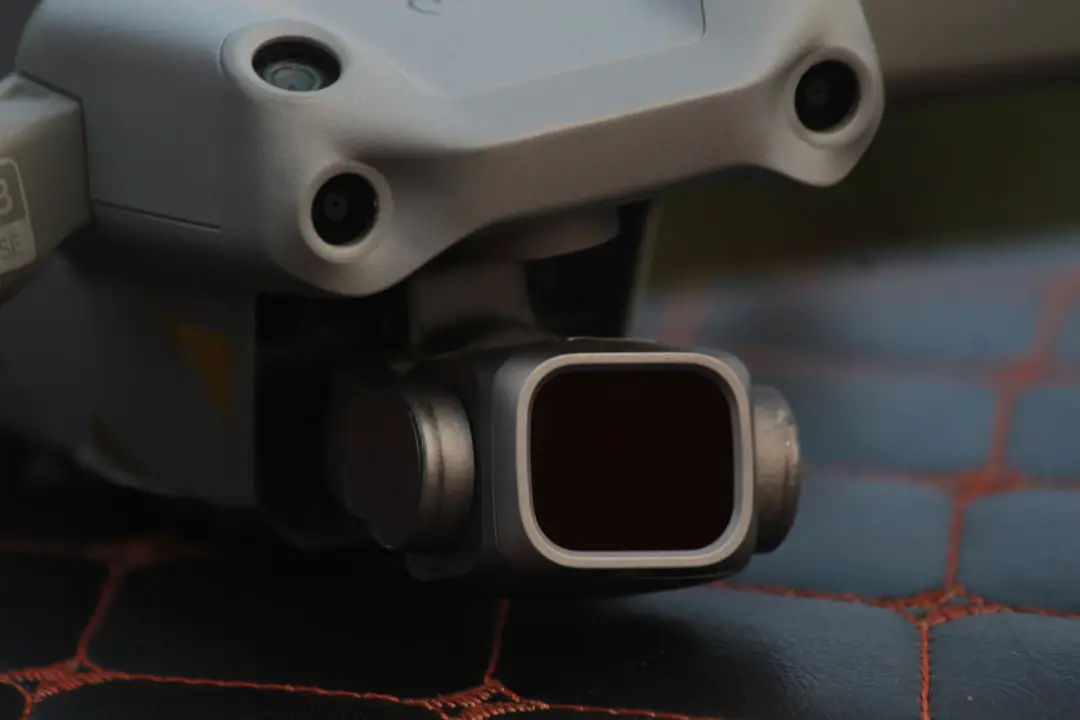
Look carefully with good lighting.
If the port wiggles, that’s not good.
Fix options:
- Re-solder USB port (advanced)
- Use UART connection instead
- Replace flight controller
Hopefully it’s not this. But it happens.
9. Data Corruption or Bad Flash
Sometimes firmware flashing fails silently.
The board behaves strangely.
Best solution?
Reflash with full chip erase.
Steps:
- Go to Firmware Flasher
- Select correct target
- Enable Full Chip Erase
- Flash firmware
- Reconnect
This wipes everything clean.
Like factory reset for your drone brain.
10. CLI Check Trick
If the main interface won’t load, try this:
- Connect to board
- Go to CLI tab
- Type version
- Press Enter
If it responds, communication works.
That means the issue is likely visual or firmware compatibility.
If nothing responds at all? It’s driver or cable related.
Quick Diagnostic Checklist
If you’re in a hurry, go down this list:
- Switch USB cable
- Use different USB port
- Restart PC
- Update Betaflight Configurator
- Check drivers
- Reflash firmware with correct target + full chip erase
- Inspect USB port physically
In most cases, the issue is solved by step 1 or 5.
When Everything Finally Works
You plug it in.
You hit connect.
The 3D model appears.
You tilt the quad. The model moves.
Ahhh. Satisfaction.
Now before you unplug:
- Save a backup dump in CLI
- Check firmware version
- Write down your board target
This saves you headaches later.
Final Thoughts
Seeing “Serial Port Successfully Opened” but no data feels scary.
It makes you think your board is dead.
Usually, it’s not.
Most of the time the fix is simple:
A better cable. Correct driver. Proper firmware.
That’s it.
Take it step by step. Stay calm. Don’t start unsoldering things immediately.
Drones are picky. But they’re also logical.
And now you know exactly what to check.
Go fix it. Then go fly.
🚁